
Test steps that say "enter the API key" but never specify which key. Passwords hardcoded in step descriptions that every team member can see. Auth tokens copy-pasted into test cases that get exported, shared, and forgotten about.
If your team has been there, this update is for you.
Project Secrets: Stop Hardcoding Sensitive Data in Test Cases
Every test suite eventually needs sensitive data. API keys for third-party services, database credentials for integration tests, auth tokens for staging environments. Until now, teams had two options: hardcode the values in test steps (insecure) or maintain a separate document that testers reference manually (fragile).
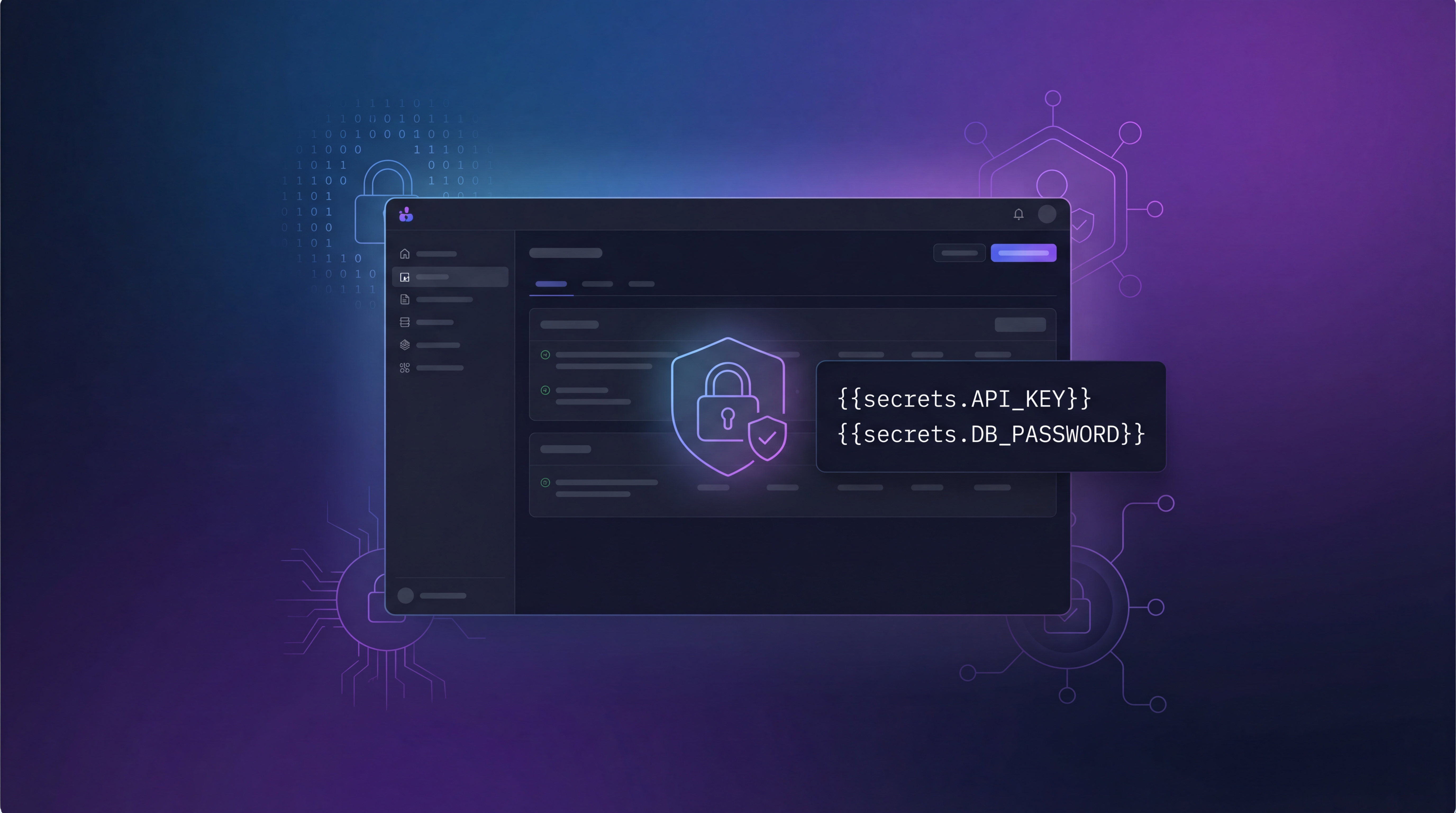
Project Secrets solves this. You can now store sensitive values at the project level with AES-256 encryption and reference them anywhere in your test steps using a simple syntax:
{{secrets.STAGING_API_KEY}}Here is how it works:
Encrypted at rest: Secret values are encrypted the moment they are saved. They are not stored in plain text anywhere in the database.
Role-based access: Project Secrets comes with granular RBAC controls. You can configure which roles can create secrets, which can reveal the actual values, and which can only reference them in test steps. A tester might be able to use {{secrets.DB_PASSWORD}} in a step without ever seeing the actual password.
Use in any test step: Drop the {{secrets.NAME}} placeholder into step descriptions or expected results. When a tester executes the test, the context is clear without exposing the actual value in the test case itself.
Manage from project settings: A dedicated Secrets page under project settings lets you add, edit, reveal (if permitted), and delete secrets. No digging through environment files or shared documents.
This is particularly useful for teams that export test cases, share them across projects, or have mixed-permission teams where not everyone should see production credentials.
QA Copilot: Redesigned Proposals Page
The QA Copilot proposals experience has been significantly reworked. If you use AI-generated test case suggestions, the workflow is now smoother from suggestion to execution.
Cleaner layout: The proposals page has been redesigned with better badge styling, improved tab sizing, and tighter spacing. Less visual noise, more focus on the test cases themselves.
Setup modal: Configuring QA Copilot now happens through a guided setup modal accessible directly from the proposals page. No more hunting through project settings to enable or configure the copilot.
Automation status tracking: Accepted test cases now display their automation status with color-coded pills: Not Automated, In Progress, or Automated. You can see at a glance which accepted suggestions still need automation work.
One-click automate: An Automate button on accepted test cases lets you trigger automation directly from the proposals view, with status-aware labels that reflect the current state.
Pinned Report Widgets on the Dashboard
You can now pin your most-used reports directly to the project overview dashboard. Instead of navigating to the reports page every morning to check your daily metrics, pin the reports that matter and see them the moment you open the project.
Bug Fixes
This release also includes several stability improvements - fixes for defect severity defaults, stale dataset handling during test case reverts, release readiness calculations, and service worker cache reliability.
These features are live now for all TestCollab users. Head to your project settings to set up your first secret, or visit the QA Copilot proposals page to see the new design.
Questions or feedback? Reach out through the in-app chat or email us at support@testcollab.com.