
The software development lifecycle is currently undergoing a structural transformation driven by the integration of Large Language Models (LLMs) into core engineering workflows. While code generation has garnered the most immediate attention, a more profound shift is occurring in the domain of Quality Assurance (QA) and Automated Testing.
This shift is characterized by the move from static, brittle automation scripts to dynamic, autonomous agents capable of reasoning about user interfaces. At the heart of this transition lies a critical interoperability challenge: how to bridge the gap between the probabilistic reasoning of an LLM and the deterministic execution environment of a web browser.
What is MCP (Model Context Protocol)?
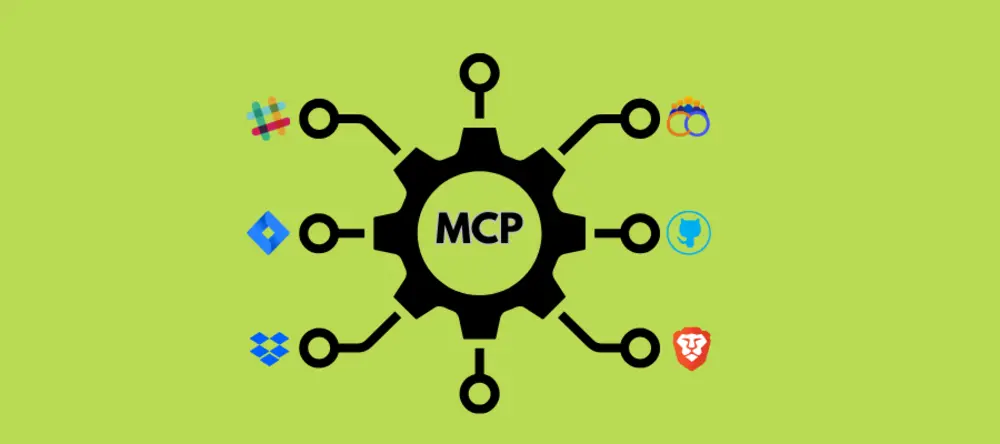
Model Context Protocol (MCP) is an open standard that lets AI models (like chat assistants or large language models) use external tools through a unified interface. In simple terms, MCP provides a “bridge” between an AI client and a tool server, allowing the AI to issue commands and get results back in a structured way.
The client could be anything that knows the protocol - for example, a chat-based assistant, an IDE plugin, or even a simple Node.js script. The server side is a tool (or service) exposing certain actions (“tools”) that the client can invoke via JSON messages. By standardizing how AI and tools communicate, MCP eliminates the need for custom one-off integrations between each AI and each tool.
Think of it like a universal adapter for AI: just as USB allows any device to plug into your computer, MCP allows any AI agent to plug into any supported tool in a consistent way.
What is Playwright MCP?
When it comes to software testing, Playwright MCP is a specific implementation of this protocol focused on browser automation. It is essentially an MCP server built on Microsoft’s Playwright testing library. The Playwright MCP server exposes Playwright’s browser controls (opening pages, clicking elements, filling forms, etc.) as MCP tools that an AI can use. Running the server (via a simple command) launches a process that can drive a real web browser through Playwright under the hood.
The AI (the MCP client) doesn’t directly control the browser; instead, it sends high-level commands to the Playwright MCP server, which then executes those actions in the browser and returns a structured result (success/failure, text output, screenshots, etc.). In summary, Playwright MCP is a lightweight bridge connecting AI agents to live browsers, enabling an AI assistant to interact with web apps much like a human user or tester would, but in a controlled, programmatic fashion.
One key aspect of Playwright MCP is how it interacts with the web page. Unlike some AI-driven approaches that rely on analyzing pixels or screenshots of the page (needing complex computer vision), Playwright MCP works with the page’s structure. It uses the browser’s Document Object Model (DOM) and accessibility tree – the semantic information about UI elements (roles, names/labels, states, hierarchy) – instead of raw images.
What's New in Playwright MCP (2026 Updates)
Playwright MCP has evolved rapidly since its initial release. Here are the most significant updates as of early 2026:
Playwright CLI - A Token-Efficient Alternative
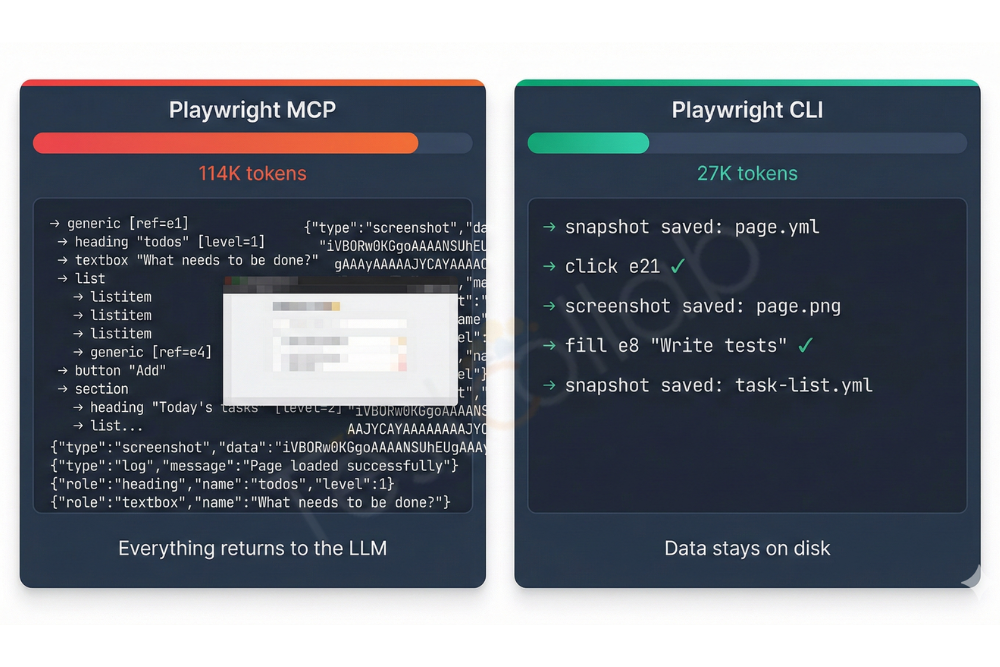
Microsoft released @playwright/cli, a companion tool that uses plain shell commands instead of the MCP protocol. The key advantage is efficiency: a typical browser automation task consumes approximately 114,000 tokens via MCP versus 27,000 tokens via CLI - a roughly 4x reduction. The CLI saves accessibility snapshots and screenshots to disk as files rather than streaming them into the LLM's context window. Use CLI when your agent has filesystem access (Claude Code, Copilot, Cursor), and MCP when it doesn't.
Overhauled Session Management (v0.0.64+)
The old session-* commands have been replaced with simpler alternatives:
list- list all active sessionsclose-all- close all browser instances gracefullykill-all- forcefully terminate all browser processes
Sessions are now binary: either running or gone (no more "stopped" state). Browser profiles are ephemeral by default (in-memory), starting clean with no leftover state. Use --persistent or --profile=<path> if you need state to survive across sessions. Each workspace also gets its own daemon process, preventing cross-project interference.
Security Hardening
Playwright MCP now ships with tighter defaults out of the box:
- File system access is restricted to the workspace root directory. Navigation to
file://URLs is blocked by default. - To opt out, use the
--allow-unrestricted-file-accessflag. - New origin controls:
--allowed-originsand--blocked-originslet you whitelist or blacklist specific domains the browser can access.
Docker Support
An official Docker image is available at mcr.microsoft.com/playwright/mcp. Configuration is straightforward:
{
  "mcpServers": {
    "playwright": {
      "command": "docker",
      "args": ["run", "-i", "--rm", "--init", "--pull=always", "mcr.microsoft.com/playwright/mcp"]
    }
  }
}
Note: the Docker image currently supports headless Chromium only - no Firefox or WebKit in containers yet.
Video Recording & DevTools (v0.0.62+)
On-demand video recording is now available via --save-video=800x600. Combined with --caps=devtools, you can capture performance traces, Core Web Vitals (LCP, CLS, INP), and full video playback of test sessions.
Chrome Extension - Playwright MCP Bridge (v0.0.67)
An official Chrome extension is now available in the Chrome Web Store. It connects MCP to pages in an existing browser session, using your default profile (cookies, logged-in state). This is useful for testing authenticated flows without re-implementing login in your automation.
GitHub Copilot Integration
Playwright MCP is now configured automatically for GitHub Copilot's Coding Agent - no setup required. The agent can read, interact with, and screenshot web pages hosted on localhost during code generation. This enables a prompt → generate → verify-in-browser → confirm workflow.
Chat + MCP: How AI Tools Leverage MCP and What Are the Benefits
Many modern QA and development tools are now integrating chat-based AI assistants with MCP to supercharge testing workflows. In practice, this means you can have an AI “co-pilot” that not only chats with you about code or tests but can also take actions like a user – opening pages, clicking buttons, or verifying outputs – all via MCP.
For example, Visual Studio Code’s AI extensions (such as GitHub Copilot Chat’s Coding Agent, or OpenAI Codex) support MCP servers as a way to extend the assistant’s capabilities. With the Playwright MCP server installed, the VS Code chat assistant can instruct a browser to perform actions on your web app and report back the results, all from a chat prompt. This unified protocol approach means the same assistant could also use other tools (file systems, databases, etc.) through MCP in a consistent way. The benefit is a seamless extension of the AI’s “reach” – instead of just writing code or making suggestions, the AI can actually act on the application under test.
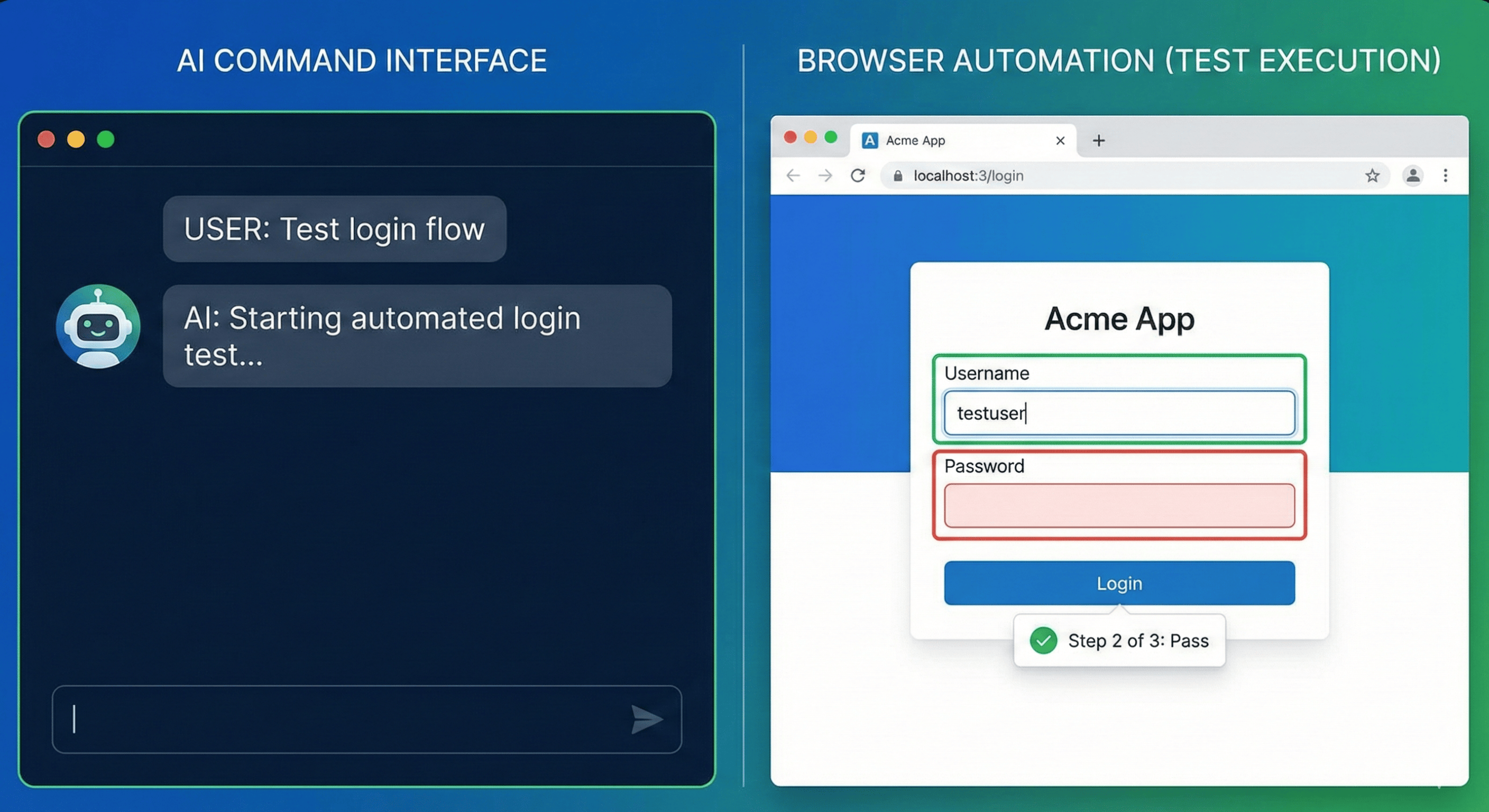
Third-party AI coding assistants such as Cursor or Goose IDE are also examples of MCP clients that can drive tools like Playwright. No matter the client, the principle is the same: the AI's natural language instructions get translated into MCP tool calls. For example, if you tell the assistant, "Open our website and log in as a test user," the AI (via MCP) might call a browser_navigate tool with the URL, then a browser_fill tool with the username and password fields, and a browser_click on the "Login" button. The structured results come back to the AI, which can then confirm things like "Logged in successfully – dashboard is visible" or continue with the next steps. This kind of tight loop between chat instruction and real action unlocks powerful new workflows for QA and product teams.
Beyond browser automation, MCP servers exist for other QA tasks too. For instance, TestCollab provides an MCP Server for test management that lets AI assistants create, query, and update test cases directly. You can even generate test cases automatically from your codebase using Claude Code and MCP – turning source code into organized test suites in minutes. Combined with Playwright MCP for execution, you get a complete AI-assisted testing workflow.
The benefits of this chat-driven approach are significant for quality teams:
- Lower barrier to entry: Anyone who can describe a test scenario in English can now automate it - no Playwright API knowledge required.
- Tight feedback loops: The AI executes an action, observes the result, and decides the next step in real time - catching issues that static scripts miss.
- Tool composability: The same chat session can use Playwright MCP for browser actions, a test management MCP server for tracking results, and a file-system tool for saving artifacts - all through one unified protocol.
- Reduced maintenance: Because the AI identifies elements by roles and labels rather than brittle CSS selectors, tests are more resilient to UI changes. Learn more about self-healing tests.
Playwright MCP is great for your dev workflow. But who's testing at release time? AI automates what it can. Your team handles the rest manually. TestCollab tracks both in one place, with screenshots, video, and full evidence.
Start free trialGetting Started: How to Set Up Playwright MCP
Setting up Playwright MCP in your workflow is a straightforward process. You don't need to overhaul your test environment – in fact, one of the advantages of MCP is that it layers on top of existing tools. Here's a rough guide to getting started with Playwright MCP:
1. Prerequisites – Install Playwright and Node.js: Ensure you have a Playwright test project ready (or you can create a fresh one). You'll need Node.js (version 18+ recommended) and npm available on your system. If you already have Playwright tests, you likely meet these requirements. If not, running:
npm init playwright@latestin a project folder will set up Playwright with all necessary components (browser drivers, etc.)
2. Launch the Playwright MCP Server: The server is distributed via npm, so you can use npx to run it without manual installation. Open a terminal and execute:
npx @playwright/mcp@latestOn first run, this will download the package and start the MCP server. By default, it may launch a browser in headless mode and await commands. If this command runs without errors, you're essentially ready to go – the server is up and listening. (If there are errors, ensure Node is on your PATH and that Playwright's browsers are installed by running npx playwright install if needed)
3. Configure an MCP Client (AI or IDE): On its own, the MCP server will just sit there. You need an AI client to connect to it and send instructions. Many AI-powered tools now allow adding custom MCP servers. For example:
- VS Code (GitHub Copilot Chat): VS Code supports MCP servers natively. You can add an MCP server through the Settings JSON or even a command. One quick method is using the command palette or terminal. VS Code offers a command-line option:
code --add-mcp '{"name":"playwright","command":"npx","args":["@playwright/mcp@latest"]}'which registers the Playwright MCP server in VS Code.
After doing this, the Copilot chat (or other AI extensions in VS Code) will know how to spin up the Playwright MCP when needed. Alternatively, you can manually edit your settings.json in VS Code to include the MCP config (naming it “playwright” and giving the command/args as above). Once configured, whenever you prompt the AI with something that requires browser actions, VS Code will automatically start the MCP server and route the AI’s requests to it.
- Cursor: Open Settings → MCP → Add new MCP Server. Enter "playwright" as the name and use the command
npx @playwright/mcp@latest. Alternatively, create a.cursor/mcp.jsonfile in your project root:
{
  "mcpServers": {
    "playwright": {
      "command": "npx",
      "args": ["@playwright/mcp@latest"]
    }
  }
}- Claude Desktop: Edit the Claude Desktop config file (on macOS:
~/Library/Application Support/Claude/claude_desktop_config.json, on Windows:%APPDATA%\Claude\claude_desktop_config.json):
{
  "mcpServers": {
    "playwright": {
      "command": "npx",
      "args": ["@playwright/mcp@latest"]
    }
  }
}
Restart Claude Desktop after saving. The Playwright tools will appear in the tool list when you start a new conversation.
- Claude Code: Run this command in your terminal:
claude mcp add playwright -- npx @playwright/mcp@latest- Windsurf: Create a
.windsurf/mcp.jsonfile in your project root with the same JSON configuration as Cursor above.
- GitHub Copilot Coding Agent: No setup needed - Playwright MCP is configured automatically for Copilot's Coding Agent. It can read, interact with, and screenshot web pages on
localhostduring code generation.
- OpenAI Codex: Add the server to your Codex
config.tomlfile:
[mcp_servers.playwright]
command = "npx"
args = ["@playwright/mcp@latest"]
The process is similar across all clients because MCP's standardization means the same command works everywhere.
To verify everything is set, you can try a basic interaction. If you're using an IDE chat, simply ask something like "Open https://example.com and tell me the page title." The AI should start the browser (you might see a brief notification of Playwright MCP launching) and after a moment, it should respond with the title of the page. Under the hood, it called the browser_navigate tool and then perhaps a browser_evaluate to get document.title. The response is then relayed back to you in chat. If this works, congratulations – you've effectively done your first AI-powered test action!
Playwright MCP drives the browser. What records the result? TestCollab has its own MCP server. Add it next to Playwright MCP, and Claude Code, Cursor, or Codex can pull a test plan, run each case in the browser, and log a pass or fail for it in TestCollab. 14-day trial, no credit card.
Start free trialPlaywright MCP: Pros and Cons
No tool is perfect. Here's an honest look at what Playwright MCP does well and where it falls short:
Pros:
| Advantage | Detail |
|---|---|
| Natural language test authoring | Describe tests in plain English - no Playwright API knowledge needed |
| Self-healing tests | Automatically adapts when selectors or labels change |
| Fast setup | One npx command to get started, no complex configuration |
| Universal IDE support | Works with VS Code, Cursor, Claude Desktop, Windsurf, and more |
| DOM + accessibility tree approach | More reliable than screenshot-based tools - targets elements by roles and labels |
| Open source | Free, backed by Microsoft, and actively maintained |
| Exploratory testing | AI can click through your app and discover issues without predefined scripts |
Cons and Limitations:
| Limitation | Detail |
|---|---|
| High token consumption | A typical task uses ~114K tokens via MCP (the CLI alternative reduces this to ~27K) |
| Non-deterministic output | AI-generated steps can vary between runs - the same prompt may produce slightly different actions |
| No persistent test scripts | Tests live in chat context, not as reusable .spec.ts files you can commit to version control |
| Limited to what the DOM exposes | Canvas elements, complex SVGs, or image-based UIs are difficult to interact with |
| No built-in test management | No reporting, versioning, or CI/CD integration out of the box - you'll need to pair it with one of the dedicated test management tools for coverage, traceability, and reporting |
| Context window pressure | Large pages with deep DOM trees can flood the LLM context, leading to truncation or errors |
| Headless Chromium only (Docker) | The Docker image doesn't yet support Firefox or WebKit |
Understanding these trade-offs helps you decide when Playwright MCP is the right choice versus a more structured automation framework or a purpose-built AI testing tool.
Troubleshooting Playwright MCP
Running into issues? Here are the most common problems and their fixes:
| Problem | Possible Cause | Solution |
|---|---|---|
| MCP server won't start | Node.js not installed or wrong version | Ensure Node.js 18+ is installed. Run node --version to check. |
| "Browser not found" error | Playwright browsers not installed | Run npx playwright install to download browser binaries. |
| Client can't connect to server | Server not running, or port conflict | Verify the server is running in your terminal. Check for error messages on startup. |
| Browser opens but tests fail immediately | Stale session or browser crash | Use close-all or kill-all to clear old sessions, then restart. |
| "Session not found" in Docker | HTTP transport issue with containers | Use stdio transport instead of streamable-http when running in Docker. |
| Tests are slow or timing out | Large page DOM overwhelming the context | Use --caps=devtools for targeted inspection, or switch to Playwright CLI for 4x token reduction. |
| AI keeps clicking the wrong element | Ambiguous or duplicate labels on the page | Be more specific in your prompt (e.g., "click the Submit button in the login form" instead of "click Submit"). |
file:// URLs won't open | Blocked by default security policy | Use --allow-unrestricted-file-access flag if you need local file access. |
| Flaky test results between runs | Non-deterministic AI behavior | Add explicit assertions and use structured prompts. Consider a deterministic tool like QA Copilot for release testing. |
| Permission errors on macOS/Linux | npm global install permissions | Use npx (recommended) instead of global install, or fix npm permissions. |
If your issue isn't listed here, check the Playwright MCP GitHub Issues for known bugs and workarounds.
Best Practices for Using Playwright MCP
To get the most out of Playwright MCP in your testing workflow, follow these guidelines:
1. Be specific in your prompts. Instead of "test the login page," say "Navigate to /login, enter 'testuser@example.com' in the email field, enter 'password123' in the password field, click the Sign In button, and verify the dashboard heading is visible." More detail = more deterministic results.
2. Use Playwright CLI for token-heavy workflows. If you're running many tests in sequence or working with large pages, switch to @playwright/cli to reduce token usage by ~4x. Reserve MCP for agents that don't have filesystem access.
3. Combine AI exploration with deterministic assertions. Use Playwright MCP for exploratory testing and discovering flows, but codify critical paths into proper Playwright test scripts (.spec.ts) for CI/CD. MCP is great for discovery; traditional scripts are better for regression.
4. Start sessions clean. Use the default ephemeral (in-memory) browser profiles to avoid state leakage between test runs. Only use --persistent when you specifically need to preserve cookies or localStorage.
5. Scope your origin access. In production or shared environments, use --allowed-origins and --blocked-origins to restrict which sites the browser can access. Don't leave it open to all origins.
6. Leverage the Chrome extension for authenticated flows. Instead of scripting complex login sequences, use the Playwright MCP Bridge extension to connect to an already-authenticated browser session.
7. Monitor token usage. Keep an eye on your LLM costs. Deep DOM trees on complex pages can consume significant tokens per interaction. If you notice costs spiking, consider the CLI alternative or simplify your page under test.
8. Version your MCP configuration. Commit your .cursor/mcp.json, .vscode/settings.json, or equivalent config files to version control so your team shares a consistent setup.
Frequently Asked Questions
How does Playwright MCP work under the hood?
When you send a natural language instruction through an AI client, the client translates it into an MCP tool call (e.g., browser_click). The Playwright MCP server receives that call, executes the corresponding Playwright action in a real browser, and returns a structured result - an accessibility snapshot of the page, a screenshot, or a success/failure status. The AI reads the result and decides the next action. This loop repeats until the task is complete.
How is Playwright MCP different from regular Playwright?
Regular Playwright is a Node.js library for writing browser automation scripts in JavaScript/TypeScript. Playwright MCP wraps that library in an MCP server, so instead of writing code, you describe actions in natural language and an AI translates them into Playwright commands. Regular Playwright gives you full programmatic control; Playwright MCP gives you natural language control at the cost of some determinism.
What is the difference between Playwright MCP and Playwright CLI?
Playwright MCP uses the Model Context Protocol to stream DOM snapshots and screenshots directly into the AI's context window. Playwright CLI (@playwright/cli) uses shell commands and saves results to disk files instead. CLI is ~4x more token-efficient but requires the agent to have filesystem access. Learn more about Playwright CLI →
Which IDEs support Playwright MCP?
Playwright MCP works with any MCP-compatible client, including VS Code (via GitHub Copilot), Cursor, Claude Desktop, Claude Code, Windsurf, GitHub Copilot Coding Agent, and OpenAI Codex. See the setup instructions above for each.
Can Playwright MCP replace manual testing?
Partially. Playwright MCP is excellent for exploratory testing and quick smoke tests described in natural language. However, for release-critical regression testing, you'll want deterministic, repeatable test scripts or a purpose-built AI testing tool like QA Copilot that learns your specific application and produces consistent results across runs.
Is Playwright MCP free?
Yes. Playwright MCP is open source and free to use under the Apache 2.0 license. However, you'll need access to an LLM (which may have its own costs) to drive the MCP server via an AI client.
Can I use Playwright MCP in CI/CD pipelines?
You can run the MCP server in headless mode in CI/CD using Docker (mcr.microsoft.com/playwright/mcp), but keep in mind that you'll also need an LLM agent orchestrating the tests. For CI/CD, many teams prefer traditional Playwright scripts for deterministic execution, or a platform like Test Collab that handles both AI-driven and traditional test execution in pipelines.
What are the system requirements for Playwright MCP?
Node.js 18 or later, and a system that can run Chromium (or Firefox/WebKit for non-Docker setups). The server itself is lightweight - the main resource consumption comes from the browser instances it launches.
Test Collab's QA Copilot: A Smarter, Deterministic Cousin to Playwright MCP
While Playwright MCP is an open-source enabler of AI-driven testing, there are also specialized solutions built with similar goals in mind. One notable example is Test Collab’s QA Copilot – an AI-powered testing assistant that our team has developed, designed to be even more accurate and deterministic by learning from your specific test cases and application. Think of QA Copilot as a focused, trained cousin of the general AI+MCP approach: it’s built solely for testing, and it knows your app.
How QA Copilot differs and adds value:
a) Training on Your Test Cases and App:
QA Copilot doesn’t start as a blank slate AI. It undergoes an initial training phase on your application’s screens and your existing test cases (if you have them). By doing so, it builds an internal model of your app’s workflows and elements. This means when you later ask it to run a test, it’s not generating steps purely from a generic understanding of the web – it’s recalling patterns and knowledge specific to your software. As a result, it can achieve high accuracy in executing tests. In fact, QA Copilot has demonstrated about 80% pass rate out-of-the-box on benchmark tests (and it’s continuously improving toward 95% as the AI learns more). This level of accuracy comes from that custom training. Once it’s trained on your app, you can literally run thousands of your test cases with a click, and it will execute them in minutes – a task that would be monumental if done manually.
b) Higher-Level Reasoning and Intent Recognition:
QA Copilot is built with an advanced reasoning layer that allows it to understand tester intentions in a very human-like way. Where a generic LLM+MCP might require a bit of explicit detail (you might have to specify each form field to fill), QA Copilot aims to understand the intent holistically. For example, if you tell it, “Fill out the registration form for a new user and submit,” it knows this means entering data in all the required fields of that form (and it knows what those fields are, because it has context of your app) and then clicking the submit button. You don’t have to spell out every field – it can infer them. We refer to this as intent-based automation, where the tool grasps the high-level goal and figures out the steps.
In practical terms, this saves a ton of time and makes test instructions more straightforward. (In a way, it’s like writing test cases in plain English, which QA Copilot then interprets and executes – indeed, it was designed so that users can easily provide their desired steps in plain English, and the QA Copilot will interpret and utilize them to train itself for automation of test cases.) This reasoning layer also helps reduce ambiguity: it’s less likely to click the wrong button or mis-identify an element, because it considers the context of the entire page/form.
c) Vision Capabilities for UI Understanding:
One cutting-edge aspect of QA Copilot is its incorporation of computer vision to complement DOM-based strategies. While Playwright MCP sticks strictly to the DOM (and as we noted, that covers most cases reliably), QA Copilot’s vision module enables it to handle scenarios where visual validation is needed.
For instance, if you want to assert that a layout looks correct or a color theme changed, QA Copilot can “see” the screen like a user would. Vision also helps in cases where a crucial element might be a canvas or image-based component that doesn’t expose much DOM info. QA Copilot’s upcoming vision enablement allows it to interact with and verify visual elements in the application. This gives you more control over tests that involve graphics, charts, or other non-textual verifications – traditionally very hard to automate. Essentially, it combines the best of both worlds: DOM-level precision with visual understanding when needed.
d) Determinism and Reliability:
Because QA Copilot is tailored to your application and uses its training to reduce uncertainty, its outputs are more deterministic than a generic AI agent. One common observation with generic AI + MCP is that the test steps it generates might vary slightly from run to run, or the AI might sometimes make a wrong assumption that requires tweaking the prompt. QA Copilot mitigates this by having seen your app’s flows during training – it doesn’t have to guess as much.
It also employs an auto-healing mechanism: if a locator or element identifier changes (say a developer renames a button from #submit to #submitBtn), QA Copilot can automatically adjust the script without human intervention. This greatly reduces maintenance overhead. The result is that tests created by QA Copilot are more resilient to app changes and require less babysitting.
e) Integrated QA Platform Features:
QA Copilot is part of the Test Collab platform, which means it plugs into a full ecosystem for QA management. Your tests (even those generated or executed by Copilot) are tracked in a test management system – complete with versioning, datasets, and integration to issue trackers. It’s also built to run in CI/CD pipelines easily. For example, you can set it up so that every commit or nightly build triggers QA Copilot to run the relevant test suite, and you get a report with pass/fail results, screenshots, and logs in one place.
This tight integration can be a big plus for teams that want a one-stop solution: from writing tests in plain English all the way to scheduling runs and tracking results, all in one platform. Essentially, QA Copilot can handle the “dirty work” of running the tests and collecting evidence, so the team can focus on analyzing any failures and improving the product. It’s like moving to a higher level of abstraction in testing – you specify what to test, and the platform figures out how and handles execution.
In terms of who would value QA Copilot: if you are a QA lead or product manager who finds the idea of AI-driven testing intriguing but you worry about the unpredictability of a general AI, a solution like QA Copilot offers a more controlled environment. It’s AI tuned for testing, with guardrails and learning specific to your needs, which can give more confidence in the results. Many teams use it to dramatically speed up test creation and execution – one of our users mentioned that scenarios that took hours to script can now be done in minutes, and test execution that took minutes is now seconds. And because it keeps getting smarter (learning from each test run and incorporating feedback), it only gets better over time.
Lastly, if you’re interested in trying QA Copilot, we offer a free trial so teams can see it in action with their own applications. It’s an exciting way to experience the future of testing – where you can literally tell the system what to test and watch it do so with speed and intelligence. QA Copilot shows how combining natural language, tailored AI models, and robust automation can yield a testing approach that is both easy and powerful – potentially delivering the best of both worlds for QA professionals.