
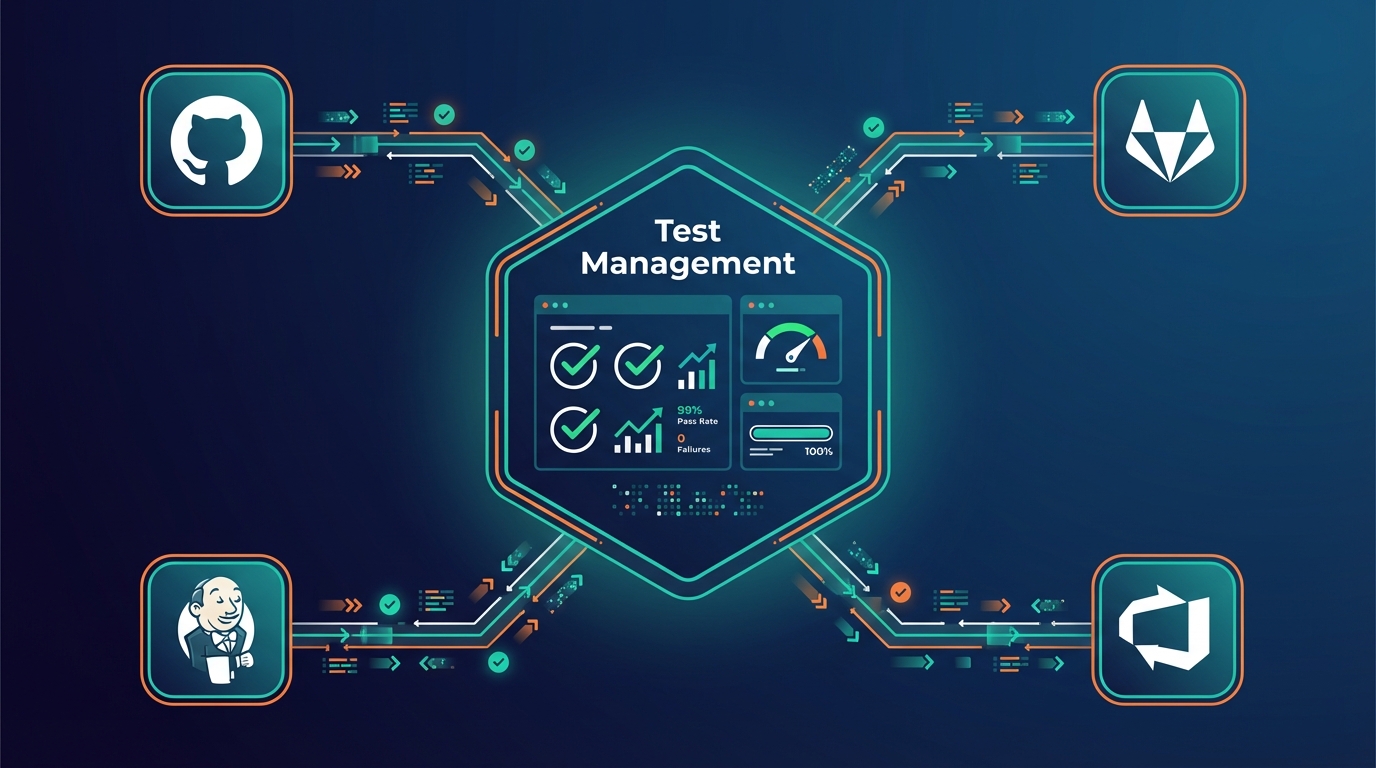
Your CI/CD pipeline runs hundreds of automated tests on every push. Cypress passes. Playwright passes. JUnit reports land in the artifacts tab. But ask your QA lead which test cases passed for the latest release, and the answer is a blank stare followed by digging through build logs.
This is the disconnect most engineering teams live with: tests run automatically, but the results still get managed manually. Test case management tools hold the plan. CI/CD holds the evidence. Nothing connects them.
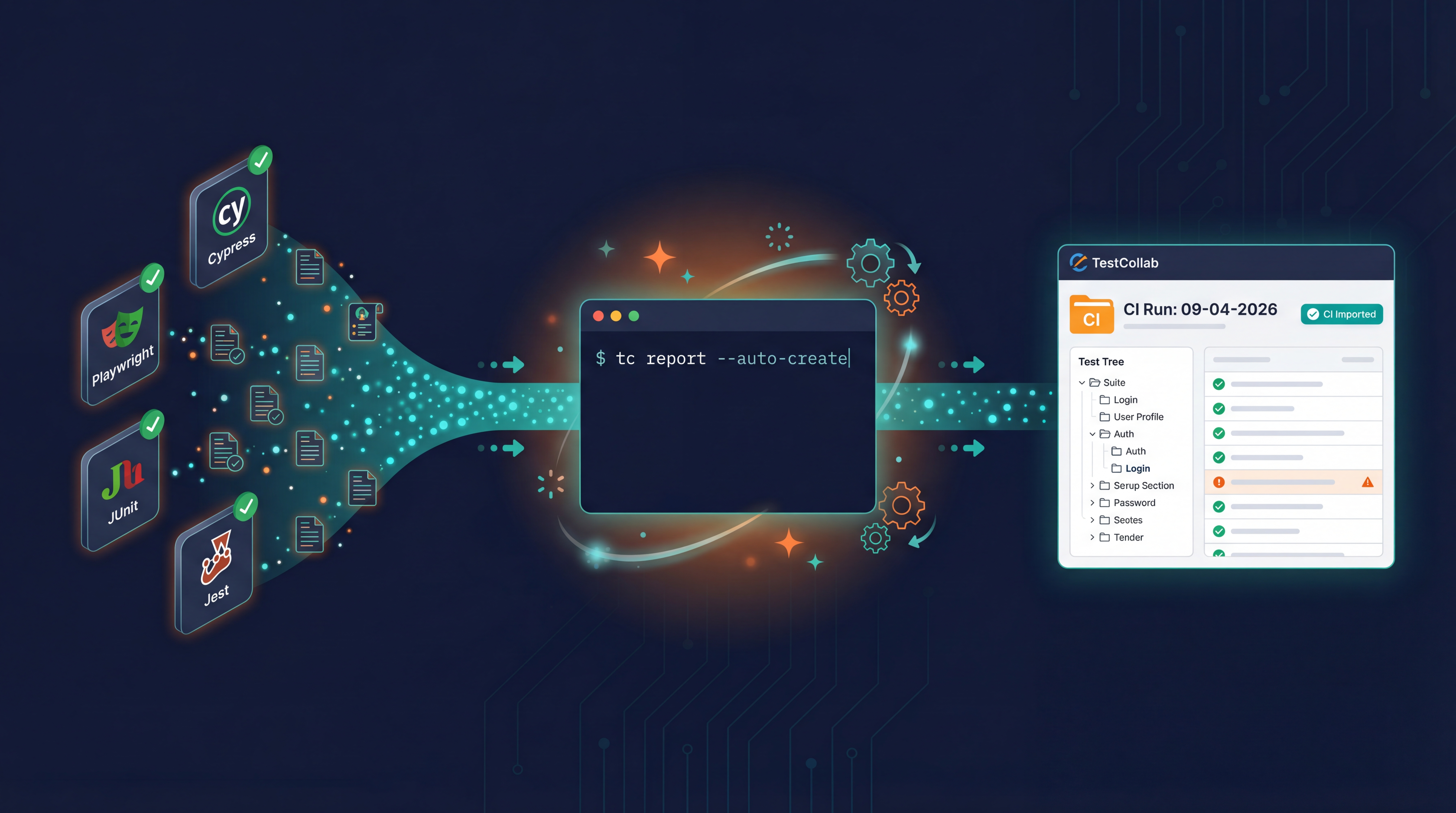
In this guide, we will walk through how to close that gap using a single CLI tool - the TestCollab CLI (tc) - that plugs into any CI/CD pipeline and automates three things: syncing test definitions from Git, creating test plans on-the-fly, and pushing test results back to your test case management tool. That gives the team one place for test automation reporting.
The problem with disconnected test automation reporting
Most teams fall into one of two traps.
Trap 1: Test results live in CI logs. The pipeline runs, tests pass or fail, and the evidence disappears after the next build. There is no historical record, no traceability to requirements, and no way for a non-technical stakeholder to check release quality without reading terminal output.
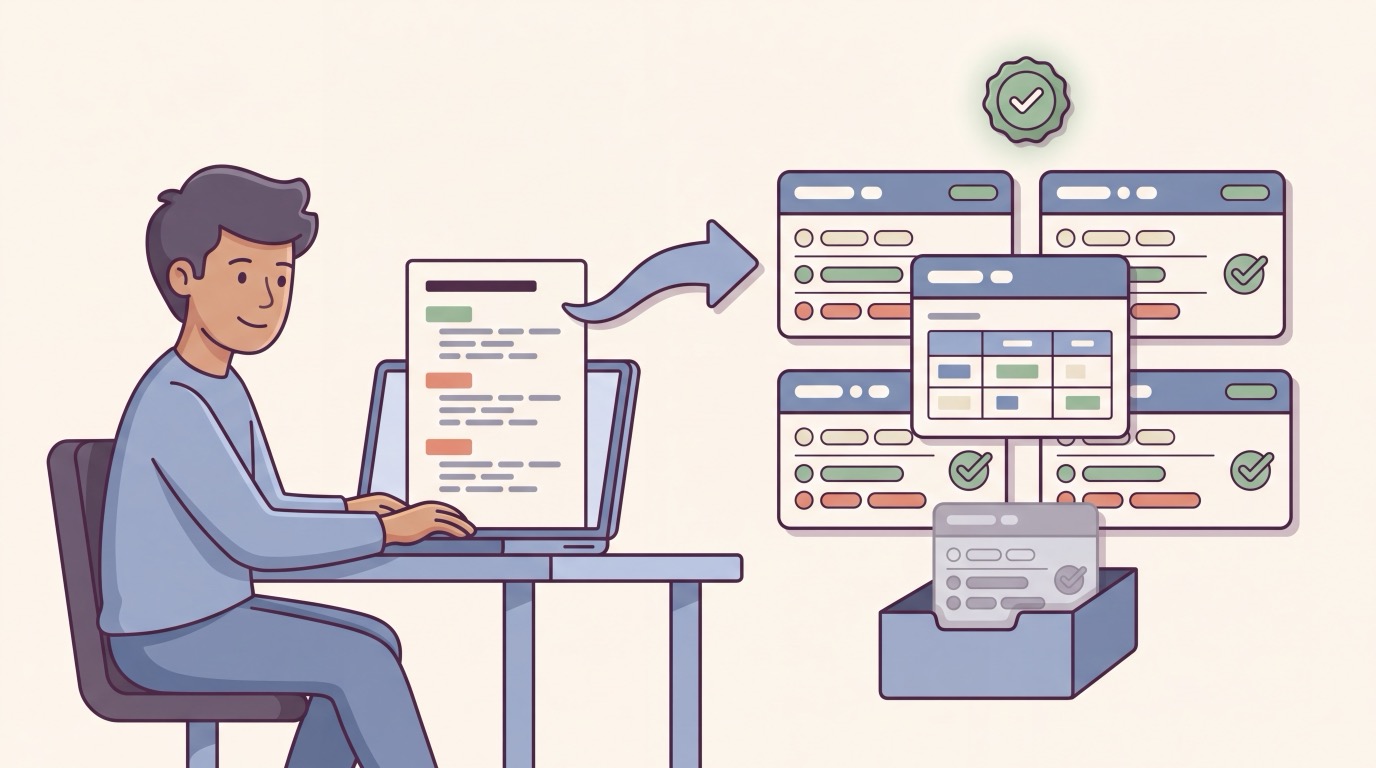
Trap 2: Manual result entry. A QA engineer runs the pipeline, opens the test management tool, and manually marks each test case as passed or failed. This works for 20 test cases. It falls apart at 200.
Both traps share the same root cause: your test reporting pipeline ends at the CI runner. It never reaches the system where test plans, assignments, and release decisions actually live.
The fix is automation at three points in the workflow:
- Sync - Keep test case definitions in Git and sync them to your test management tool automatically.
- Plan - Create test plans in CI so every pipeline run has a corresponding plan to report against.
- Report - Upload test results (JUnit XML or Mochawesome JSON) from the CI runner to the test plan.
Let's walk through each one.
Syncing BDD test cases from Git to your test management tool
If your team practices BDD testing, your Gherkin .feature files are the source of truth for test cases. But they live in Git, and your test management tool has its own copy. Keeping these in sync manually is tedious and error-prone. (Don't use BDD? Skip to the next section.)
The tc sync command solves this. It reads committed .feature files from your Git repo, detects changes since the last sync using hash-based comparison, and pushes a delta to TestCollab. Features map to test suites; scenarios map to test cases. Scenario Outlines become dataset-driven cases, Cucumber results report back without IDs in the feature files, and a removed scenario is archived rather than deleted; we cover the details in what's new in BDD test management from Git.
# Install the CLI globally
npm install -g @testcollab/cli

# Sync Gherkin feature files to TestCollab
tc sync --project 42
What happens under the hood:
- The CLI validates your Git repo and API token.
- It fetches the last synced commit from TestCollab.
- It runs
git diffto detect added, modified, renamed, and deleted.featurefiles. - It parses each file with the Cucumber Gherkin parser and computes SHA-1 hashes for each feature and scenario.
- Only the changes are sent to TestCollab - not the entire file tree.
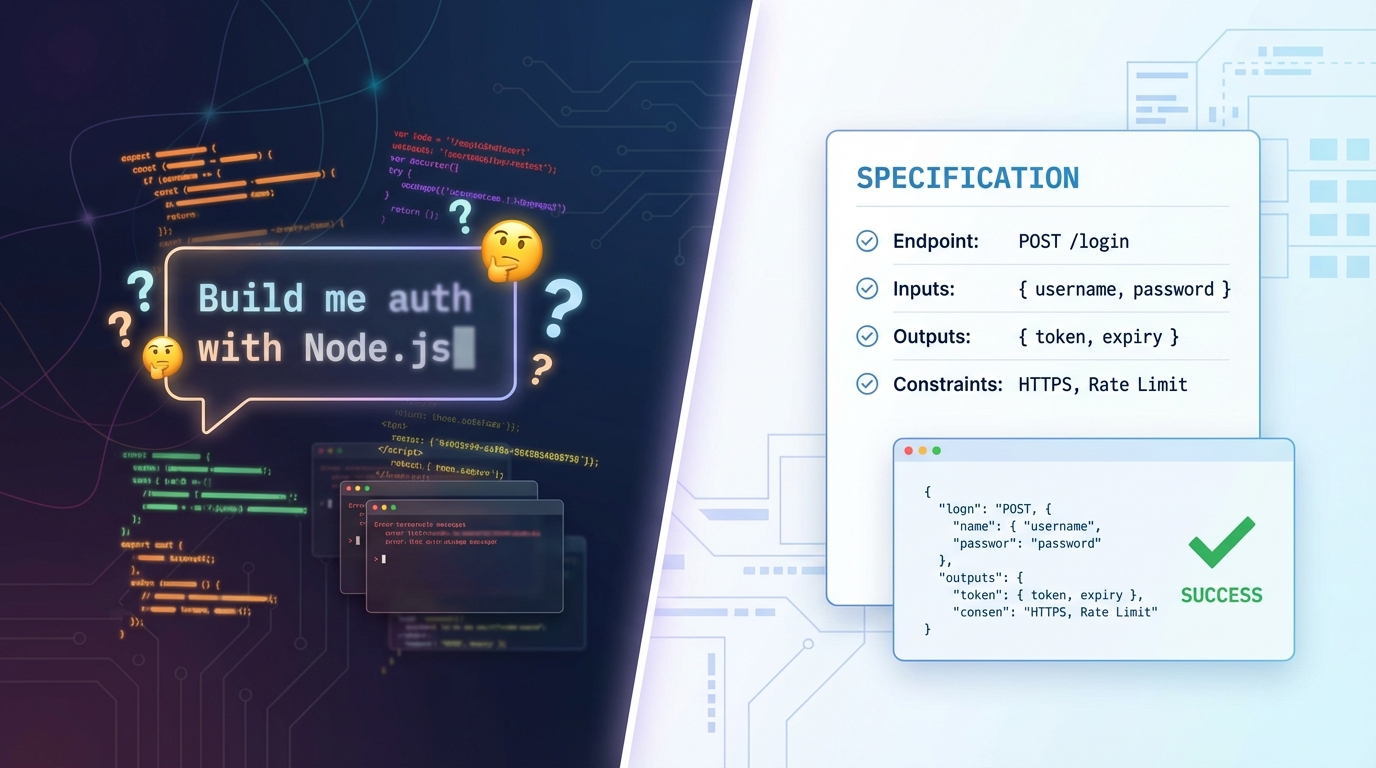
This means your repo stays the single source of truth. Developers write and review .feature files through normal pull request workflows. The CLI keeps TestCollab in sync automatically, including rename detection - if you move a file, the test suite moves with it. This Git-first approach is a natural fit for teams practicing spec-driven development, where specifications drive both implementation and testing.
You can run tc sync as a step in your CI pipeline so that every merge to main automatically updates your test case library.
Creating test plans automatically from CI
Before you can report test results, you need a test plan to report against. Most teams create these manually - someone logs into the test management tool, creates a plan, adds the relevant test cases, and assigns it.
The tc createTestPlan command automates this entire flow:
tc createTestPlan \
  --project 42 \
  --ci-tag-id 7 \
  --assignee-id 15
This does three things in one call:
- Creates a new test plan named
CI Test: DD-MM-YYYY HH:MM. - Adds all test cases tagged with the specified CI tag (so you control which cases run in CI vs. manual).
- Assigns the plan to the specified user.
The command writes the new plan ID to tmp/tc_test_plan as an environment variable. Subsequent pipeline steps can source this file to get the plan ID for result upload:
# In your CI script
tc createTestPlan --project 42 --ci-tag-id 7 --assignee-id 15
source tmp/tc_test_plan
echo "Created test plan: $TESTCOLLAB_TEST_PLAN_ID"
This pattern means every CI run gets its own isolated test plan. You get a clean historical record of what was tested, when, and by whom - without anyone touching the UI.
Uploading test results from CI to your test management tool
This is where most teams get the highest ROI. The tc report command takes test result files generated by your test framework, parses them, matches results to test cases, and uploads everything to TestCollab.
tc report \
  --project 42 \
  --test-plan-id $TESTCOLLAB_TEST_PLAN_ID \
  --format junit \
  --result-file ./test-results/results.xml
Supported formats and frameworks
The CLI supports two result formats that cover virtually every test framework:
JUnit XML - The universal standard. Almost every test framework can output JUnit XML:
- Playwright (
--reporter=junit) - Jest (via
jest-junit) - Pytest (
--junitxml=results.xml) - TestNG (built-in JUnit output)
- Robot Framework (
--outputdirwith JUnit listener) - Cucumber.js (via
cucumber-junitformatter) - Go (
go test -v 2>&1 | go-junit-report) - PHPUnit (
--log-junit) - WebdriverIO, TestCafe, Newman, Behave, Kaspresso, and more
Mochawesome JSON - For Cypress users who prefer the richer Mochawesome format:
- Cypress (via
cypress-mochawesome-reporter)
How test case matching works
The CLI matches test results to test cases in TestCollab by extracting case IDs from test names. It looks for these patterns:
| Pattern in test name | Extracted ID |
|---|---|
[TC-123] Login should work | 123 |
TC-456 Checkout flow | 456 |
id-789 Payment processing | 789 |
testcase-101 Search feature | 101 |
So when you write your automated tests, include the TestCollab case ID in the test name:
// Cypress example
it('[TC-42] should display the dashboard after login', () => {
  cy.login('user@example.com', 'password');
  cy.url().should('include', '/dashboard');
});
# Pytest example
def test_tc_42_dashboard_after_login(self):
self.login("user@example.com", "password")
assert "/dashboard" in self.driver.current_urlWhen the CLI uploads results, it maps pass/fail/skip to TestCollab statuses and attaches failure messages and stack traces as comments on the execution. Your QA team sees exactly what failed, with the full error context, without leaving the test management tool.
Optional: Configuration-based results
If you run the same tests across multiple configurations (browsers, devices, environments), the CLI can extract configuration IDs too. Add config-id-5 or config-3 to your test name, and the result will be filed against the correct configuration in the test plan.
CI/CD integration examples
Here are complete pipeline configurations for the most common CI/CD platforms.
GitHub Actions
name: Test Pipeline
on:
  push:
    branches: [main]

jobs:
  test:
    runs-on: ubuntu-latest
    env:
      TESTCOLLAB_TOKEN: ${{ secrets.TESTCOLLAB_TOKEN }}
    steps:
      - uses: actions/checkout@v4
      - uses: actions/setup-node@v4
        with:
          node-version: '22'

      - run: npm ci
      - run: npm install -g @testcollab/cli

      # Create a test plan for this run
      - name: Create test plan
        run: |
          tc createTestPlan \
            --project ${{ vars.TC_PROJECT_ID }} \
            --ci-tag-id ${{ vars.TC_CI_TAG_ID }} \
            --assignee-id ${{ vars.TC_ASSIGNEE_ID }}

      - name: Load test plan ID
        run: cat tmp/tc_test_plan >> $GITHUB_ENV

      # Run your tests
      - name: Run Playwright tests
        run: npx playwright test --reporter=junit --output=test-results/
        continue-on-error: true

      # Upload results to TestCollab
      - name: Report results
        if: always()
        run: |
          tc report \
            --project ${{ vars.TC_PROJECT_ID }} \
            --test-plan-id $TESTCOLLAB_TEST_PLAN_ID \
            --format junit \
            --result-file ./test-results/results.xml
For more details, see the GitHub test management integration page.
GitLab CI
test-and-report:
  image: node:22
  stage: test
  variables:
    TESTCOLLAB_TOKEN: $TC_TOKEN
  script:
    - npm ci
    - npm install -g @testcollab/cli

    # Create test plan
    - tc createTestPlan --project $TC_PROJECT_ID --ci-tag-id $TC_CI_TAG_ID --assignee-id $TC_ASSIGNEE_ID
    - source tmp/tc_test_plan

    # Run tests
    - npx cypress run --reporter mochawesome || true

    # Upload results
    - tc report --project $TC_PROJECT_ID --test-plan-id $TESTCOLLAB_TEST_PLAN_ID --format mochawesome --result-file ./mochawesome-report/mochawesome.json
  artifacts:
    paths:
      - mochawesome-report/
    when: always
Jenkins Pipeline
pipeline {
    agent any
    environment {
        TESTCOLLAB_TOKEN = credentials('testcollab-token')
        TC_PROJECT_ID = '42'
        TC_CI_TAG_ID = '7'
        TC_ASSIGNEE_ID = '15'
    }
    stages {
        stage('Setup') {
            steps {
                sh 'npm ci'
                sh 'npm install -g @testcollab/cli'
            }
        }
        stage('Create Test Plan') {
            steps {
                sh """
                    tc createTestPlan \
                      --project ${TC_PROJECT_ID} \
                      --ci-tag-id ${TC_CI_TAG_ID} \
                      --assignee-id ${TC_ASSIGNEE_ID}
                """
                script {
                    def planFile = readFile('tmp/tc_test_plan').trim()
                    env.TESTCOLLAB_TEST_PLAN_ID = planFile.split('=')[1]
                }
            }
        }
        stage('Test') {
            steps {
                sh 'npx playwright test --reporter=junit --output=test-results/'
            }
            post {
                always {
                    sh """
                        tc report \
                          --project ${TC_PROJECT_ID} \
                          --test-plan-id ${TESTCOLLAB_TEST_PLAN_ID} \
                          --format junit \
                          --result-file ./test-results/results.xml
                    """
                }
            }
        }
    }
}
Azure DevOps Pipeline
trigger:
  branches:
    include:
      - main

pool:
  vmImage: 'ubuntu-latest'

steps:
  - task: NodeTool@0
    inputs:
      versionSpec: '22.x'

  - script: |
      npm ci
      npm install -g @testcollab/cli
    displayName: 'Install dependencies'

  - script: |
      tc createTestPlan \
        --project $(TC_PROJECT_ID) \
        --ci-tag-id $(TC_CI_TAG_ID) \
        --assignee-id $(TC_ASSIGNEE_ID)
      source tmp/tc_test_plan
      echo "##vso[task.setvariable variable=TESTCOLLAB_TEST_PLAN_ID]$TESTCOLLAB_TEST_PLAN_ID"
    displayName: 'Create test plan'
    env:
      TESTCOLLAB_TOKEN: $(TC_TOKEN)

  - script: npx pytest --junitxml=test-results/results.xml
    displayName: 'Run tests'
    continueOnError: true

  - script: |
      tc report \
        --project $(TC_PROJECT_ID) \
        --test-plan-id $(TESTCOLLAB_TEST_PLAN_ID) \
        --format junit \
        --result-file ./test-results/results.xml
    displayName: 'Upload results'
    condition: always()
    env:
      TESTCOLLAB_TOKEN: $(TC_TOKEN)
Coming soon: generating BDD specs from source code with AI
Teams new to BDD often struggle with the blank-page problem: you have a codebase but no .feature files. Writing Gherkin scenarios from scratch for an existing application is a significant upfront investment.
The CLI will soon include a tc specgen command that uses AI to analyze your source code and generate .feature files automatically. Point it at your source directory, pick a model, and get a set of Gherkin scenarios you can review, refine, and commit. Once committed, those files become part of your normal tc sync workflow. Stay tuned.
Setting up authentication
All tc commands authenticate via an API token. You can pass it as a flag or set it as an environment variable:
# Option 1: Environment variable (recommended for CI/CD)
export TESTCOLLAB_TOKEN=your-api-token-here

# Option 2: Flag (useful for local testing)
tc sync --project 42 --api-key your-api-token-here
To generate your API token, go to TestCollab > Account Settings > API Tokens.
If your TestCollab instance is in the EU region, add --api-url https://api-eu.testcollab.io to all commands.
Getting started
Install the CLI and run your first sync in under five minutes:
# Install globally
npm install -g @testcollab/cli

# Verify installation
tc --help

# Sync your feature files
export TESTCOLLAB_TOKEN=your-token
tc sync --project YOUR_PROJECT_ID
The CLI requires Node.js 18 or higher. It works on Linux, macOS, and Windows - anywhere your CI runner runs.
If you are evaluating test case management tools for your team, TestCollab offers a free trial that includes CLI access, unlimited test cases, and integrations with GitHub, GitLab, Jira, and more.
Wrapping up
Test automation without automated reporting is only half the job. Your CI pipeline already knows which tests passed and which failed - the missing piece is getting that information into the system where your team actually plans, tracks, and signs off on releases.
The TestCollab CLI bridges that gap with three commands:
tc sync- Keeps Gherkin test cases in sync between Git and TestCollab.tc createTestPlan- Creates test plans automatically from CI.tc report- Uploads JUnit XML or Mochawesome JSON results to test plans.
Whether you are running GitHub Actions, GitLab CI, Jenkins, or Azure DevOps, the setup is the same: install the CLI, add three lines to your pipeline, and every test run feeds directly into your test management workflow.
No more copy-pasting results. No more stale test plans. Just automated test case management and reporting, end to end. When that works, the next step is a quality gate that stops the pipeline when the results miss your rule.