

User acceptance testing
UAT testing tool with a record for every sign-off
Automated tests give a pass or a fail. Acceptance needs people. Write the acceptance tests, assign them to business testers, follow the progress, and share the results with stakeholders who have no account.
No credit card required. Full access in under 2 minutes.
Trusted by QA teams at



Why a tool for UAT
Automated tests are not acceptance tests
People decide, not scripts
An automated test checks what someone put into code. Only a person can say that a screen is clear and that a process fits the business. UAT gives that person a plan.
Tests that business users can follow
Each acceptance test has plain steps and an expected result. A tester from the business side works through it step by step.
Progress without status meetings
Each plan shows what passed, what failed, what is not run, and which tester has work left.
A record for the sign-off
Each result has a name, a date, a comment, and the evidence. The decision to accept a release rests on that record, not on memory.
Plan the UAT cycle
From acceptance criteria to a plan with owners
Decide what must be accepted, who tests it, and by when.
Acceptance test cases in plain steps
Write each acceptance test as steps with an expected result, and attach the files that a tester needs. Group the cases in suites, one for each business process. Cases that live in a spreadsheet come in from a CSV file.
One test plan for each UAT round
Create a test plan with a start date and a due date, and keep the UAT plans in their own folder. Pick the cases by suite, filter, or tag. For the next round, start from a copy of the last plan.
Assign business testers
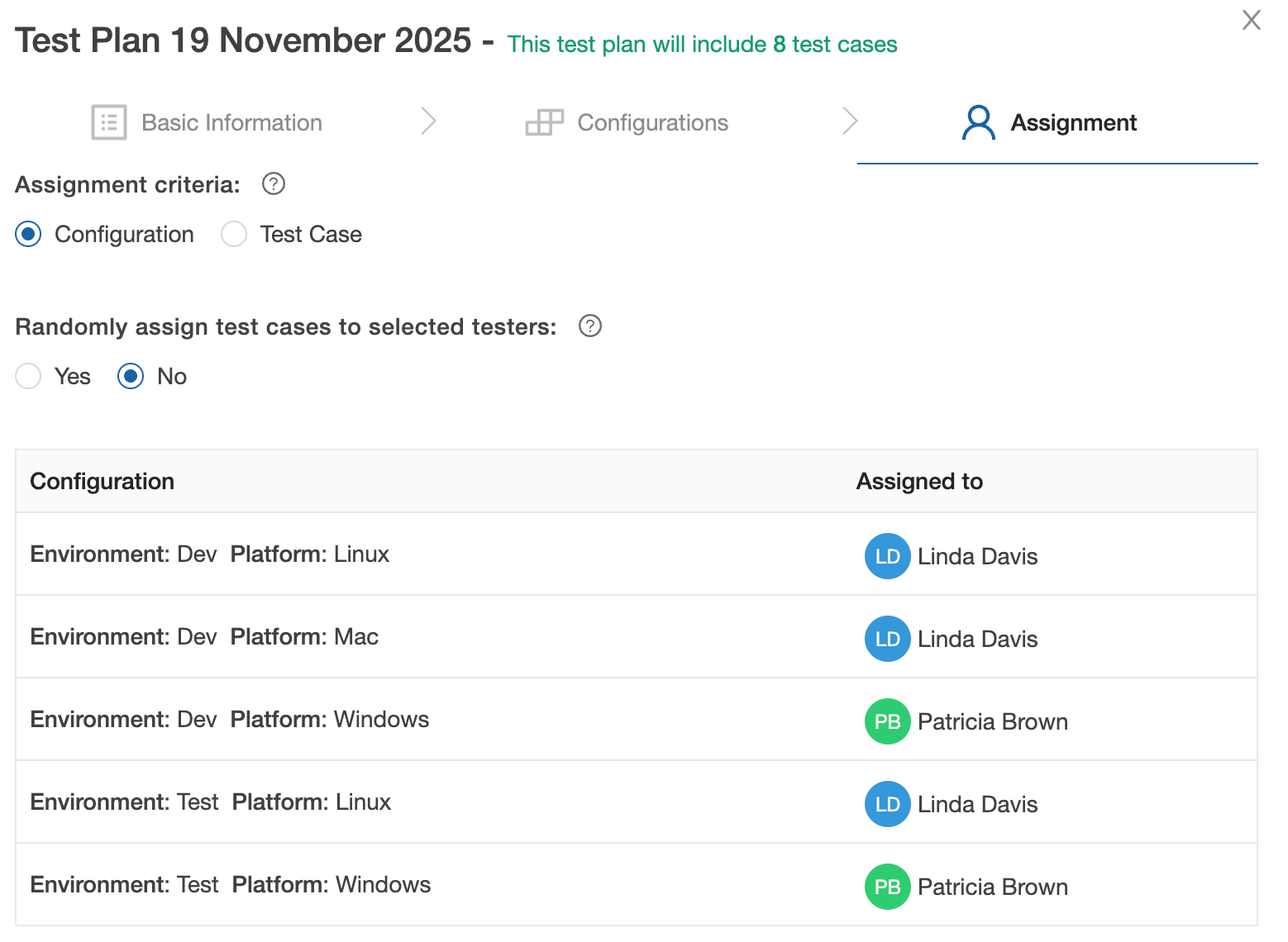
Invite each tester by email and give them a role in the project. Assign all cases to one person, divide them between the testers automatically, or assign them case by case.
Run the tests
Testers run each case and record what they see
A tester opens the plan, filters to the cases that are assigned to them, and works through the steps.
A result for each case and each step
The tester marks a case as passed, failed, skipped, or blocked, and can set a result for each step. A comment says what happened. The time for each case is recorded.
Evidence on each result
Testers attach screenshots and files to a result. When an administrator turns on screen recording for the project, a tester can record the browser tab or the screen, and the recording attaches to the executed case.
A failed step becomes a bug in your tracker
Report the bug from the failed step to Jira, GitHub, GitLab, Azure DevOps, Linear, Asana, ClickUp, or ServiceNow. The issue keeps its link to the test case, so the developer sees the steps.
Track and share
Everyone sees where the UAT stands
The lead, the manager, and the client look at the same numbers.
Progress, workload, and burndown
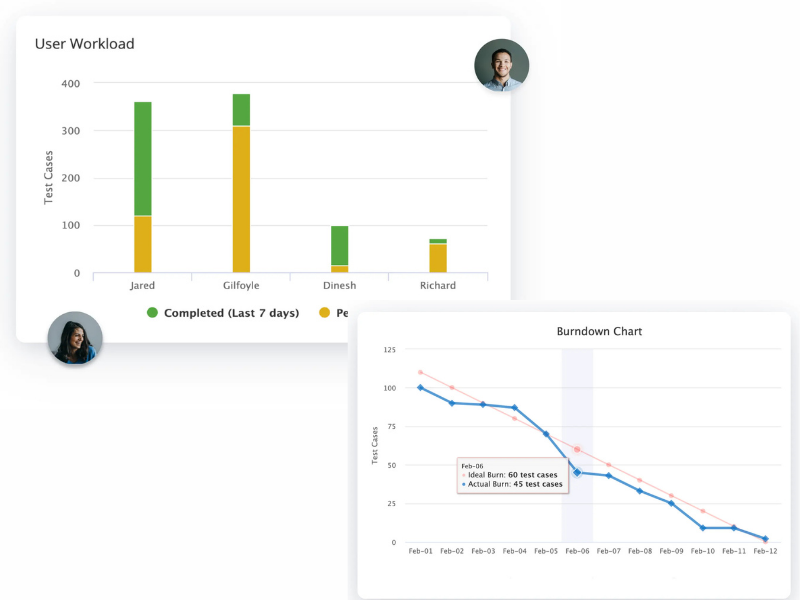
Each plan shows the cases that passed, failed, and are not run. A workload chart shows what each tester has left. A burndown chart compares the progress with the dates of the plan.
A read-only link for stakeholders
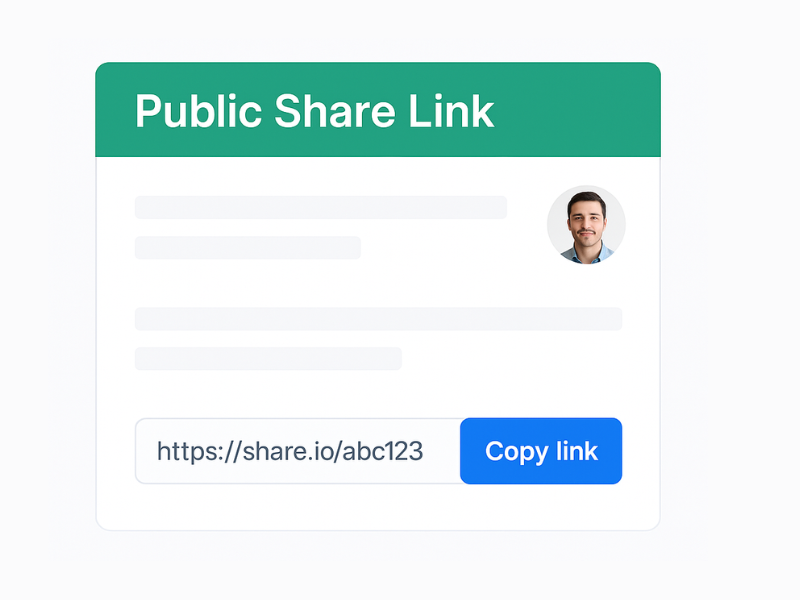
Share a public link to the test plan with a client, a manager, or a contractor. They see the summary, the test cases, the runs, and the defects. They need no account and no seat.
Emails when a plan finishes or is late
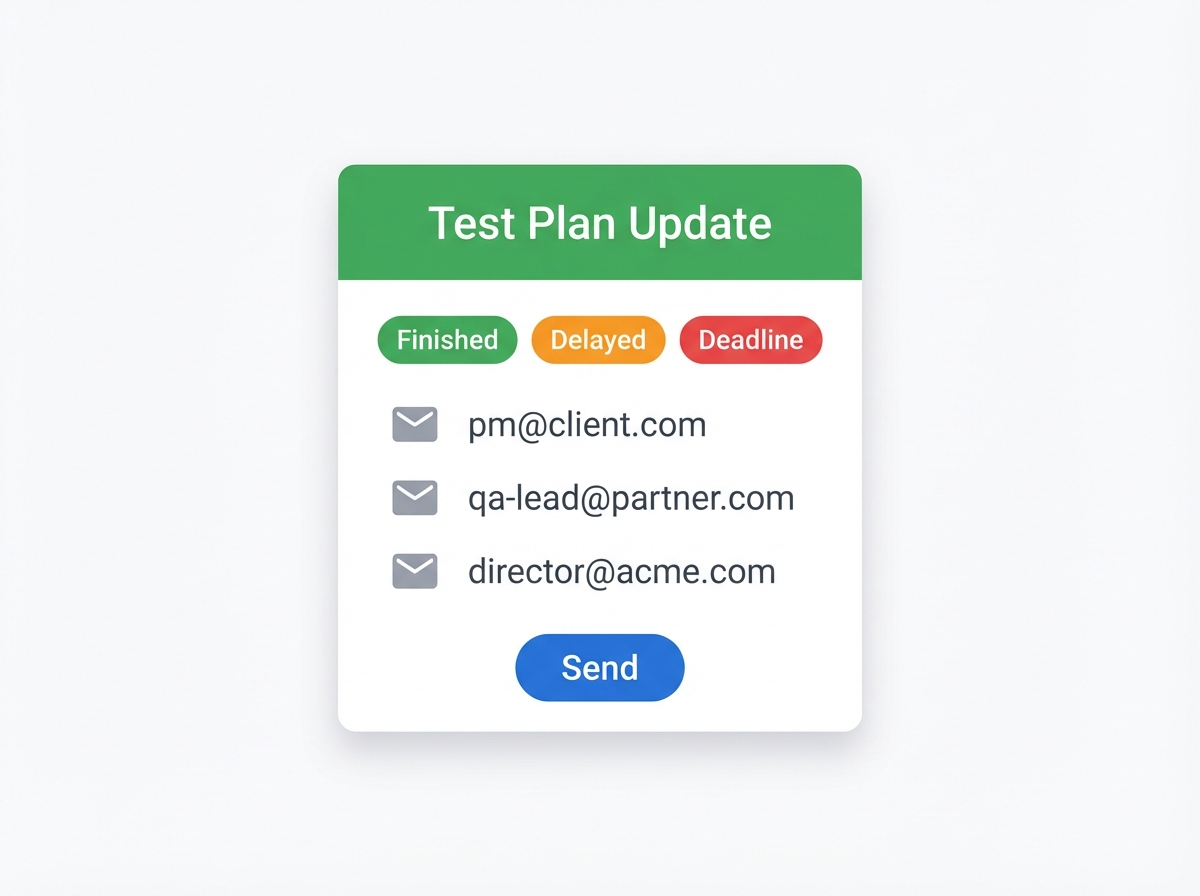
Add up to 10 external email addresses in the project settings. These people get an email when a test plan finishes, is delayed, or comes close to its deadline.
Sign off
A sign-off that rests on a record
TestCollab does not sign for you. It gives the person who signs the facts.
Who ran what, and when
The run history of a test case shows each execution with its status, the tester, and the time. Run the failed and blocked cases again in a new run, and the first run stays in the record.
An execution report for the sign-off document
Export the execution report of the plan. It lists each case with its result, the assignee, and the comments of the tester, for each configuration.
Each requirement with its last result
Link the acceptance tests to the user stories in Jira, GitLab, or Azure DevOps. The traceability matrix shows each requirement with its tests and their last result, so a gap shows before the sign-off.
Template
UAT test plan and sign-off checklist
Use these lists as a template for your next UAT round.
What a UAT test plan contains
- Scope: the business processes and the release under test
- Entry criteria: the system tests are done, and the test environment and the test data are ready
- Testers: one person for each business area
- Schedule: a start date, a due date, and time for the re-tests
- Acceptance criteria: what must pass before the sign-off
UAT sign-off checklist
- Each planned case has a result
- Each failed case has a bug and a decision: fix now, or accept
- No case is blocked
- The evidence is attached where the plan asks for it
- The business owner has read the report and gives the decision
After the sign-off
- Keep the plan as the record of the release
- Start the next UAT round from a copy of it
- Add the acceptance tests that do not change to your regression suite
- Give the accepted defects an owner and a date
Around UAT
UAT next to the rest of your testing
Automated tests and acceptance tests answer different questions. Keep both answers in one place.
Automated results in the same plans
Your CI pipeline sends its results with one command, tc report. Manual UAT results and automated results are in the same place, so nobody has to merge two reports. See test automation reporting.
Acceptance tests from user stories
QA Copilot drafts test cases from Jira user stories, requirements, or screenshots. A person reviews each proposal before it becomes a test case. See AI test case generation.
A GO or NO-GO view for the release
The release dashboard gives a GO or NO-GO verdict from the pass rate, the open defects, the evidence, and the progress of the linked plans. It is part of the Elite and Enterprise plans.
FAQ
Frequently asked questions
What is a UAT testing tool?
A UAT testing tool is software that holds the acceptance test cases, assigns them to the people who test, records each result with its evidence, and shows the progress to the people who decide. TestCollab does this with test plans: one plan for each UAT round.
What is user acceptance testing (UAT)?
User acceptance testing is the last test phase before a release. People from the business side, or the client, use the software in real scenarios and decide if it does what they need. It comes after the functional tests of the QA team.
Can automated tests replace UAT?
No. An automated test gives a pass or a fail for a check that someone wrote in code. It cannot judge if a screen is clear or if a process fits the way the business works. Automation makes UAT shorter, because the testers start from a build that already passed its checks.
Who runs the UAT test cases?
The people who will use the software: business users, product owners, or the client. A QA lead usually prepares the plan and the test cases, and follows the progress.
Do UAT testers need a paid seat?
A person who runs test cases needs a user in your TestCollab account. A person who only reads the results does not: share a public link to the plan, or add an email address for plan updates. The pricing page has the cost of a user.
Is there a UAT test plan template?
This page has a list of what a UAT test plan contains and a sign-off checklist. In TestCollab, the test plan wizard asks for the title, the dates, the folder, the configurations, and the testers. You can start a new round from a copy of an earlier plan. See test plan management.
How does the sign-off work in TestCollab?
TestCollab has no electronic signature. It gives the record for the decision: each case with its result, the tester, the time, the comments, and the evidence. Export the execution report of the plan and use it as the sign-off document.
Can we run UAT on more than one browser or environment?
Yes. A test plan can have configurations, for example a browser, a device, or an environment. Each case gets a result for each configuration, and you can assign a tester to each one.
Does UAT in TestCollab work with Jira?
Yes. Link the acceptance tests to Jira user stories, report a bug to Jira from a failed step, and see each story with its tests in the traceability matrix. The Jira integration page has the details.
Run your next UAT round with a record
Start a free trial, invite your testers, and assign the first plan today.



