

Use Bulk update to make the same changes to multiple test cases at the same time.
Bulk update can be done by going to Test Case page by selecting
Multiple test cases using checkbox manually, or
Clicking checkbox in Table header to select all test case
More on selecting test cases to perform bulk operations.
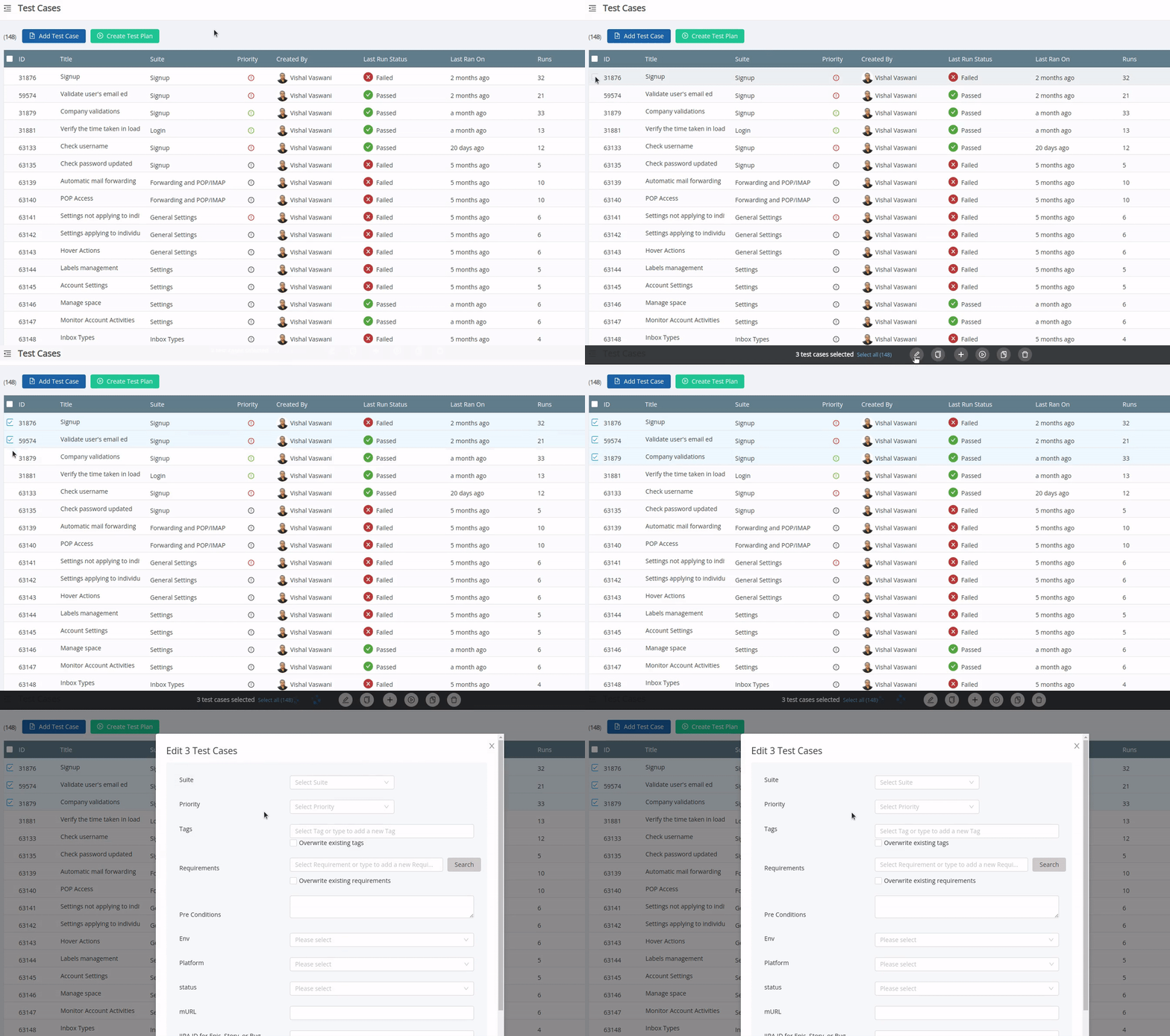
Available Bulk Update Options
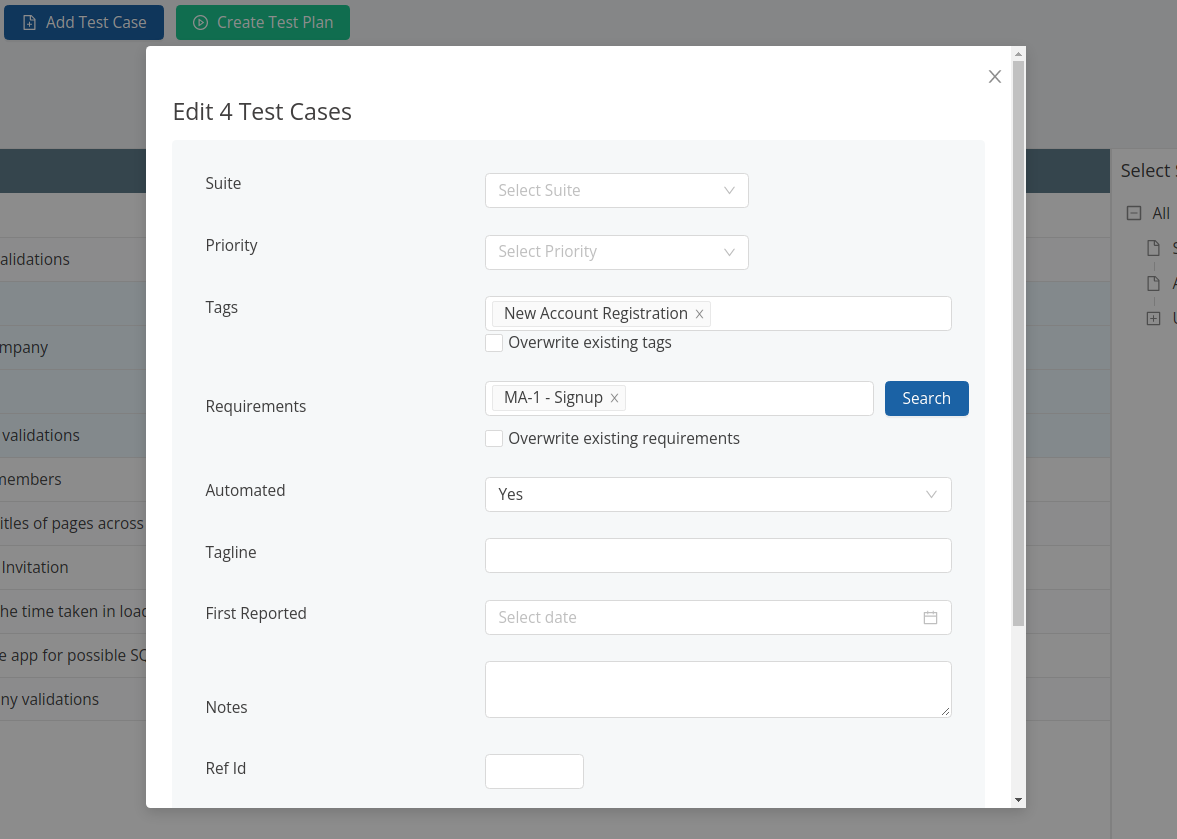
Change Test Suite
Change Priority of test cases
-
Set the default assignee for all selected test cases
-
Choose a project member to apply that person to every selected case, or choose the blank option to clear the default assignee
-
-
By default add tags for all test cases
-
"Overwrite existing tags" can however be used if all the tags previously associated with selected test cases are to be overwritten by the ones you selected / added on this form
-
-
Link one or more requirements with test cases
-
Again, "Overwrite existing requirements" allows you to dismiss the previously linked requirements with selected test cases and link only the ones you have selected here
-
-
Set values for custom fields that are added to project for test cases
Note: the bulk actions are carried out by a background process so they may take some time to get completed and you would be shown the progress of completion of task.



