Before you start
-
Plan- Test datasets feature is available for companies on Elite and Enterprise plans.
-
Permissions – You need to be either Administrator or your role should have permissions to Create, edit and delete Datasets .
-
Overview- Go through Overview to understand basic of test dataset and parameters.
Creating a new test dataset
3.1 From Dataset Manager in Settings
-
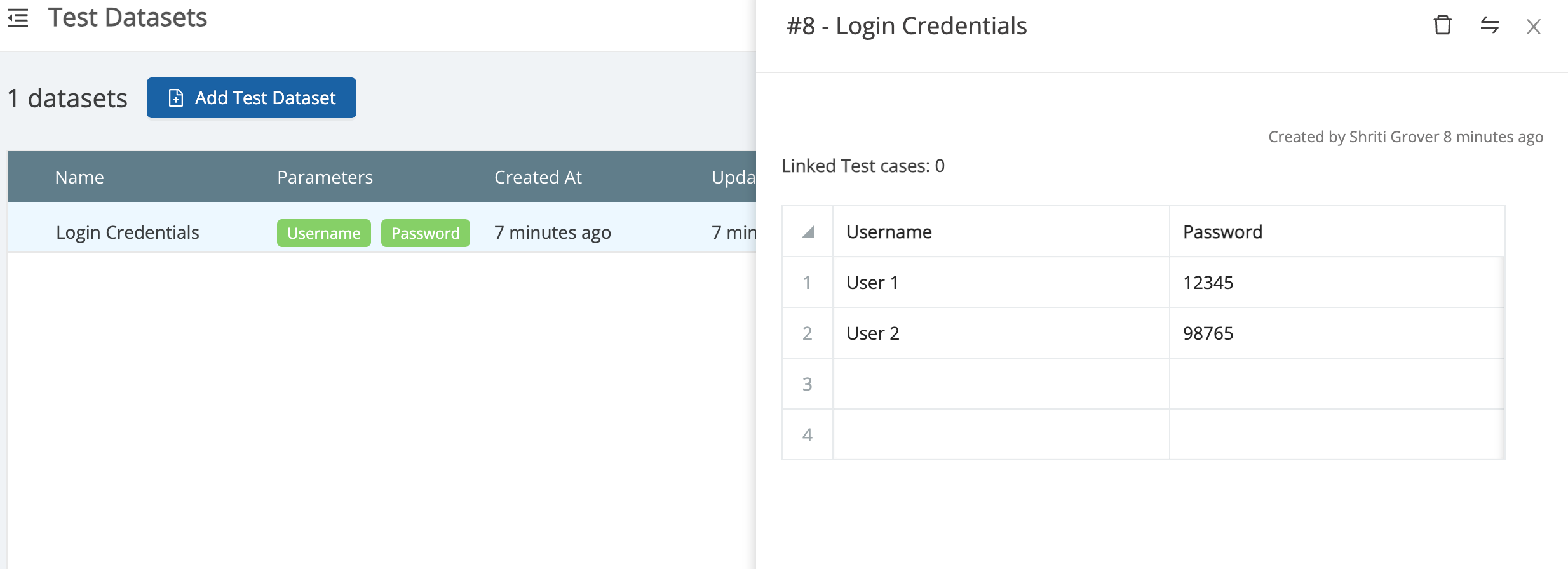
Open Project Settings → Test Datasets to view, add, edit, or delete datasets.
-
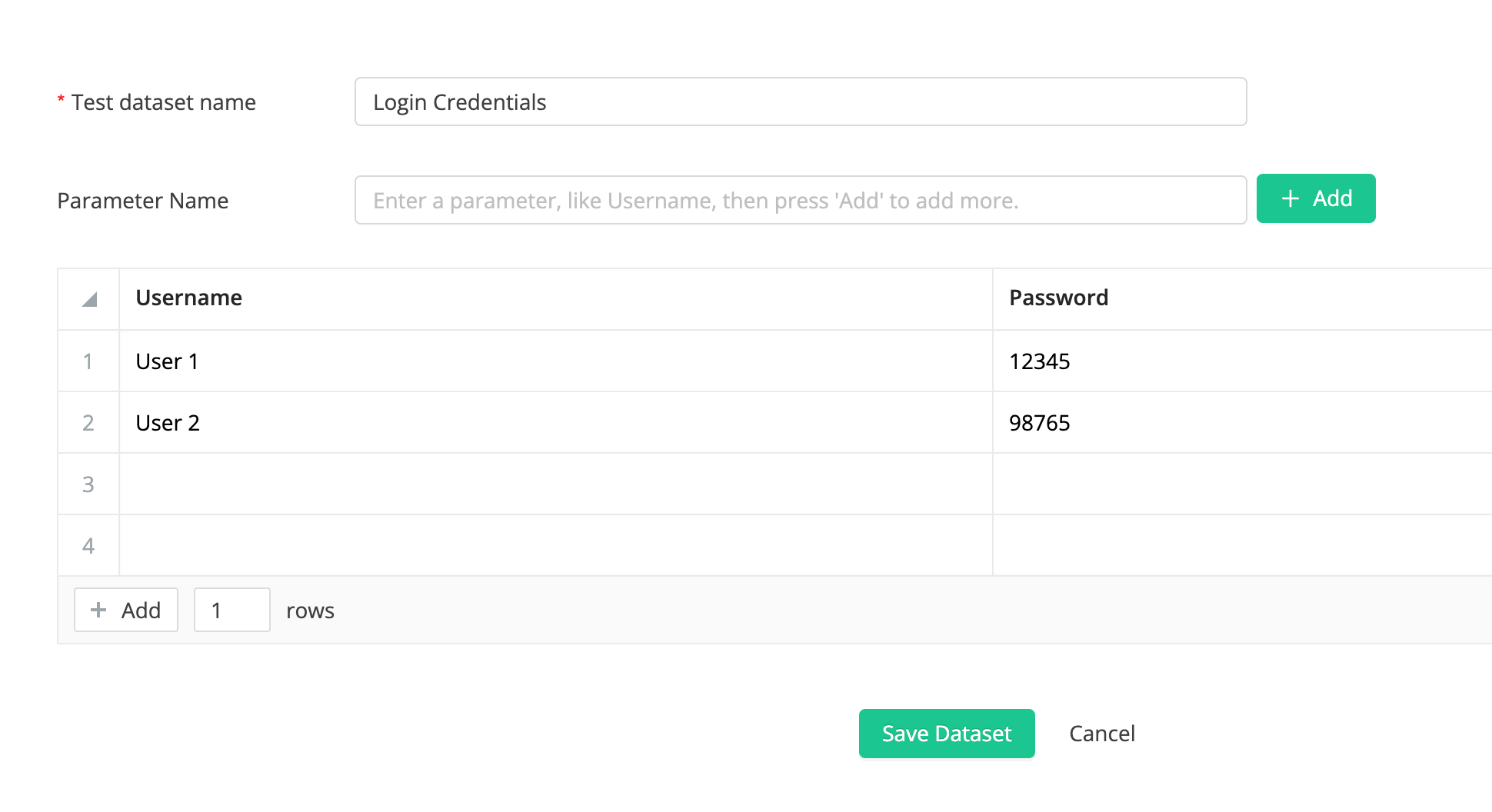
Click “Add Test Dataset.” Enter a Dataset Name (required, unique per project, e.g., Login Credentials).
-
Add parameters:Type a Parameter Name (must be unique within the dataset, e.g., Username) and click Add.
-
Fill the table that appears with values for each parameter.
-
Save when finished; the dataset is now ready for use.
3.2 From a test case
Open an existing test case or create a new one.
-
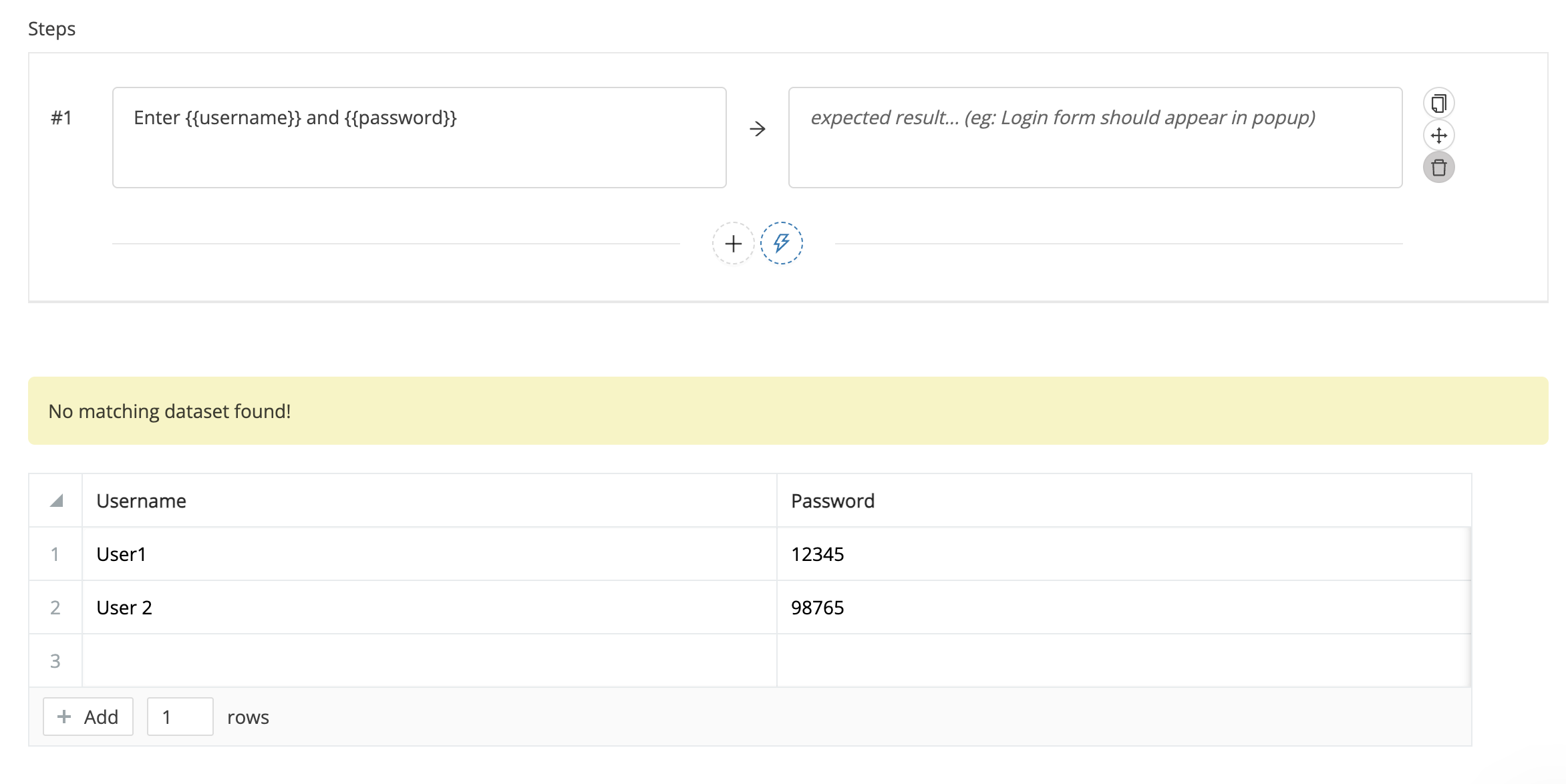
In any step, insert a variable using double curly braces—for example,
{{username}}.TestCollab automatically creates a username parameter for the project.
-
A dataset table appears beneath the steps; type the values you want to test (e.g.,
user1,user2). -
Click Save Test Case to store the parameter and its dataset.
Managing rows in a test-dataset table
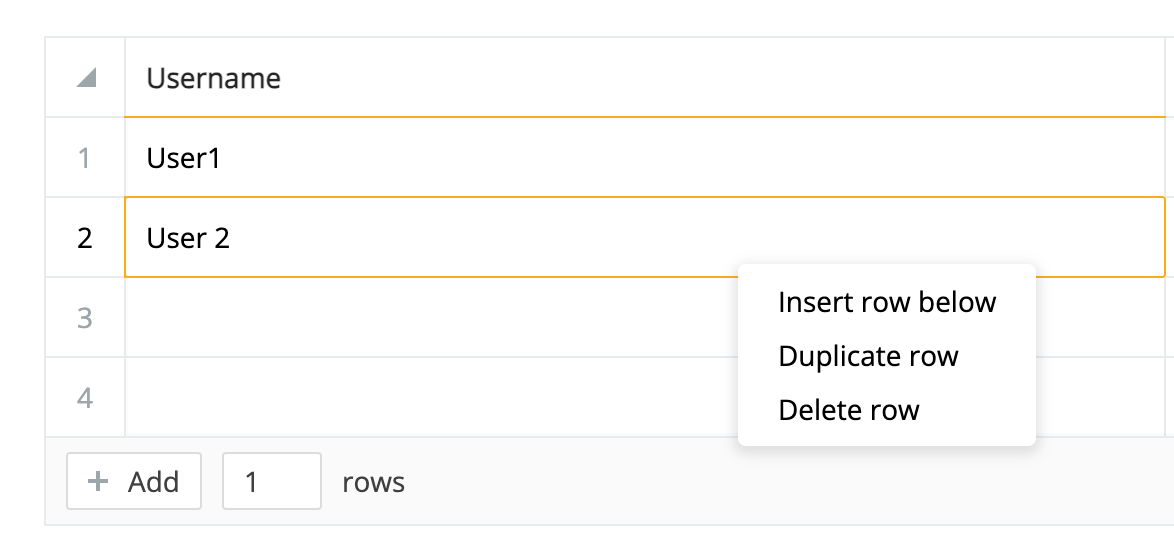
Row menu (any data row)
-
Insert — adds a blank row immediately below the selected row.
-
Duplicate — copies the selected row’s values into a new row just beneath it.
-
Delete — removes the selected row.
Header-row menu
-
Insert — appends a blank row to the end of the table.
-
Duplicate rows 1–N — copies every data row (where N = current row count) and appends the duplicates.
-
Delete rows 1–N — removes all data rows in one action.
+ Add button (below the table) — quickly appends one or more blank rows to the bottom.
Tip: Click any cell to edit it. Press Tab to move forward—or Shift + Tab to move backward—through adjacent cells for rapid data entry.
Editing a test dataset
Users with the appropriate permissions can update the dataset’s name, rename parameters, and modify any cell values.
Deleting a test dataset
A dataset can be removed only if:
It is not linked to any test case.
You have delete permissions for the project.
How to delete
-
Go to Project Settings → Test Datasets.
Click the dataset’s name to open its detail view.
-
In the View pane, select the trash-can Delete icon and confirm.