

On this page
tc createBuild is an optional traceability feature. The standard
automated reporting workflow
is tc createTestPlan, run your tests, then tc report. You can upload
results without creating a build or adding a quality gate.
Use this guide only when you also want TestCollab to record the version, commit, repository, and
deployment behind those results.
Why Use the CLI?
Manually creating a build requires someone to open TestCollab and fill out a form.
Using the CLI means:
-
Builds are recorded automatically when your pipeline builds or deploys a version
-
The build can include the commit, repository, pipeline run and deployment environment
-
Your TestCollab Deployment card provides traceability from code to testing
-
Test plans can reference the build so results are tied to the tested version
Prerequisites for This Optional Extension
To add build traceability, you need:
-
TestCollab API token - generate it in your TestCollab profile settings and store it as a secret named
TESTCOLLAB_TOKEN -
Project ID - find it in your project's settings
-
TestCollab CLI installed - install it with
npm install -g @testcollab/cli
The tc createBuild Command
In Azure DevOps, GitHub Actions, GitLab CI, Bitbucket Pipelines, CircleCI or Jenkins, the shortest command is:
tc createBuild --project PROJECT_ID --environment ENVIRONMENT_NAMEThe CLI detects the CI provider and reads the version, commit, commit URL, repository URL and pipeline run URL from its environment variables. An explicit flag overrides a detected value.
Outside a supported CI environment, pass the version explicitly:
tc createBuild \
  --project PROJECT_ID \
  --version BUILD_VERSION \
  --environment ENVIRONMENT_NAME
Required Parameters
-
--project- your numeric TestCollab project ID -
--version- required only when the CLI cannot detect a build number from the CI environment
Optional Parameters
Parameter |
What It Does |
Example |
|---|---|---|
|
|
Environment where the build was deployed |
|
|
|
Git commit SHA, detected in supported CI providers |
|
|
|
Link to the commit, detected where available |
|
|
|
Link to the pipeline run or deployment, detected where available |
|
|
|
Link to the source repository, detected where available |
|
|
|
Free-text note about the build |
|
|
|
API token. Prefer the |
|
|
|
API base URL. Use the EU URL for EU-hosted accounts |
|
--branch is not a TestCollab CLI option. Passing it causes the command to fail.
How It Works: Match Then Create
The CLI performs these actions:
-
Search - looks for builds in the project with the supplied version
-
Match - treats one leading
vorVas optional, sov2.14.1and2.14.1match -
Reuse or create - reuses an exact match without overwriting it, or creates a build when none exists
This prevents duplicate builds when a pipeline runs more than once for the same version. If a reused build has different optional details, the CLI warns and leaves the existing build unchanged.
Output and the Build ID File
When a build is created successfully, the CLI outputs:
Build "v2.14.1" (created, id 42)
✅ Build recorded. Build ID: 42
A build that already exists reports (existing, id 42) instead of
(created, id 42).
The CLI also creates tmp/tc_build containing:
TESTCOLLAB_BUILD_ID=42
A later step in the same job can load this file with source tmp/tc_build. You can
pass the ID to tc createTestPlan --build when creating a plan for this build.
Provider-Specific Examples
Azure DevOps Pipeline YAML
Store TESTCOLLAB_TOKEN as a secret pipeline variable, then add these tasks to a job:
- task: Bash@3
  displayName: 'Record build in TestCollab'
  env:
    TESTCOLLAB_TOKEN: $(TESTCOLLAB_TOKEN)
  inputs:
    targetType: 'inline'
    script: |
      tc createBuild \
        --project 45 \
        --environment "Production" \
        --notes "Deployed to Production"

- task: Bash@3
  displayName: 'Use the TestCollab build ID'
  inputs:
    targetType: 'inline'
    script: |
      source tmp/tc_build
      echo "Testing TestCollab build $TESTCOLLAB_BUILD_ID"
GitHub Actions Workflow YAML
Store the token as a repository secret named TESTCOLLAB_TOKEN:
- name: Record build in TestCollab
  env:
    TESTCOLLAB_TOKEN: ${{ secrets.TESTCOLLAB_TOKEN }}
  run: |
    tc createBuild \
      --project 45 \
      --environment "Production" \
      --notes "Deployed to Production"
    cat tmp/tc_build >> $GITHUB_ENV

- name: Use the TestCollab build ID
  run: echo "Testing TestCollab build $TESTCOLLAB_BUILD_ID"
GitLab CI YAML
Store TESTCOLLAB_TOKEN as a masked CI/CD variable:
deploy_production:
  stage: deploy
  environment:
    name: production
  script:
    - |
      tc createBuild \
        --project 45 \
        --environment "Production" \
        --notes "Deployed to Production"
    - cat tmp/tc_build >> build.env
  artifacts:
    reports:
      dotenv: build.env

run_tests:
  stage: test
  needs:
    - deploy_production
  script:
    - echo "Testing TestCollab build $TESTCOLLAB_BUILD_ID"
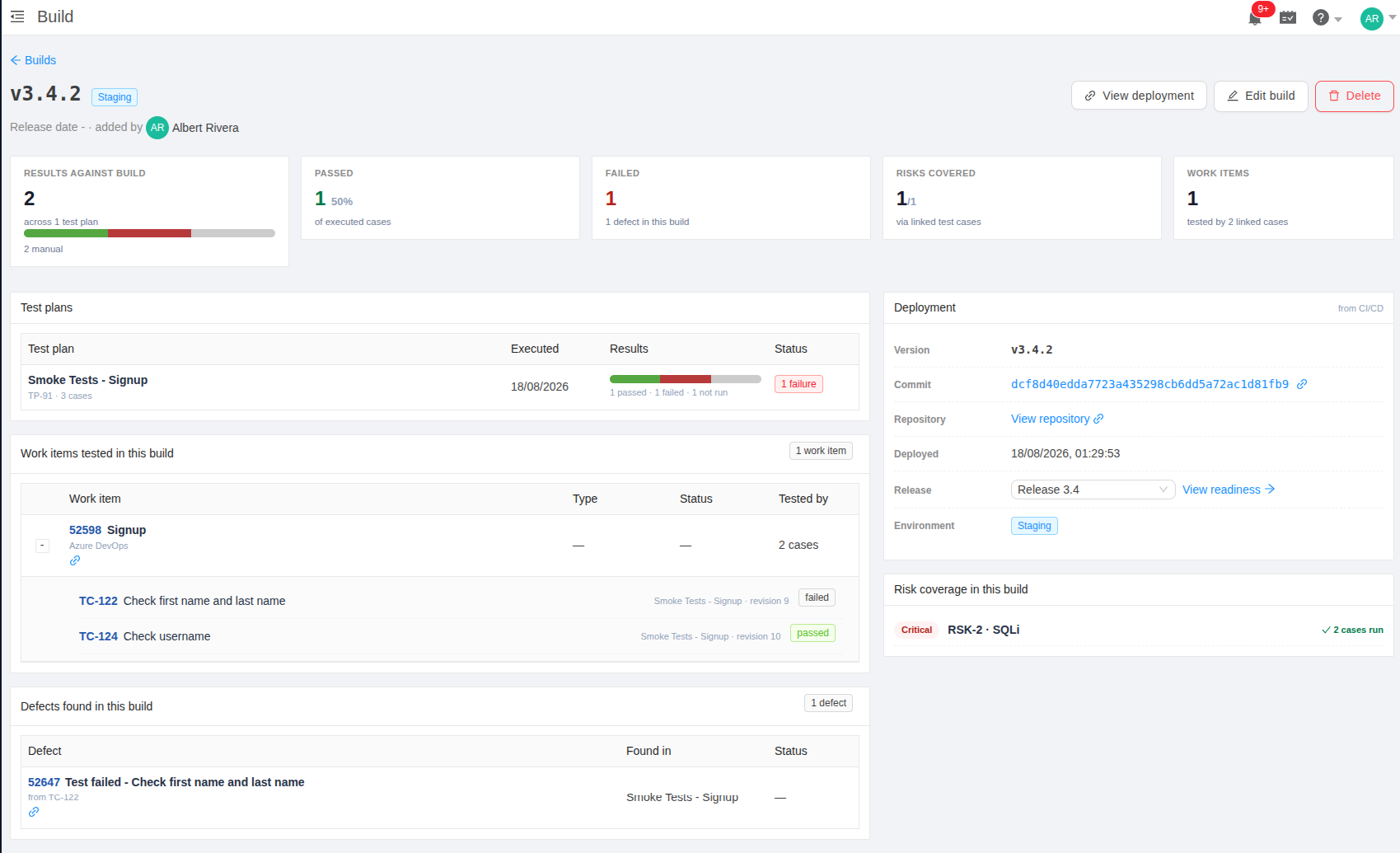
What You See in TestCollab
After tc createBuild succeeds, the build appears in TestCollab. Depending on the
details detected or supplied, its detail page can show:
-
Version - the software version
-
Commit - the Git commit SHA and commit link
-
Repository - a link to the source repository
-
Deployment - a link to the CI pipeline run or deployment
-
Release - the matching release, when a release version pattern matches
-
Environment - the deployment environment
Integration with Test Result Reporting
Build traceability is independent of standard result reporting. Without this optional extension,
the workflow is tc createTestPlan, run tests, then tc report.
If you opt in to build traceability, run tc createBuild before the standard workflow
and pass the build ID or version while creating the plan:
-
Run
tc createBuildto record or reuse the version. -
Run
tc createTestPlan --build BUILD_ID_OR_VERSIONto create a plan linked to it. -
Run your tests with TestCollab IDs such as
[TC-42]in their names. -
Run
tc report --test-plan-id PLAN_IDto upload the result file to that plan.
The plan carries the build link, so the standard tc report command does not need a
build argument.
Azure DevOps Example with Optional Build Traceability
This build-enabled example is an optional extension of the standard reporting workflow. It records a build, creates a test plan linked by version, generates a real Mochawesome JSON report and uploads it. Replace the tag and assignee IDs with values from your project.
stages:
  - stage: Deploy
    displayName: 'Deploy to Production'
    jobs:
      - job: DeployJob
        steps:
          - task: Bash@3
            displayName: 'Record build in TestCollab'
            env:
              TESTCOLLAB_TOKEN: $(TESTCOLLAB_TOKEN)
            inputs:
              targetType: 'inline'
              script: |
                tc createBuild \
                  --project 45 \
                  --environment "Production"

          - task: Bash@3
            displayName: 'Deploy application'
            inputs:
              targetType: 'inline'
              script: echo "Deployed $(Build.BuildNumber)"

  - stage: Test
    displayName: 'Run Tests'
    dependsOn: Deploy
    jobs:
      - job: TestJob
        steps:
          - task: Bash@3
            displayName: 'Create plan, run tests and report results'
            env:
              TESTCOLLAB_TOKEN: $(TESTCOLLAB_TOKEN)
            inputs:
              targetType: 'inline'
              script: |
                tc createTestPlan \
                  --project 45 \
                  --ci-tag-id 12 \
                  --assignee-id 34 \
                  --build "$(Build.BuildNumber)"
                source tmp/tc_test_plan

                set +e
                npx mocha \
                  --reporter mochawesome \
                  --reporter-options reportDir=mochawesome-report,html=false,json=true
                TEST_EXIT=$?

                tc report \
                  --project 45 \
                  --test-plan-id "$TESTCOLLAB_TEST_PLAN_ID" \
                  --format mochawesome \
                  --result-file mochawesome-report/mochawesome.json
                REPORT_EXIT=$?

                if [ "$TEST_EXIT" -ne 0 ]; then exit "$TEST_EXIT"; fi
                exit "$REPORT_EXIT"
Make sure each automated test name contains its TestCollab ID, for example
[TC-42] Login should succeed.
EU Region
For an EU-hosted account, add --api-url https://api-eu.testcollab.io to each
TestCollab CLI command you use in the build-enabled workflow, including
tc createBuild, tc createTestPlan and tc report.
Next Steps
Once the build is created, you can:
-
Link a test plan to the build to track testing against that version
-
View the build detail page to inspect deployment information and test coverage
-
Use release version patterns to group matching builds under a release
Related Articles
-
Creating and Managing Builds - manual build creation for non-CI workflows
-
The Build Detail Page - deployment information and coverage for automated builds
-
Linking Test Plans to a Build - connect a test plan to the build your pipeline created
-
Uploading Test Results Using TestCollab CLI - report automated test execution results



