

After releasing the support for integration with GitLab SaaS as defects manager , TestCollab now offers integration with GitLab self-managed instances as well to automatically report an issue in GitLab in the event of a test case failure.
In order to use the feature you would be adding a new application on your GitLab instance to allow access to TestCollab.
Adding an application on GitLab
For this the access to admin area would be required, in admin area:
-
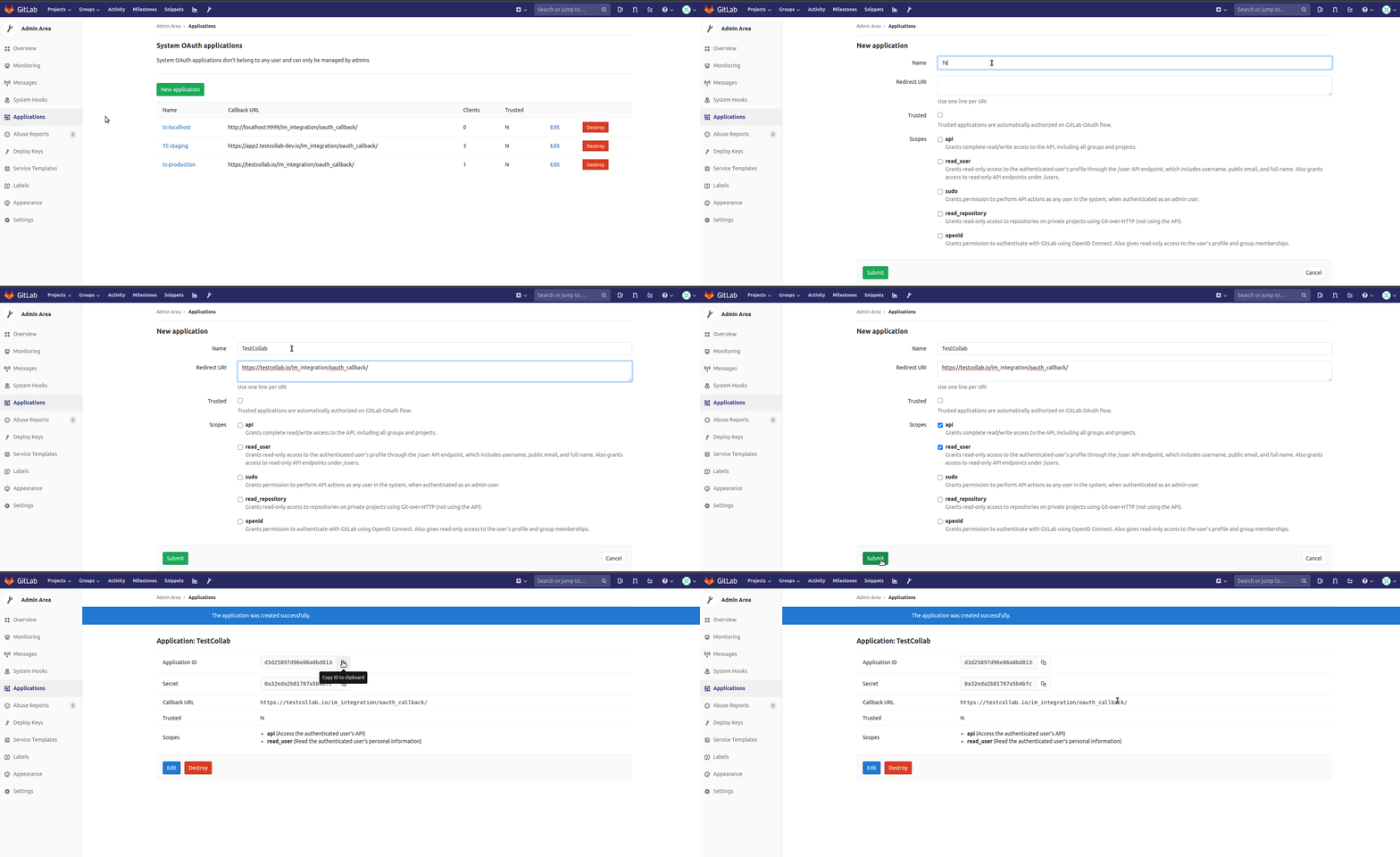
Switch to Applications
-
Opt to add a "New application"
-
Provide a Name to identify the new application
-
The Redirect URI must have the value - https://testcollab.io/im_integration/oauth_callback/
-
The scopes for api and read_user must also be granted
-
On submitting the form, user will be redirected to application details page
-
Copy the values for Application ID and Secret as they will be required during configuration in TestCollab
Connecting with GitLab self-managed instance in TestCollab
You must have an administrator's privileges to perform these:
-
Open the project that needs to be configured to use GitLab self-managed instance
-
Navigate to Settings > Defects
Enable Defects Management
-
Select GitLab as issue manager
-
Check "Enable this to enter self hosted instance details".
-
Provide the values for Application ID and Secret that we copied from the new application created in GitLab
-
Instance URL should be the one you use to access your GitLab self-managed instance
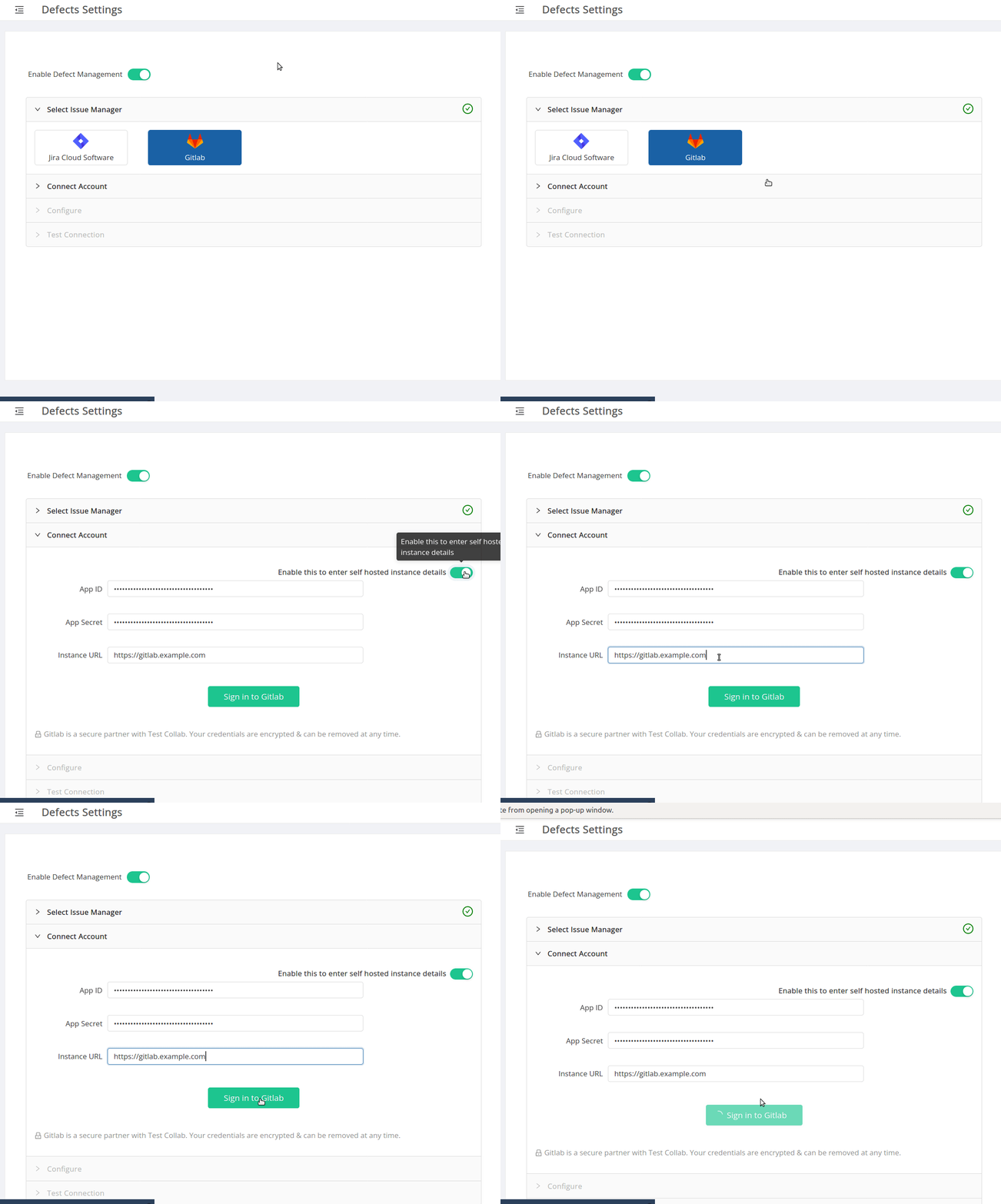
The next steps, right from signing-in to GitLab, to configuring the settings and to reporting defects in GitLab are identical to the ones we follow while integrating GitLab SaaS



