

When a test fails during a test run, you report a defect from it, and TestCollab links the defect to that test case and run. People make mistakes: a defect can end up on the wrong test case. You can unlink it.
How to unlink a defect
- Open the test plan and go to its Test Cases tab.
- Click the test case to open it.
- Open the Defects tab of the test case.
- Click the unlink icon at the end of the defect's row.
- Confirm with Unlink.
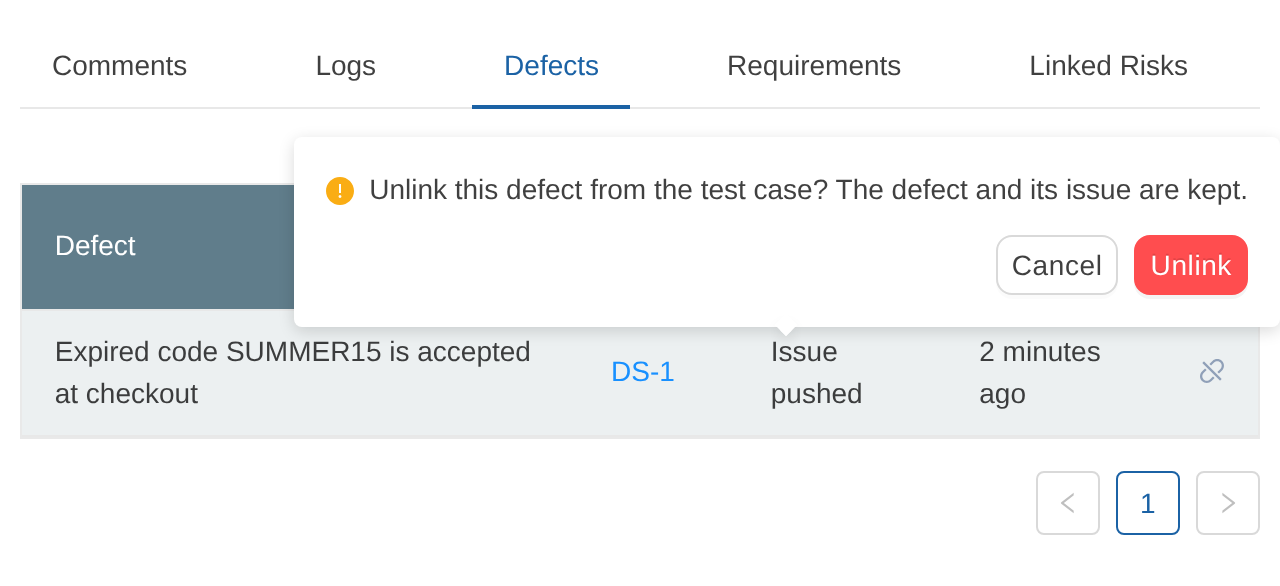
What changes, and what stays
- The link between the defect and this test case and run is removed. The defect leaves the Defects tab of the test case and of the test plan, and it no longer counts for the plan's build or release.
- The defect itself stays in the project's Defects list, without a test case or test plan. Its issue in your issue tracker, or in TestCollab issues, does not change.
- The result of the test case does not change.
- The project activity and the Activity tab of the test plan record who unlinked which defect from which test case.
If the same issue is linked to the test case in more than one run, each row is a separate link. Unlink the row of the run you want to correct; the other rows are not affected.
Who can unlink
Unlinking needs the permission to manage defects in the project. Administrators always have it. If you do not see the unlink icon, ask an Administrator.



