Microsoft Entra ID SSO is available on the TestCollab Enterprise plan, along with SCIM 2.0 provisioning. You connect your own Entra tenant, map your existing security groups and app roles to TestCollab roles, and let Entra create and remove accounts as people join and leave.
Watch the 86-second walkthrough to see Microsoft Entra ID SSO, group-to-role mapping, automatic account creation, and SCIM provisioning in TestCollab:
Watch the Microsoft Entra ID SSO and SCIM provisioning demo on YouTube.
If your QA team is small, none of this matters much. You invite five people and you are done. It starts to matter at the point where a contractor rolls off a project and nobody remembers to remove them, or where an auditor asks you to demonstrate that access to your test evidence is governed by the same directory that governs everything else.
Every offboarding that depends on somebody filing a ticket is an access review finding waiting to happen.
What happens at an Entra ID SSO sign-in
With Entra ID SSO enabled, TestCollab verifies the sign-in against your tenant and your app registration. Two things are checked before anyone gets in:
App assignment. A user who is not assigned to the TestCollab enterprise application, either directly through an app role or through one of the groups you have mapped, is refused with a message that says exactly that instead of a generic failure. If Entra leaves group IDs out of the token because the user belongs to too many groups (the "group overage" case), TestCollab falls back to Microsoft Graph to resolve the membership rather than failing the login.
Role calculation. Once you have saved a group-to-role mapping (see the next section), every Entra sign-in recalculates that user's project roles from the groups and app roles in their verified token. Join a mapped group and the role appears. Leave it and the role is removed on the next sign-in. Roles an administrator granted directly in TestCollab are never changed or removed by this sync; only the roles TestCollab itself granted from Entra are. To make a lasting exception, grant it on a project that no mapping covers, rather than editing a role Entra assigned.
You can also make single sign-on mandatory. When that is on, password logins are rejected server-side for everyone in the company, including administrators. When you disable or unlink a provider, sessions issued through it stop working on the next request rather than staying valid until the token expires.
Mapping Entra groups and app roles to TestCollab roles
Group mapping is Entra-only. There is no equivalent for Okta.
You sign in once with Microsoft, and TestCollab reads your tenant's security groups and application roles from Microsoft Graph so you can pick them by name instead of pasting object IDs. That read needs a one-time admin consent to the Group.Read.All and Application.Read.All permissions during setup. Without that consent you can still build mappings, but you will be entering object IDs by hand. The object ID stays visible under the display name as a reference, so you can always confirm you mapped the group you meant to.
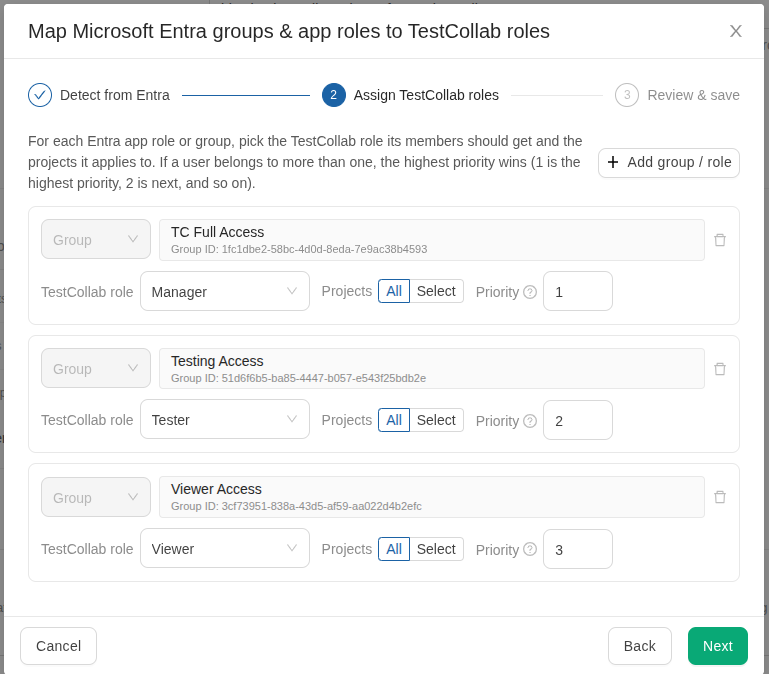
Each mapping row is a group or an app role, a TestCollab role, a project scope, and a priority:
- Project scope is either every project or a set of projects you pick. So "QA Leads" can be a manager on all projects while "Payments Contractors" only gets access to two.
- Priority decides the outcome when a user matches more than one mapping. 1 is the highest priority, 2 is next, and so on. Priority is resolved per project, so mappings scoped to different projects never compete.
- A company-wide default role covers anyone who signs in through Entra but matches none of your mappings. New configurations start at "No access", so mapping one group never quietly grants access across every project.
If you would rather the sync only ever added access, you can turn off the removal behavior and leaving a mapped group will keep existing roles in place.
SCIM provisioning for joiners and leavers
Group mapping handles what a user can do. SCIM provisioning handles whether the account exists at all.
SCIM (System for Cross-domain Identity Management) is the standard protocol identity providers use to create and remove accounts in another application over an API, instead of somebody doing it by hand. TestCollab exposes a SCIM 2.0 endpoint that Microsoft Entra ID pushes to on its normal provisioning cycle. Assign someone to the TestCollab enterprise application and their account is created and added to your company without an invite. If that email already has a TestCollab account, for example because they use TestCollab at another company, it is linked rather than duplicated, and their existing profile is left alone. If you have set a company-wide default role, provisioned users land on their projects with it straight away, before their first login.
Unassign the user in Entra and TestCollab removes their company membership and the project roles it granted them. That removal is scoped to your company: if the same person also belongs to another TestCollab company, they keep working there, because the account itself is shared. If yours was their only TestCollab company, the account is deactivated or deleted outright, so no orphaned login is left behind. When Entra deactivates a user this way and TestCollab was their only company, the sign-in screen tells them their account has been removed rather than showing a generic error.
Deprovisioning is also checked against live Entra state. A SCIM update triggers a real check of the user's current app and group assignments through Microsoft Graph before any access change, and if Graph cannot be reached the request fails safe with no access changes applied.
Each company gets its own SCIM Tenant URL and secret token. The token is bound to that company's URL, so a token generated for one TestCollab company cannot connect to another one. You generate, rotate, or disable it yourself from the SSO settings page. The plaintext token is displayed exactly once and only its hash is stored, and rotating invalidates the old token immediately.
Setting up Entra ID SSO and SCIM provisioning
The short version, assuming you are a company administrator on an Enterprise plan:
- Step 1. Register TestCollab as an application in your Entra tenant and note the tenant ID and client ID.
- Step 2. In TestCollab, go to admin settings, open the Microsoft Entra ID card, and enter those values. They are validated against Microsoft before the configuration is saved, so a wrong tenant or client ID is caught now rather than at somebody's first login.
- Step 3. Sign in once with Microsoft and grant the consent described above. TestCollab reads your app roles and groups, and you map them to roles in a three-step wizard with a review screen before anything is saved.
- Step 4. Decide on the extras: mandatory SSO, and optional just-in-time account creation on first sign-in, restricted to an approved list of email domains. Just-in-time creation is off by default.
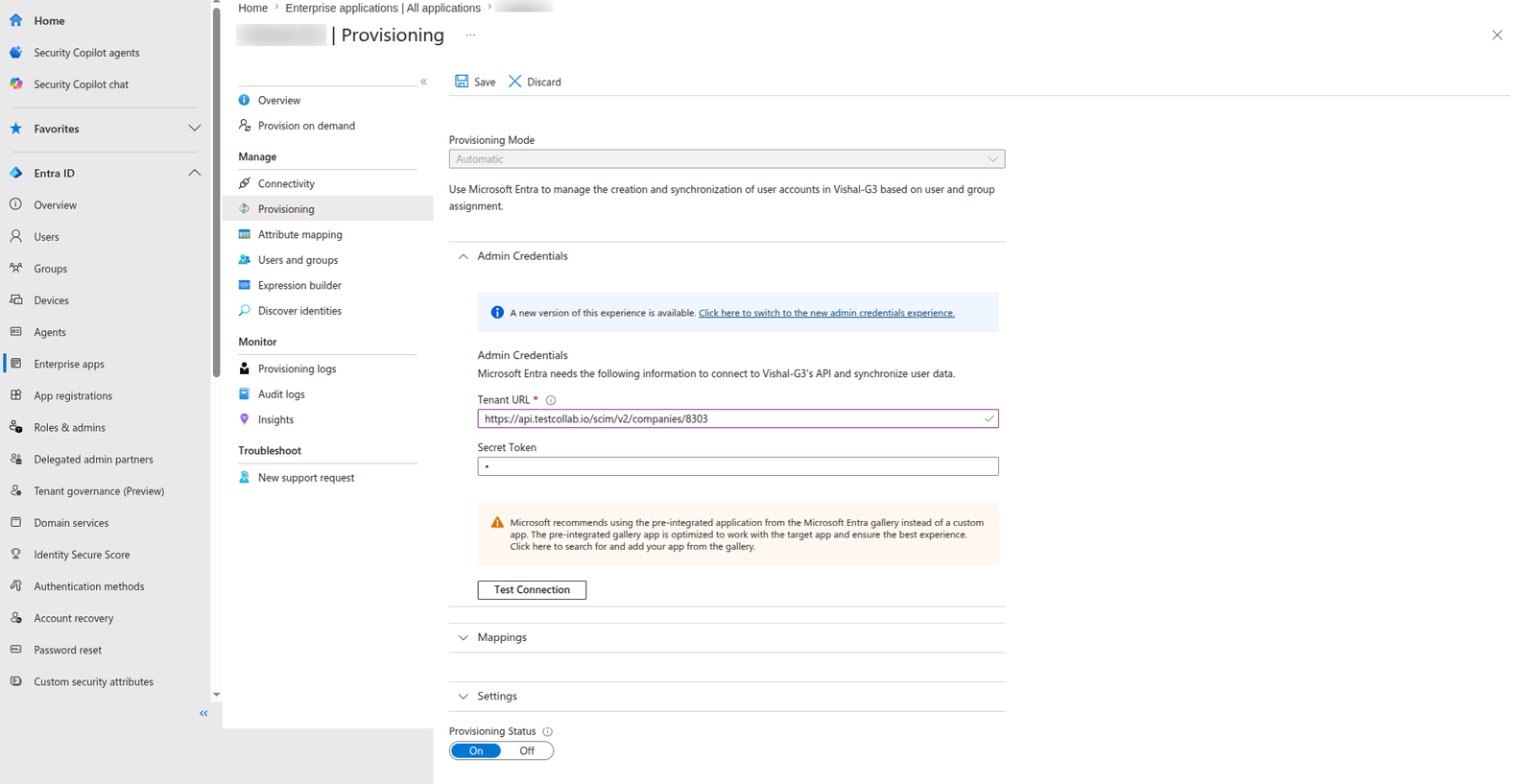
- Step 5. For SCIM user provisioning, generate a token in TestCollab and paste the Tenant URL and token into the provisioning blade of the enterprise application in Entra. The Tenant URL looks like
https://api.testcollab.io/scim/v2/companies/<your-company-id>, or the EU host if your data is in our EU region.
Two prerequisites worth stating plainly. Automatic provisioning is a premium Microsoft Entra ID capability, so check your Microsoft licensing to confirm your tenant includes it, and SCIM access is refused entirely unless Entra SSO is already enabled for your company. Both SSO and SCIM provisioning also respect your plan's user limit, and a refusal at the limit shows up as a clear error in Entra's own provisioning logs instead of silently over-provisioning.
What this means for Okta SSO
Okta SSO is still fully supported. Two things now apply to it as well: a company runs one identity provider at a time, so enabling Entra ID SSO requires disabling Okta SSO first, and TestCollab enforces that in the admin UI and in the API rather than letting you end up with two half-configured providers; and disabling or unlinking Okta ends its sessions on the next request, the same way it does for Entra. Group-to-role mapping and SCIM provisioning are Entra-only for now.
Single sign-on is an Enterprise plan capability. It is not available on Free, Basic, Premium, or Business, and on Enterprise it is enabled per subscription. Microsoft Entra ID was previously called Azure AD, so if your team still says Azure AD SSO, this is the same directory and the same setup.
Full details are on the feature page linked above, and this release is listed in the product changelog. If you want to try it against your own tenant, start a trial and tell us you need Entra ID SSO turned on for your company.