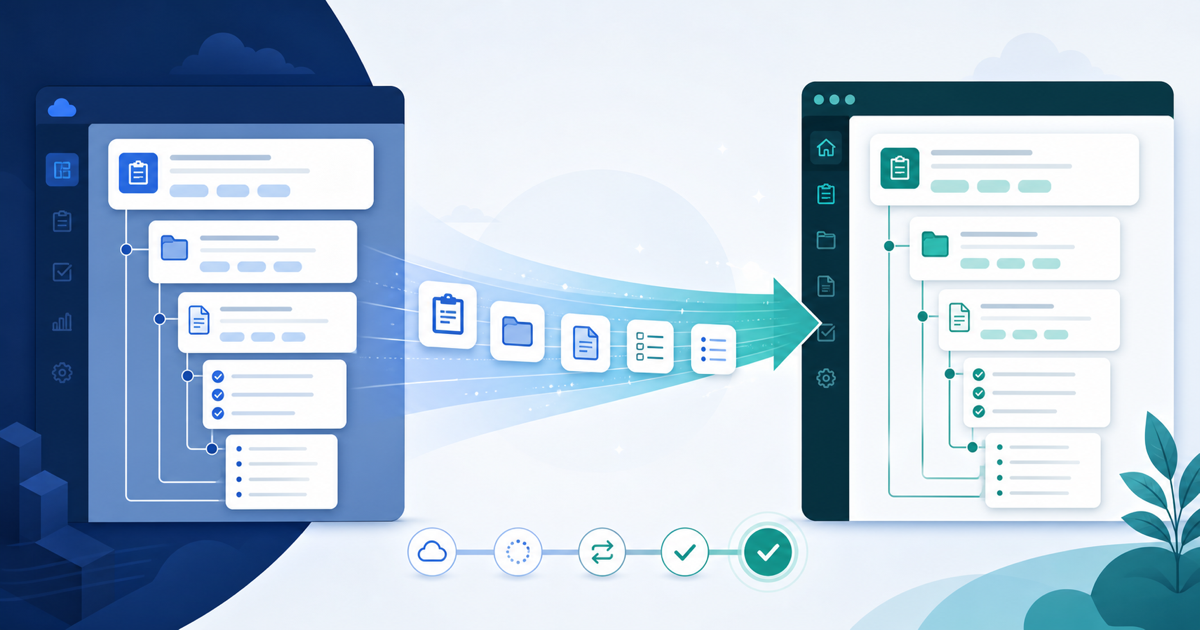
Moving away from Azure Test Plans should not mean rebuilding years of test structure by hand. TestCollab now includes a guided Azure Test Plans migration that connects directly to an Azure DevOps project and brings its plans, suite hierarchy, test cases, steps, tags, and useful work item metadata into a new TestCollab project.
The importer is designed for teams that want to keep Azure DevOps for Boards, Repos, or Pipelines while moving test management into a dedicated workspace. It avoids the usual sequence of CSV exports, column cleanup, folder reconstruction, and manual plan setup.
What the Azure Test Plans migration imports
The migration preserves related test assets together instead of treating every test case as an isolated row in a spreadsheet.
| Azure Test Plans | TestCollab |
|---|---|
| Test plans | Test plans |
| Static, requirement-based, and query-based suites | Suite and folder hierarchy |
| Test Case work items | Test cases |
| Action and expected-result rows | Test steps |
| Shared Steps | Steps expanded into the test case |
| Tags | TestCollab tags |
| Work item ID, type, state, area path, priority, and linked item IDs | Custom fields |
This structure matters after the move. A test case remains useful on its own, but the plan and suite around it explain when it runs, what it covers, and how the team organizes a release. The importer rebuilds that organization so you can start from a familiar repository instead of an empty one, subject to the suite rules and limits described below.
If you are still comparing platforms, our Azure Test Plans alternative page covers the broader differences between Azure Test Plans and TestCollab.
How to migrate Azure Test Plans to TestCollab
The complete workflow is available from Settings > Import & Migration inside a TestCollab project:
Step 1: Choose the source. Open Full migrations and choose Azure Test Plans.
Step 2: Connect Azure DevOps. Enter your organization URL and a Personal Access Token with read access to Test Management and Work Items. TestCollab validates the connection before moving on.
Step 3: Select the project. Choose the Azure DevOps project you want to import. Project names are kept exactly as Azure defines them, including spaces and capitalization.
Step 4: Review the preview. Check the plans, suites, and test cases that will be created.
Step 5: Choose an assignee. Select a default TestCollab assignee for imported test plans.
Step 6: Confirm the migration. Decide whether to include test cases that are not part of any Azure test plan, then start the import.
The import runs in the background, so you can leave the page while it works. Progress and a final summary remain available in the migration wizard, which is especially useful for projects with a large suite tree.
Include Azure test cases that are outside a plan
Azure DevOps stores test cases as Test Case work items. A work item can exist in the project without being added to a test plan or suite, which means it will not appear when a migration only walks the plan hierarchy.
The new Also import test cases that are not in any test plan option covers that case. When selected, the importer finds those additional Test Case work items and places them at the top level of the TestCollab test case repository. They are not added to an invented plan, so the migrated repository reflects what was actually configured in Azure.
Leaving the option off is useful when the Azure project contains drafts, retired cases, or other work items that your team no longer considers part of its active test repository.
What is not migrated
The first release focuses on reusable test assets and their organization. It does not import historical test runs or results. That history remains available in Azure DevOps.
There are a few other boundaries to know before you begin:
- Azure test configurations and test point assignments do not become native TestCollab plan configurations.
- Shared Parameter names and values are retained as reference text, but they are not converted into native TestCollab datasets.
- Azure DevOps users are not matched automatically to TestCollab users. You select one default assignee for the imported plans.
- Attachments and authenticated inline images are not copied.
- Requirements, bugs, and other linked work items are not created as TestCollab entities. Their Azure IDs remain as reference metadata.
- Standard fields and the Azure metadata listed above are preserved, but unrelated Azure custom fields are not imported.
Azure suite types also need a clear translation. Requirement-based and query-based suites become a snapshot of their current folders and cases; their Azure rules do not continue running in TestCollab. If the same case appears under several suite paths, TestCollab places it in the first repository path found while retaining its imported test plan memberships. Matching suite paths across Azure plans share the same TestCollab repository folders.
This is a one-time migration rather than a continuing synchronization. A source project that has completed its import cannot currently be run again into the same TestCollab project as an incremental update.
The preview shows the source totals available before you start, while the completion summary is the authoritative record of what was created and any individual items that could not be imported. You can add configurations, datasets, and team assignments in TestCollab after reviewing the imported repository. The test plan management overview explains how plans, assignments, and execution fit together once your cases are in place.
Move the repository, then keep Azure DevOps connected
Migration does not require replacing the rest of Azure DevOps. Your development team can continue using Boards, Repos, and Pipelines while QA organizes cases and plans in TestCollab. Existing Azure DevOps integrations can still support requirements, defect workflows, and automated result reporting after the test repository moves.
The Azure Test Plans importer is listed in the TestCollab changelog. To try it with one of your projects, start a free trial, create a project, and open Settings > Import & Migration.