

Why suites?
As you work with more test cases, it is beneficial to have them organized into test suites. It's also useful to group them in a hierarchy for better management.
All suite operations can be performed on the test cases page. The dedicated pane on the right of the grid is for Suite tree, where all suites in a project are maintained hierarchically.
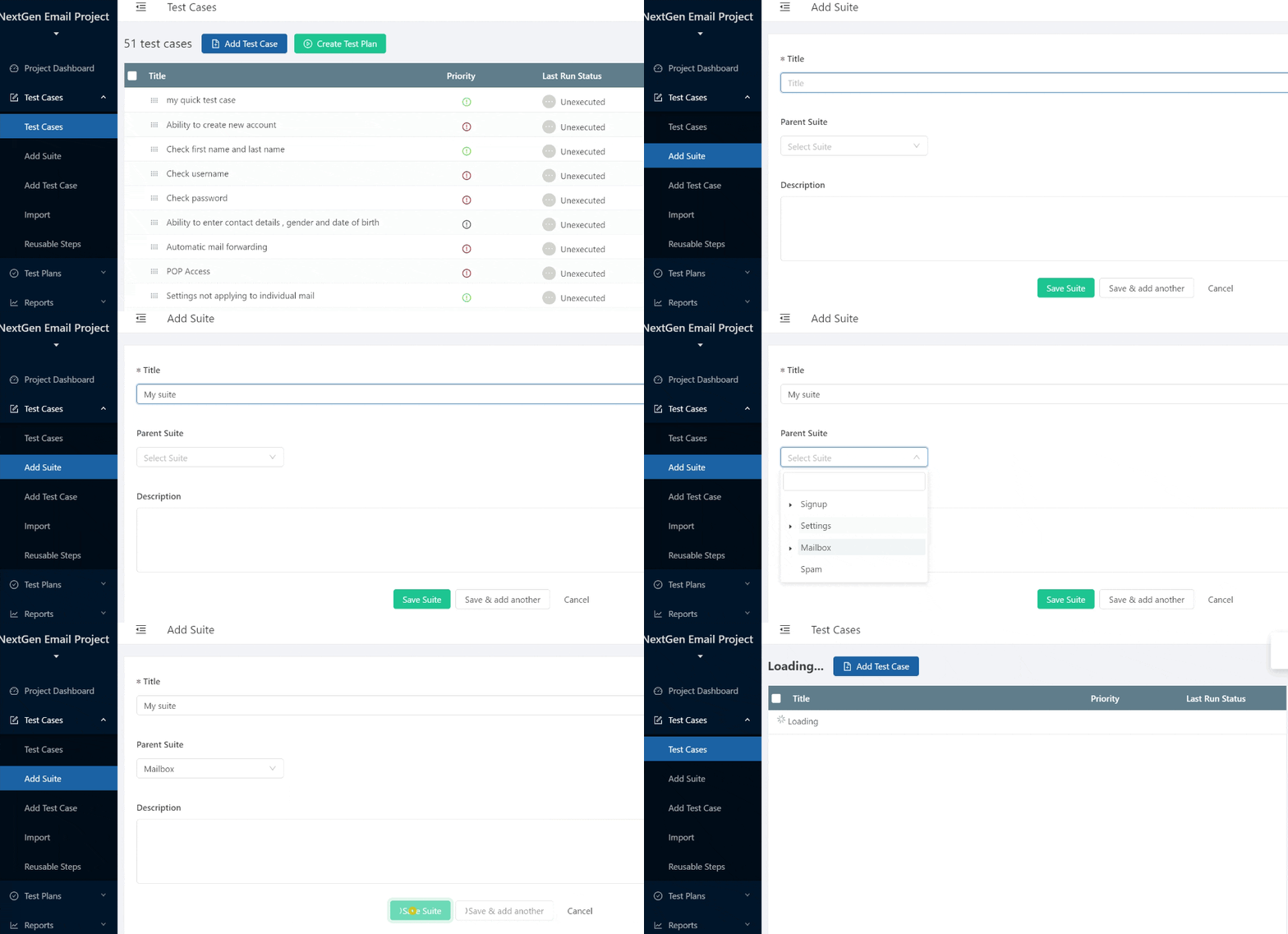
Add suite
Suite can be added either by clicking Add Suite link navigation or add button on
suite tree panel.
A suite is identified by its title so it needs to be unique among all the suites at same level in hierarchy.
If you are using the add suite form, then the suite being added can be made child of an existing suite in the project. Save & add another resets the form to let you add another suite.
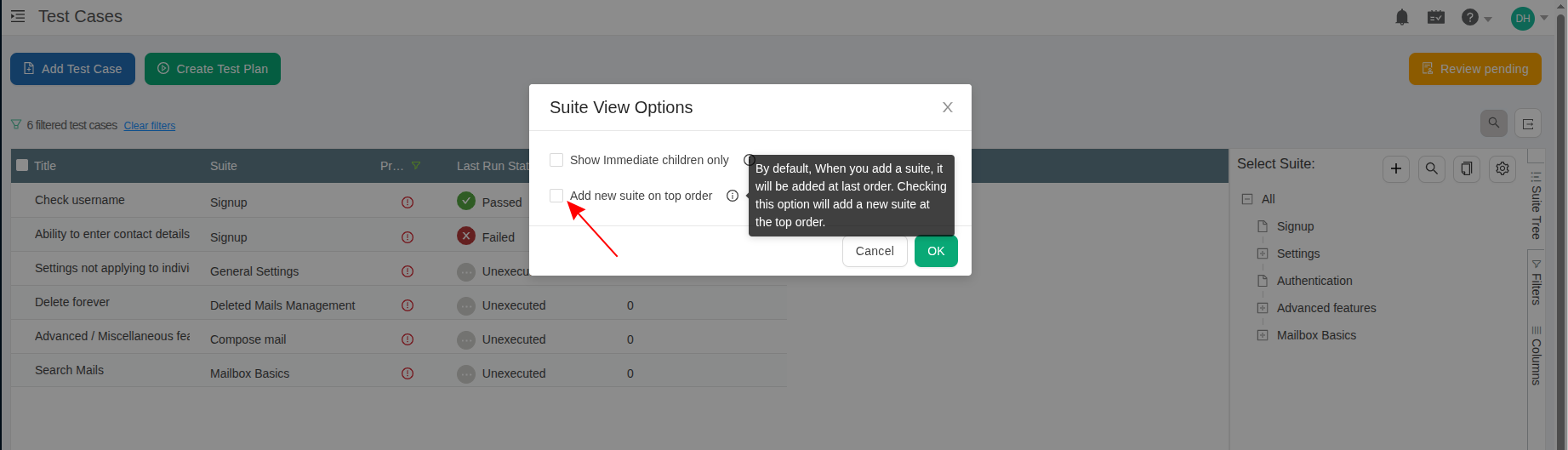
Adding a suite at the top order
By default, a new suite is added at the bottom of the suites tree, but you can change this behavior to have new suites added at the top of the suites tree using the suites setting option.
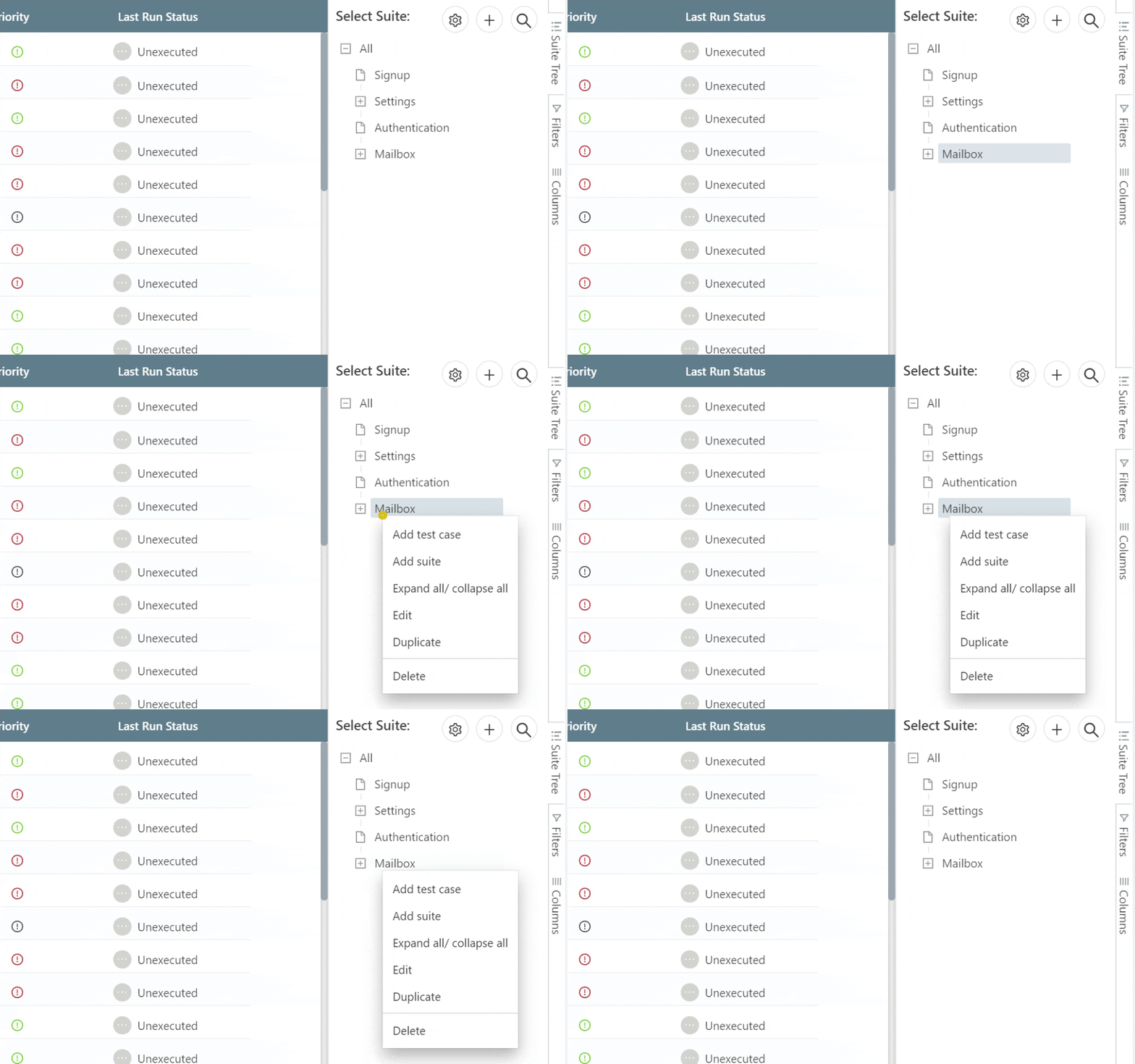
Suites tree
Suites can be represented better in a suites tree; thanks to the fact that they can be managed in a hierarchy of parent and children.
You can also click on a suite to see test cases that have been added under this suite and its children (depending on suite configuration: see below)
Context menu attached to the nodes on suite provides option to add test cases under this suite , add suites at child level, edit , duplicate and move the selected suite to Trash. Use right click to see Context menu.
Rearranging test suites
A selected suite can be dragged and dropped to change its position at same level in hierarchy on suites tree or to make it a child of other suites in hierarchy (other than its own children).
More than one suite can be selected using Ctrl key, and dropping all selected suites (that may be at different levels on tree currently) would change position for all and also the parent if they are dropped within a suite.
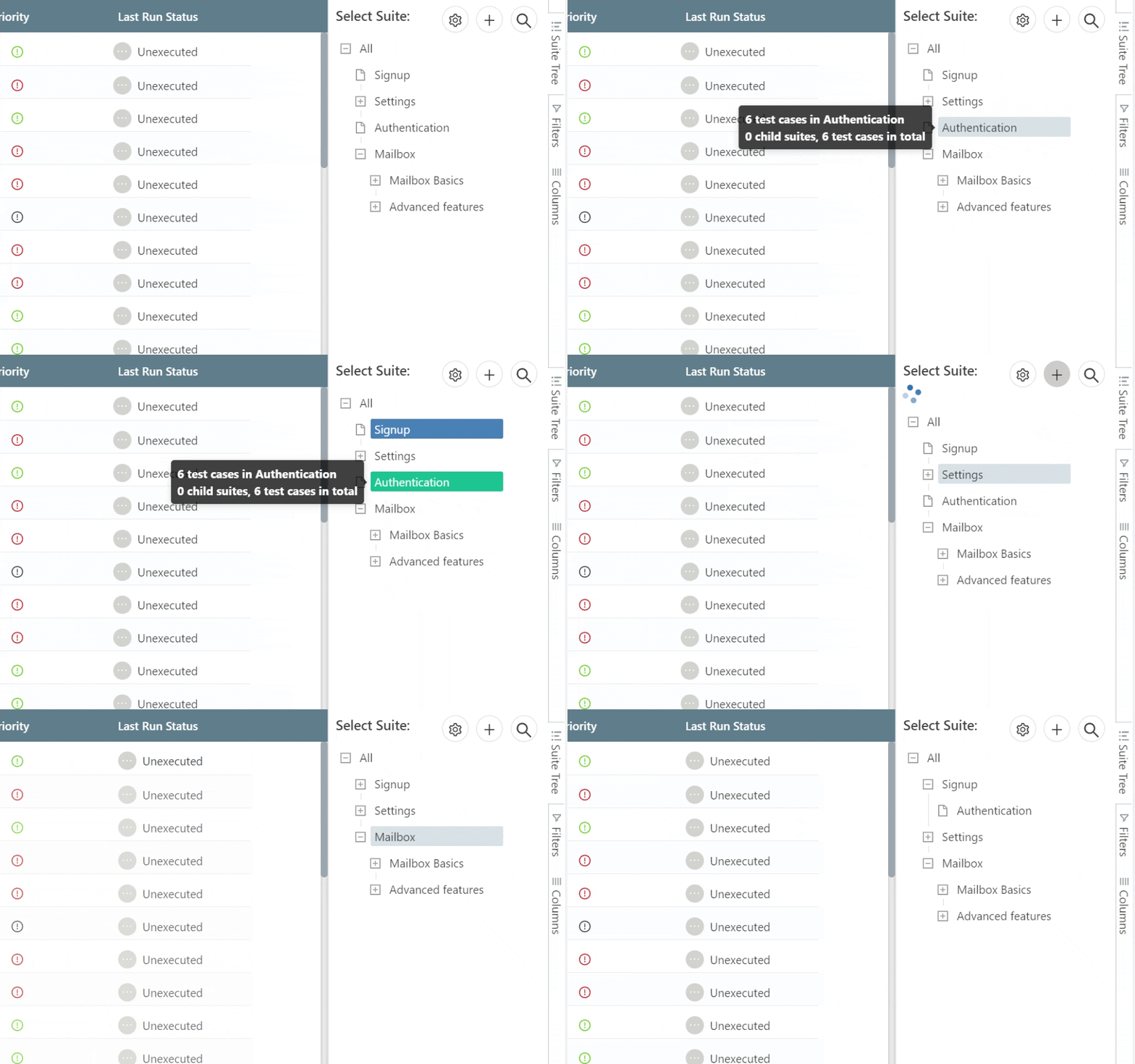
Here is one more example:
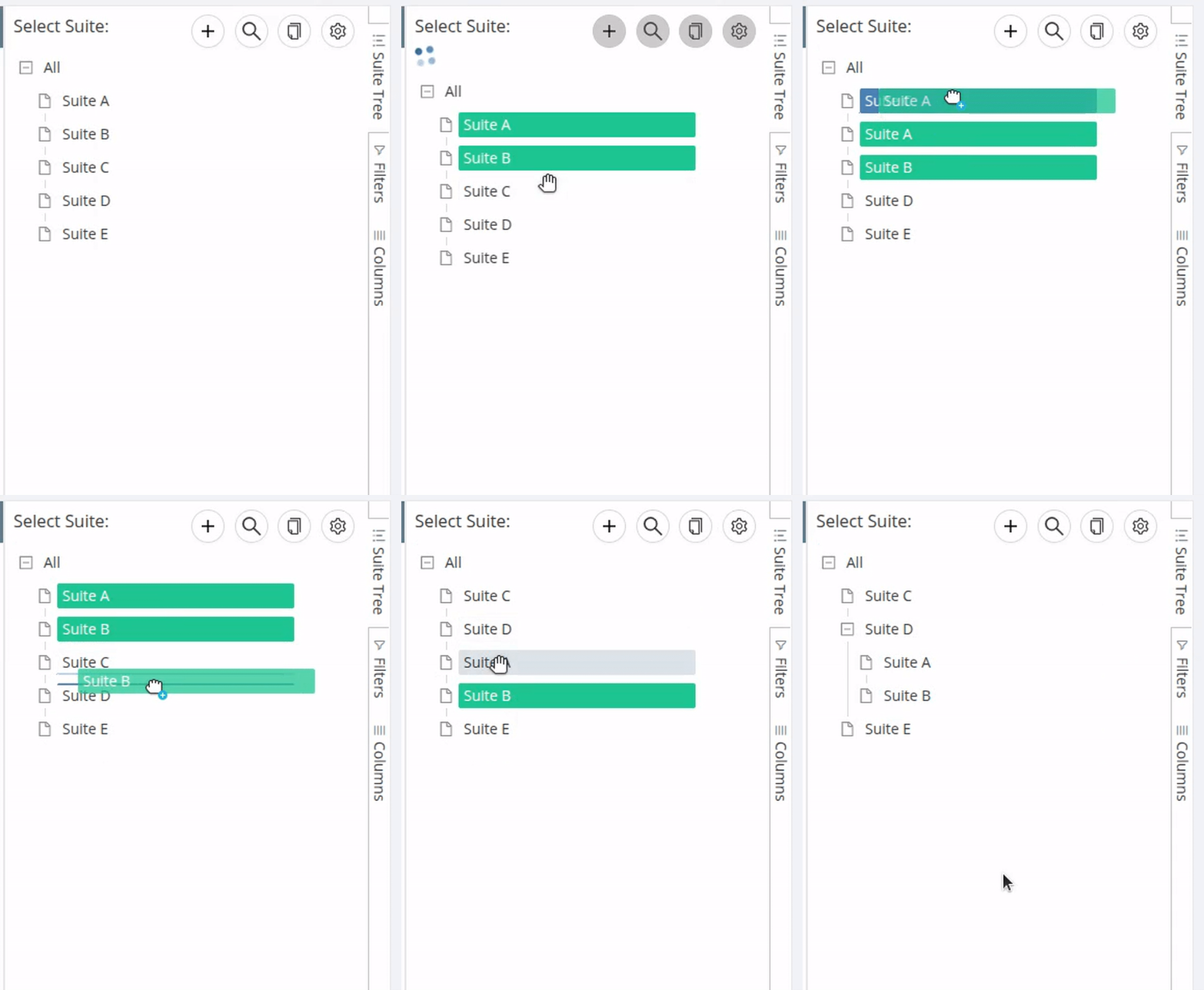
Please take note of how the blue line indicates where the selected suites will be relocated.
Suites configuration

If you wish to see only the test cases that are added immediately under selected suite or to only
show details of selected suite, and not to include ones from child suites then click on
suites configuration icon and check Show Immediate children only.
Editing suite
It looks like a straight forward process, but if you are changing the parent of a suite then it changes the hierarchy for entire suites tree.
Deleting a suite
To delete a suite, right-click it in the suites tree, choose Move to Trash, and type the suite ID to confirm. The suite moves to the project's Trash together with its entire child-suite hierarchy and the test cases it contains. For 60 days a company Administrator can restore it from Trash, with all its data. After 60 days, or when an Administrator empties the Trash, it is deleted for good.
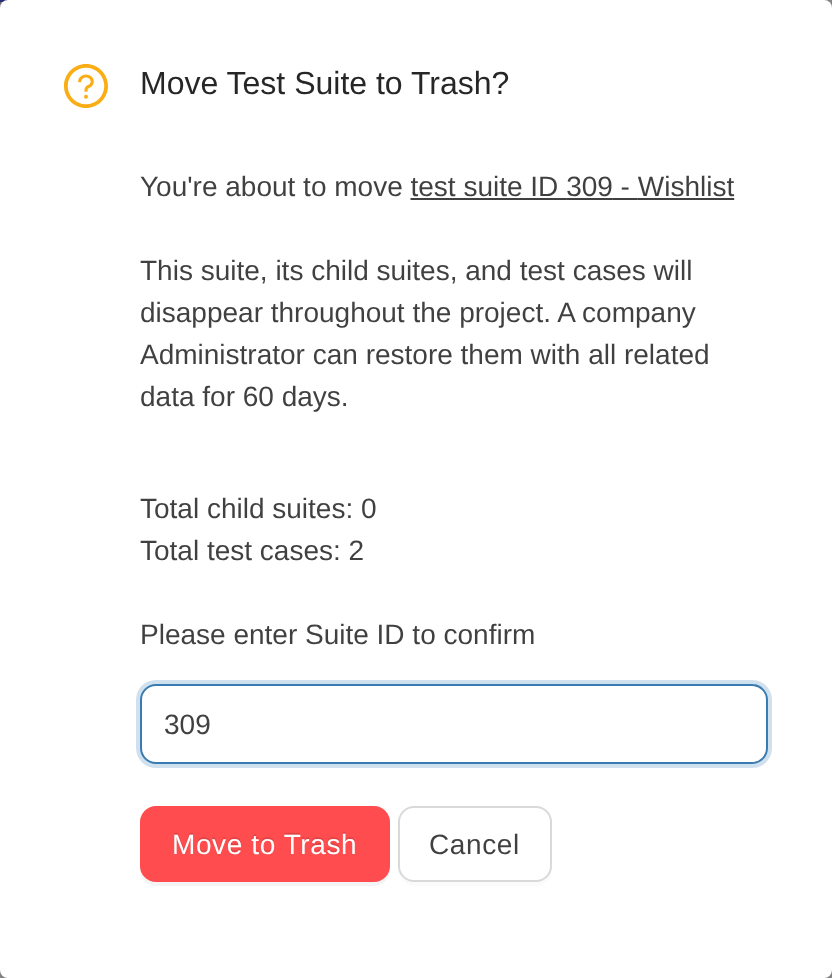
While the suite is in Trash, its test cases also disappear from the test plans they have been added to.
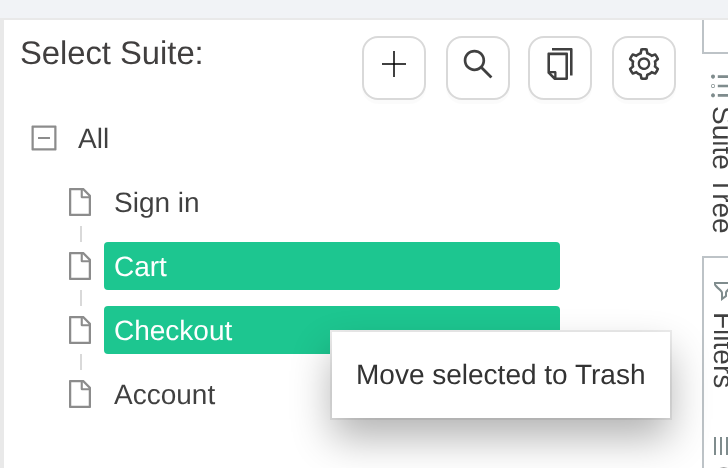
You can also select more than one suite on the suites tree and use Move selected to Trash to move them in bulk.
Duplicating a suite
Just like deleting, duplicating also works on entire hierarchy of selected suite, so all the test cases under the current suite and its children would also be duplicated under the same parent to which the selected suite belongs.



