

On this page
Targeted readers:
For development teams that maintain their BDD feature specifications (scenarios) in plain text using a shared repository and want them to be synchronized with test cases in TestCollab.
Here are some practical challenges a team may face:
-
Domain experts know the process in and out, but lack technical skills
Members lack collaboration
Automated and regressive testing is a challenge
-
Managers find it difficult to monitor (automated or manual) test executions
-
Deliveries are delayed or product quality is compromised due to all or some of the above reasons
Integration of BDD practices and TestCollab, which brings modern-day test case management and execution techniques, can help overcome these challenges.
🤔 Why?
Let us discuss the benefits to know 'why' this is important.
Macro Level Benefits:
-
Clarity - What is to be done, how it will be done, and the expected outcome are all well documented
-
Collaboration - Stakeholders like clients, domain experts, developers, and testers can ensure that the end product meets both the business requirements and user expectations
-
Better Coverage - Easy tracking of missing or duplicate scenarios
-
Better Code - Clear definition of features and their specifications makes developers' job easier
-
Better Testing - Testers know the scenarios, steps needed to perform an operation and their expected outcomes
-
Better Product - From system analysis to the product design, coding and testing; best quality is ensured
Operational Benefits:
-
Real Time Synchronization - With CI/CD pipelines, it is ensured that the test cases are updated as soon as there is any change in feature specifications and scenarios
-
AI-Powered Test Case Automation Training and Execution - QA Copilot uses simple instructions (as in scenarios) to train itself. No coding knowledge is required for the automation
-
Regression - Every change in the application requires regression testing to ensure feature's integrity. With QA Copilot, this simply requires creating a new RUN
-
Manual Testing Support - Easy test planning, assignment management, execution result logging, and regression support for manual testing
-
Better Monitoring - Dashboards that reflect testing efforts in real time make the life of a manager a lot easier
-
Better Efficiency - Whether automated or not, with TestCollab the testing practices become more efficient and targeted towards the end goal - Quality Product Delivered on Time
🛠️ How?
Since we have now discussed 'why' we need synchronization, let us see 'how' this works:
Pre-requisites:
-
A repository having features and scenarios in Gherkin format
-
A TestCollab user account with at least one API token generated
-
@testcollab/clipackage -
Id of the TestCollab project where the test cases will be synced
📝 The command
You only need one command to synchronize your entire repository with test cases in a TestCollab project.
tc sync --project {{your_project_id}}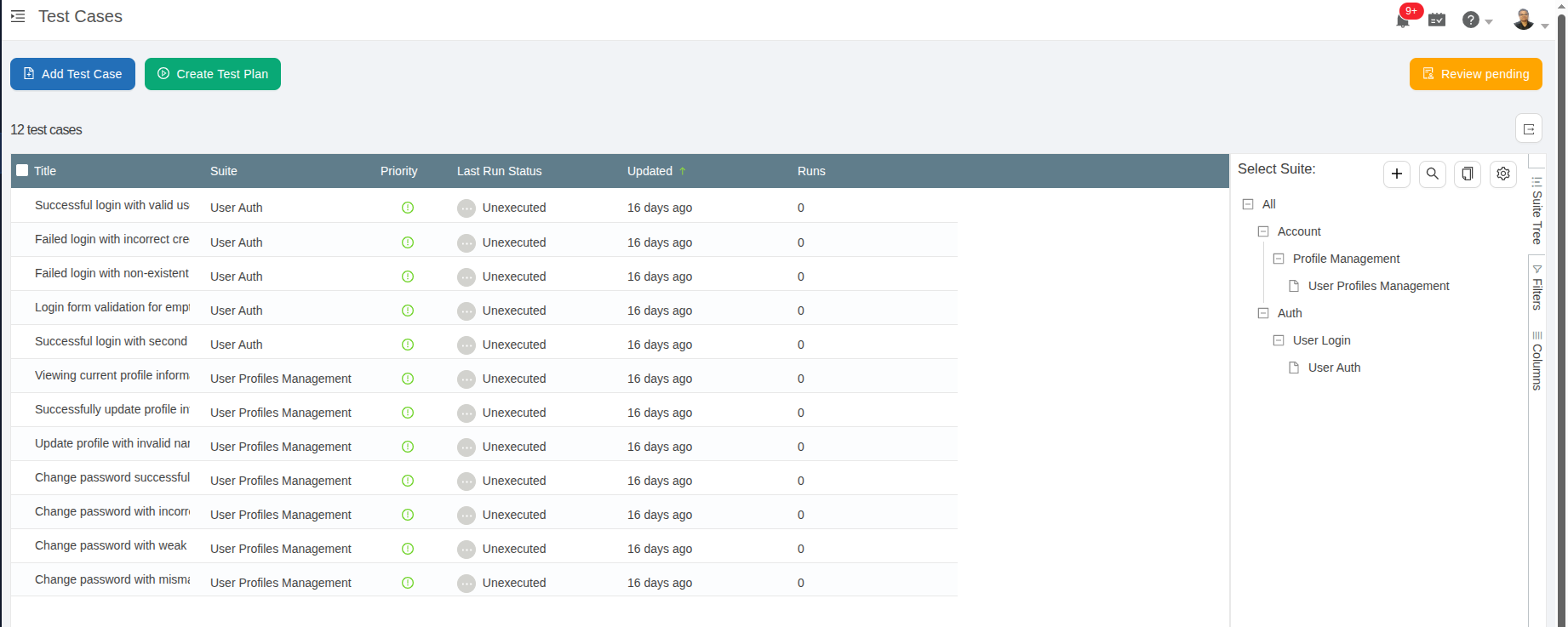
✨ Tip: The same command can be used to synchronize test cases after the changes in scenarios or features, have been committed.
More details on the process with an example are available at Setting up a BDD project with Test Collab
🗺️ How the sync maps your feature files
This section describes what tc sync does with a feature file, how it decides that a
scenario is the same one after a change, and what happens when a scenario or a whole file is
removed. The Git repository is the source of truth: the sync only writes from Git to TestCollab,
and a synced suite or test case cannot be edited, moved, archived or deleted in TestCollab. Change
the feature file and commit instead. The sync normally runs as a job in your CI pipeline on every
push to the main branch (see Step 5 of
Setting up a BDD project); it also works from a clone on your machine.
Conventions
-
Every committed
.featurefile in the repository is synced, wherever it sits. Uncommitted changes are listed in a warning and skipped. -
The folders on the file's path become nested suites, and a top-level
featuresfolder is left out. Inside them, the file name becomes a suite, and theFeature:title becomes the suite that holds the scenarios. Underscores become spaces and each word is capitalised. Sofeatures/auth/user_login.featurewithFeature: User logingives Auth > User Login > User login. -
The text under the
Feature:line becomes the description of the feature suite. -
Background:steps are added at the start of every test case of the feature. Free text written underBackground:becomes the description of those test cases, and removing it clears the description at the next sync. Comments in the file are not synced.
Mapping
| In the feature file | In TestCollab |
|---|---|
| A folder | A suite, one per folder level |
Feature: |
A suite, with the feature text as its description |
Scenario: or Scenario Outline: |
A test case, with the scenario title |
Given and When lines, and the And lines after them
|
One step each |
Then lines, and the And lines after them |
The expected result of the step before them |
But and * lines |
Added to the expected result as written |
Tags on the Feature:, Rule: and Scenario: lines
|
Tags on the test case. A tag removed from the file is removed from the case at the next sync. |
Rule: |
No suite of its own. Its scenarios sync into the feature suite, with the rule's
Background: steps ahead of their own steps and Rule: <title>
in their description.
|
Scenario Outline: with an Examples: table |
One test case plus a linked test dataset. Each <column> in the title and
the steps becomes {{column}}, and a test plan runs the case once per row.
Several Examples: blocks go into one dataset.
|
| A step's data table or doc string | A table or a preformatted block on that step or expected result |
For example, this scenario
Scenario: Valid password signs in
  Given the login page is open
  When the user enters a registered email
  And the user clicks Sign in
  Then the dashboard opens
  And a welcome banner shows the user name
becomes a test case with three steps:
| # | Step | Expected result |
|---|---|---|
| 1 | the login page is open | |
| 2 | the user enters a registered email | |
| 3 | the user clicks Sign in | the dashboard opens a welcome banner shows the user name |
The keyword rule is fixed: no setting changes how Given, When,
Then and And split into steps and expected results. The project setting
Show Gherkin Keywords in BDD Steps (Settings > General) only keeps the keyword at the
start of each step and expected result, so step 1 above reads
Given the login page is open. It applies to the scenarios the next sync writes.
Test datasets need the Elite or Enterprise plan. On other plans a Scenario Outline syncs without a dataset and the sync summary prints a warning. A mandatory custom field does not block the sync: synced cases get the field's default value, and the summary warns you.
How the sync recognises a scenario after a change
A test case keeps its number, its revisions, its results and its links as long as the sync recognises the scenario it came from. Inside a file, the sync pairs each scenario of the new version with one scenario of the previous version, in this order:
-
the same steps and the same title (nothing changed, or only its tags or its
Examples:table); the same steps (the scenario was renamed);
the same title (the steps were edited);
-
the same position in the file, only when the file still has the same number of scenarios.
So a rename keeps the case, an edit of the steps keeps the case, and a scenario that moves up or down in its file keeps the case. A scenario that no previous scenario pairs with is new and gets a new test case. A previous scenario that nothing pairs with is treated as removed (see below).
A renamed or moved file keeps its suite and its cases: the suite is renamed, or moved under the suites of the new folders. A pure rename with no content change is synced as a rename only.
Known limitations
-
A scenario renamed and edited in one commit. Neither the steps nor the title match, so the pairing falls back to the position in the file, which works only when the file keeps the same number of scenarios. Otherwise the old case is archived and a new one is created. To keep the history, rename the scenario, let the sync run, then change its steps.
-
A file renamed and heavily edited in one commit. Git then reports a deleted file and a new one instead of a rename. The sync archives every case of the old suite and creates a new suite with new cases. Rename the file, let the sync run, then edit it.
-
A scenario moved to another feature file. The sync recognises scenarios inside a file, not across files. The scenario becomes a new case under the other feature, and its old case is archived with its history.
-
Two scenarios with the same steps and the same title in one file. They can only be told apart by their order, so each keeps the case of its position and the sync prints a warning. Give them different titles.
-
The dataset belongs to the file. A dataset created by the sync is written back from the
Examples:table at the next sync of that scenario, so an edit made to it in TestCollab does not last. -
Only files that changed are rewritten. A case synced before an upgrade of the CLI gets its tables, doc strings, dataset and rule scenarios the next time its feature file changes. The same applies when the Gherkin keyword setting is switched.
-
The sync needs the Git history. It compares the last synced commit with the current one, so a CI checkout needs the full history (
fetch-depth: 0on GitHub Actions).
When a scenario or a feature file is removed
When a scenario disappears from a feature file, the sync archives its test case instead of
deleting it. The case leaves the test case list and cannot be added to a new test plan, but the
test plans that already contain it keep it, and its runs, results, revisions and comments stay. On
the test case you see two tags, Archived and Removed from repository, and the sync
summary prints Archived 1 test case(s) whose scenario was removed. To see archived
cases, turn on Show Archived on the test cases grid.
A deleted feature file archives the cases of all its scenarios. Its suite stays, so the archived cases keep their place in the tree.
To restore a case, put its scenario back with the same steps in the same file and commit.
The next sync restores the same test case, number and history included, and updates it from the
file; the summary prints Restored 1 archived test case(s) whose scenario is back. A
deleted file that comes back restores its cases the same way. A scenario that comes back with
other steps is a new scenario: it gets a new case and the old one stays archived.
You cannot restore, archive or delete a synced case by hand in TestCollab, because the repository owns it. There is no clean-up of archived synced cases yet: they stay archived, out of the lists, until their scenario returns.
Reporting results for synced scenarios
A Cucumber JUnit report names the feature and the scenario it ran, and that is the pair the sync
stored. tc report matches such a result to the synced test case by feature title and
scenario title, so the feature file needs no TestCollab ID. Run tc sync on the commit
that ran the tests before you report, and see the
CLI command reference
for the options.
📖 Related articles
AI powered test case automation training and execution



