

During the lifetime of a test case it goes through many a changes by its users. TestCollab not only keeps a log of the changes a test cases has been through, but also gives options to
-
See the difference between the selected revision and its preceding version
Option to revert to a previous version (if required)
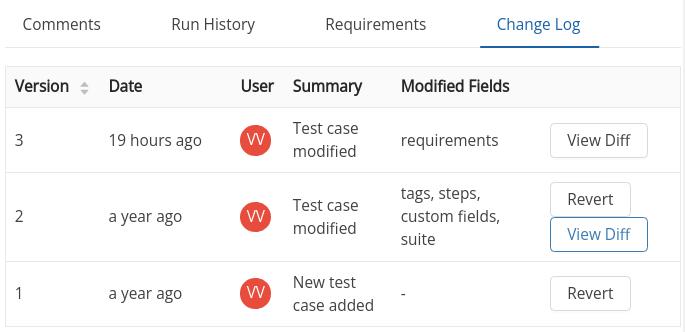
The Change Log tab
On the test case view pane all the changes done to a test case can be seen on the Change log tab in chronologically descending order i.e. latest change is shown first.
Every row in the change log denotes a version (revision) of test case, where you see:
Version number (again latest being on top)
When the version was introduced
Who made this change
-
A brief summary of change - it can be adding a new case, modifying it or reverting to a previous version
Fields for which the values have changed during this revision
Actions
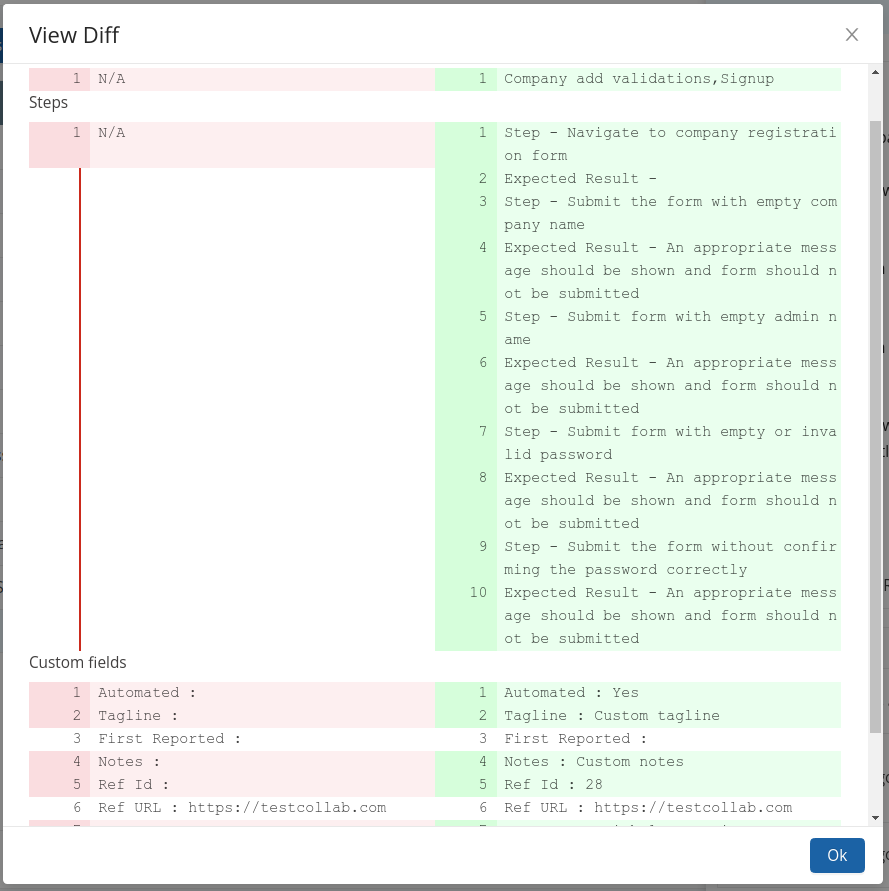
Viewing Diff
To know what changes have been done in the values of fields during an update, you can use
View Diff option. It opens up a box to show the changes
Revert to a previous version
If you are convinced that a previous version of test case is to be used and all the changes done
after that revision should be omitted then Revert action can be opted. This would
revert all the changes that a test case had been through after the selected revision, this would
again create yet another revision with logs of whatever differences test case has been through due
to this revert action.
To have more details on test case view pane, refer to this article.



