

On this page
TestCollab is a test management tool where teams keep their test cases, run them, and report the results. When the review system is enabled, authors can send new or changed test cases for approval. A separate project setting makes approval mandatory.
A reviewer group is a saved list of reviewers in a project, for example "L1 reviewers" or "L2 reviewers". You send a test case to the group, not to one person. Any eligible member of the group can start the review. The review does not wait when one reviewer is away or busy.
How a group review works
- The author sends the test case for review to a reviewer group.
- All eligible members of the group get a notification.
- One member clicks Start review. That member becomes the reviewer of the test case. The other members get a notification that tells them who started the review.
- The reviewer uses the usual actions: Approve, Reject or Request Changes. See Review Status and Their Impact on Test Cases.
Only one member can start a review. If two members click Start review at the same time, the first click wins. The second member gets the message "This review has changed or already started. Please refresh."
Before you start
- The review system is available on the Elite and Enterprise plans.
- Only users with the Administrator role can turn on reviewer groups and create, edit or delete groups. Other project members can see the groups.
- A group member can review only when they are an active member of the project and their role has the "Can review and approve test cases" permission. Membership in a group does not give this permission. See Who Can Review the Test Cases?
Step 1: Turn on reviewer groups
- Open the project and go to Settings > General.
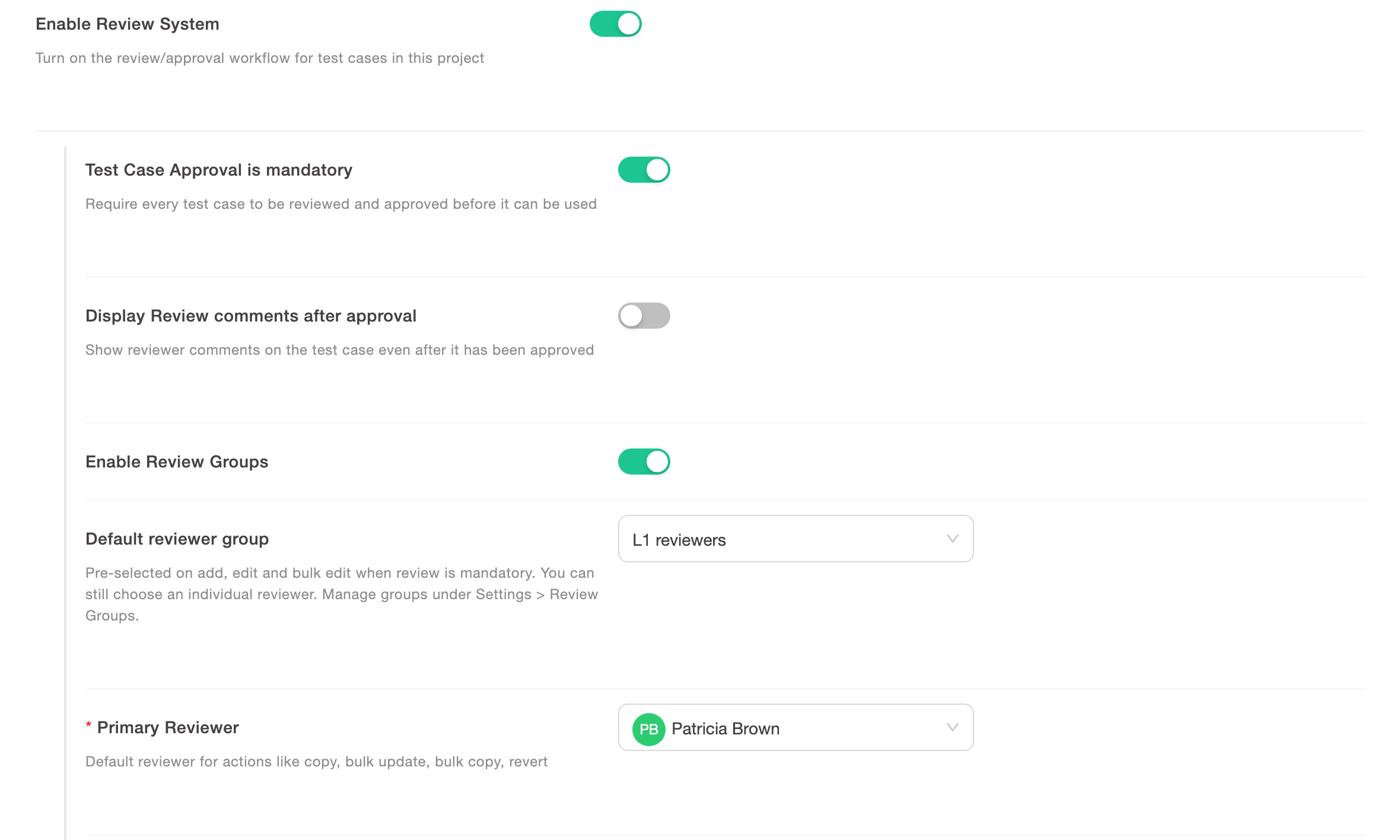
- Turn on Enable Review System. The Enable Review Groups toggle shows only when the review system is on.
- Turn on Enable Review Groups.
- Save the settings.
Reviewer groups are off by default. After you save, a Review Groups item shows in the project Settings menu.
Step 2: Create a reviewer group
- Go to Settings > Review Groups.
- Click Create reviewer group.
- Type a Group name, for example "L1 reviewers".
- In Reviewers, select one or more project members.
- Click OK.
You can add only active project members who have the review permission. A group must have a name and at least one reviewer. Two groups in the same project cannot have the same name.
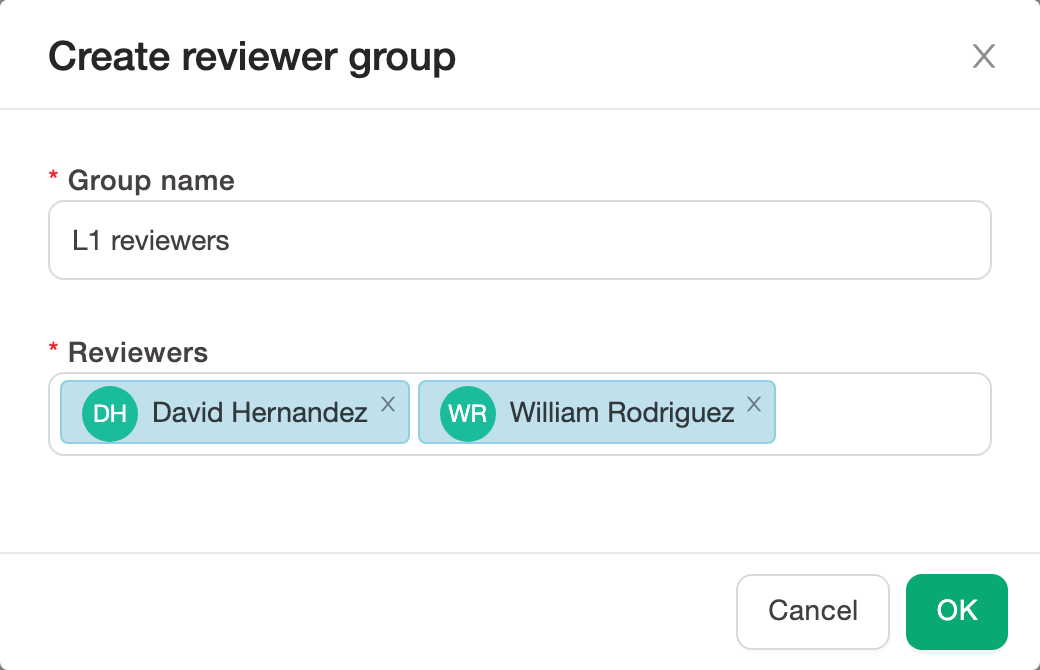
After you save, the group shows in the list with its reviewers.

To change the members later, click Edit on the group, add or remove reviewers, and click OK. A member who has already started a review stays the reviewer of that test case, even if you remove them from the group.
Step 3 (optional): Set a default reviewer group
On Settings > General, below Enable Review Groups, select a Default reviewer group and save.
When approval is mandatory, TestCollab pre-selects this group on the add test case, edit test case and bulk edit pages. The author can still select a different group or one reviewer.
Bulk update uses the reviewer or reviewer group selected in the form. When approval is mandatory and neither is selected, it falls back to the primary or secondary reviewer from project settings. Copy and revert continue to use those individual defaults.
Step 4: Send a test case to a group
One test case
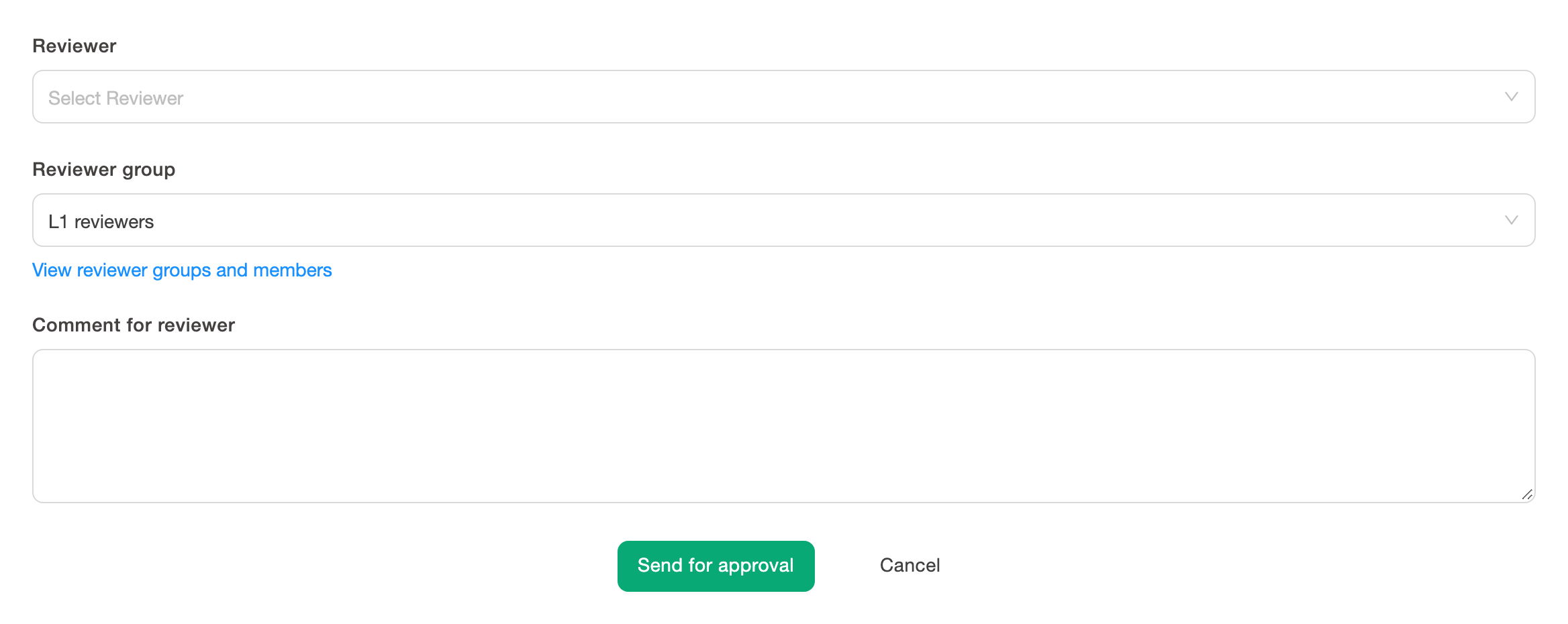
On the add or edit test case page, select a Reviewer or a Reviewer group. You can select only one of the two. Then save the test case.
Many test cases
- On the test cases page, select the test cases.
- On the bulk actions bar, click Send for review.
- Select a reviewer group. The primary and secondary reviewer fields hide when you select a group.
- Confirm.
Each group member gets one notification for the whole bulk action, not one notification for each test case. You can also select a group in Bulk edit.
The author of a test case cannot review it. TestCollab refuses a group when no member other than the author can review the test case.
Step 5: Start the review
- Open the test case.
- In Review Information, you see Reviewer group: and the group name.
- Click Start review.
You are now the reviewer. The Approve, Reject and Request Changes actions show for you. Starting a review does not change the test case, its review status or the comments.

The Start review button does not show when:
- you are the author of the test case,
- you are not a member of the group, or you do not have the review permission,
- another member has already started the review.
When the reviewer requests changes and the author sends the test case again, the same reviewer keeps the review.
Change the reviewer or the group
While the review is pending, the author, a project administrator, or a user with the "Can change reviewer" permission can open Change reviewer in Review Information. They can select a different reviewer or a different reviewer group. The new reviewer or the group members, and the previous reviewer, get a notification.
Find test cases by group
On the Test Cases page, you can show the reviewer group of each test case and filter the list by group. For example, an L1 reviewer can list all the test cases that wait for the L1 group.
Show the Review Group column
The Review Group column is hidden by default. To show it:
- Open Test Cases.
- At the right edge of the list, click Columns.
- Select Review Group. We recommend that you also select Review Status and Reviewer.
- Click Columns again to close the panel.
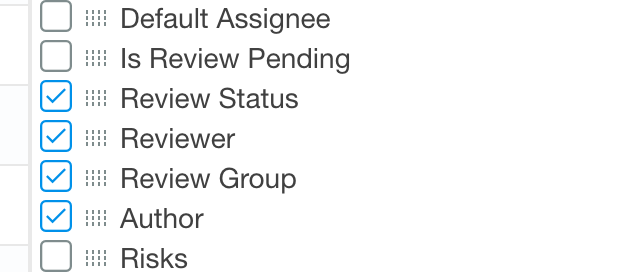
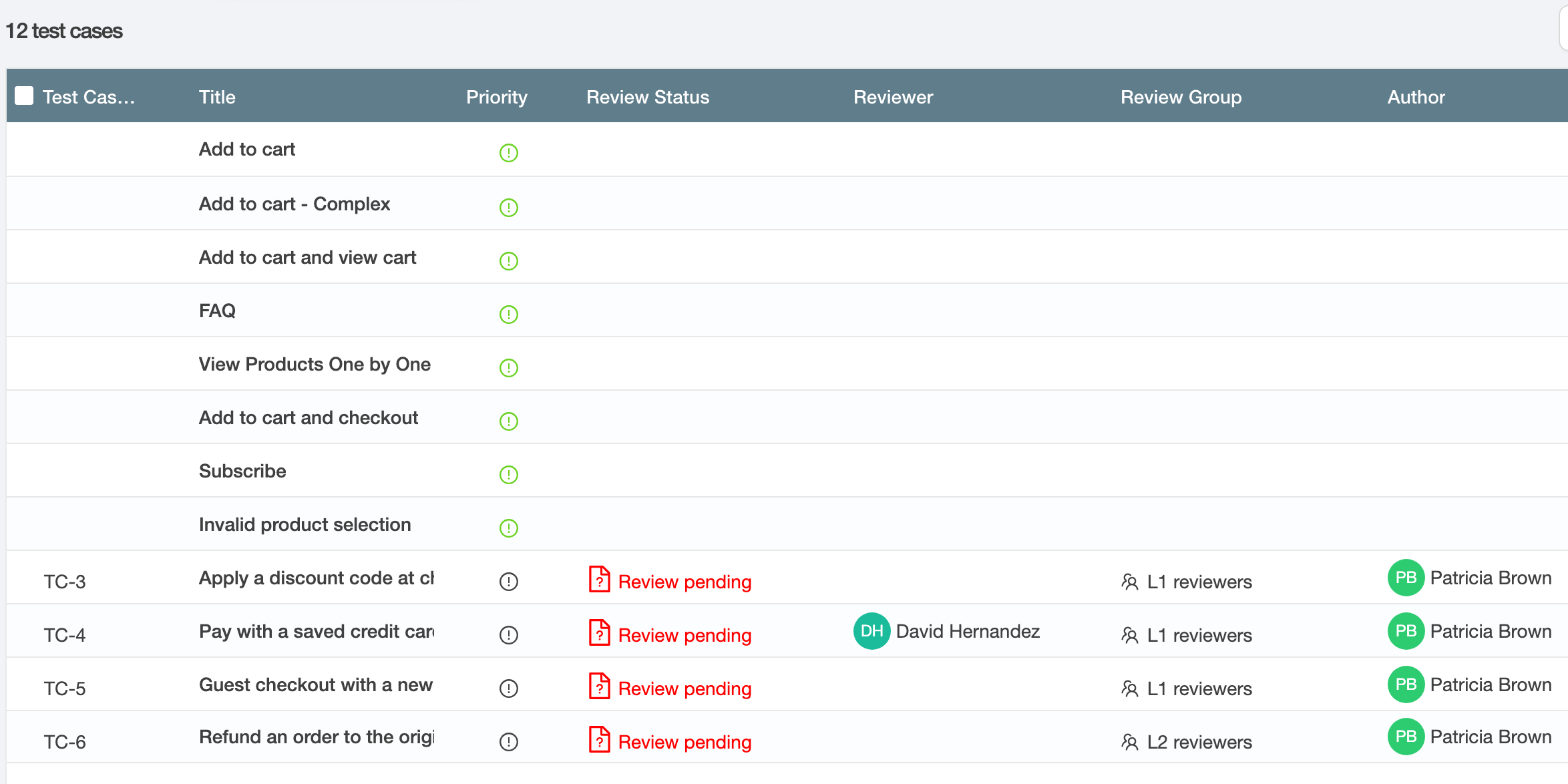
The Review Group column shows the group that each test case was sent to. The Reviewer column stays empty until a member clicks Start review. In the example below, David Hernandez started the review of TC-4. The other test cases still wait for a member of their group.
Filter by group in the column
- Move the pointer over the Review Group column header and click its menu icon.
- Click the filter tab (the funnel icon).
- In Select review groups, select a group.
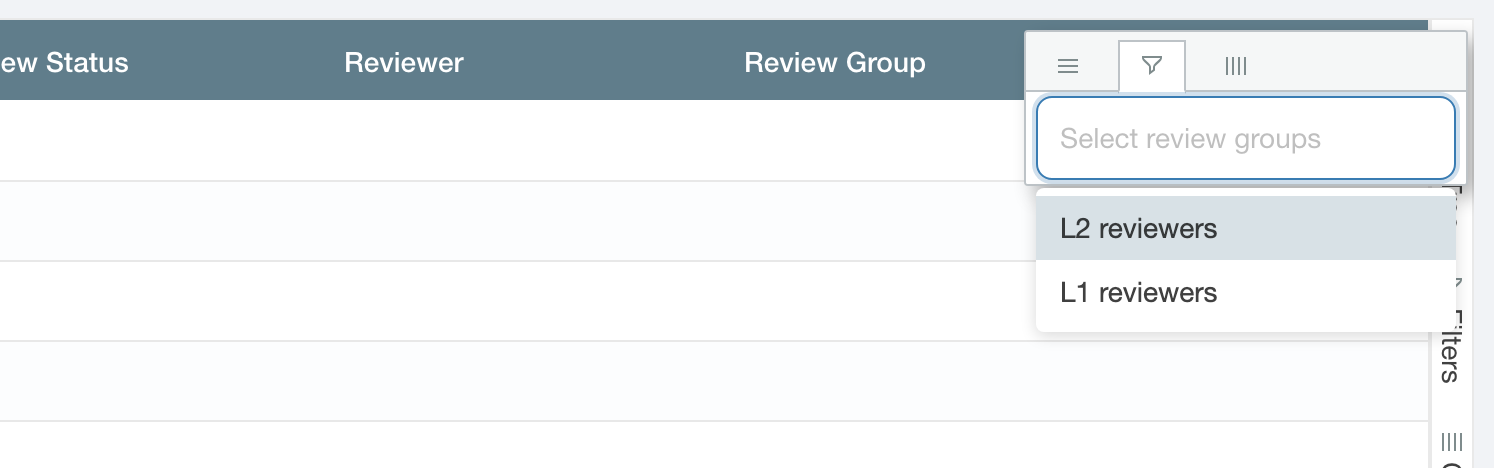
The list is filtered at once. The column header shows a funnel icon, and the page shows the number of filtered test cases. To add another group, open the filter again and select it. A test case matches when it was sent to any of the selected groups. To remove the filter, click Clear filters.

Use the advanced filter
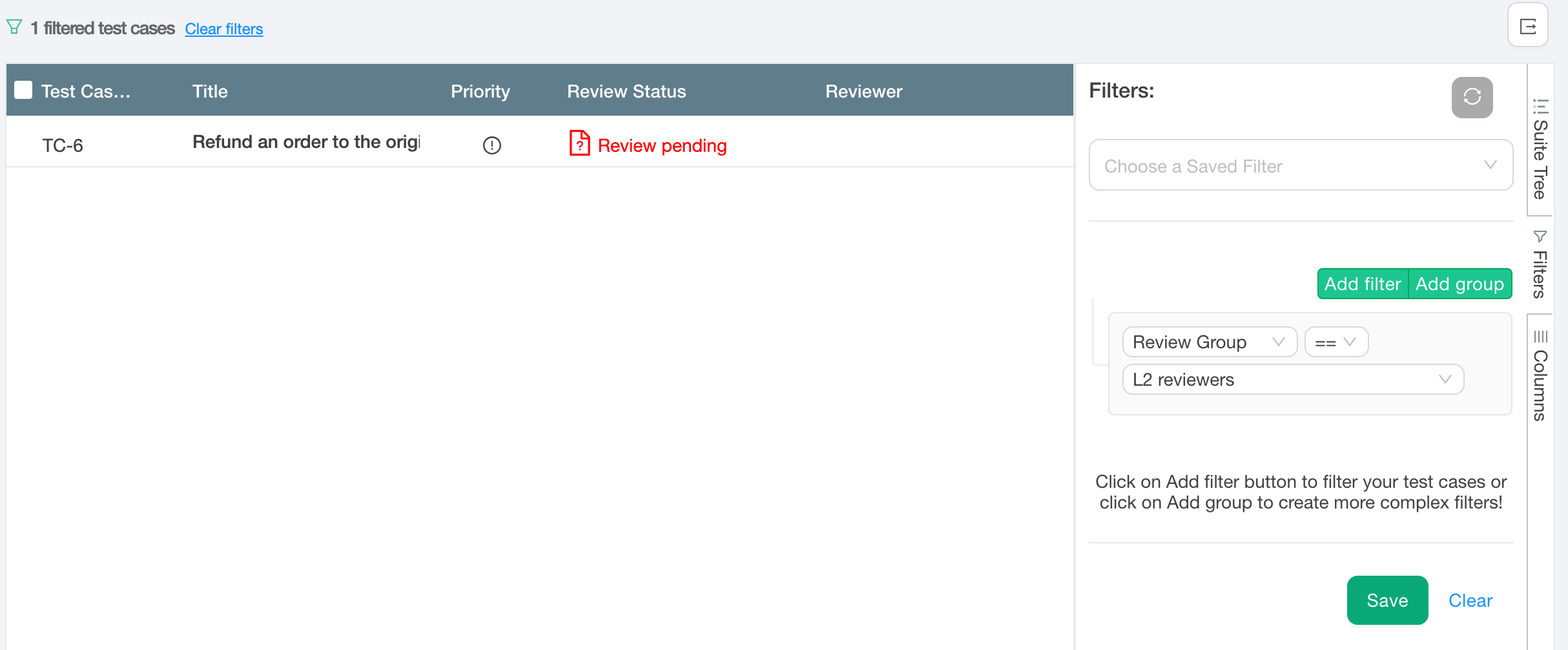
- At the right edge of the list, click Filters.
- Click Add filter and select the Review Group field.
- Select an operator: ==, !=, Any in or Not in.
- Select one or more groups, then click Apply.
Click Save to keep the filter for later. You can combine the Review Group rule with other rules, for example a priority. See Advanced Filters.
Activity and audit log
The project activity and the audit log record these events, with the user who did them:
- Reviewer Group Created
- Reviewer Group Updated, with the reviewers who were added to or removed from the group
- Reviewer Group Deleted
- Review Started, with the test case, the group and the member who started
Delete a group
On Settings > Review Groups, click Delete on the group and confirm. You cannot delete a group when:
- it is the default reviewer group. Select another default group, or clear it, first.
- it has pending reviews that no member has started. Use Change reviewer to move these reviews to a reviewer or another group first.
TestCollab keeps the review history of a deleted group. Test cases show the group name with "(deleted)". You cannot select a deleted group for new reviews.
Turn off reviewer groups
Turn off Enable Review Groups in Settings > General and save. Then:
- the group fields and the Review Groups settings page do not show,
- nobody can send a test case to a group or start a group review,
- a reviewer who already started a review can still finish it,
- a group review that nobody started stays pending. Use Change reviewer to assign a reviewer to it.
Your groups and the review history stay. When you turn groups on again, the groups come back.
What changes when groups are on or off
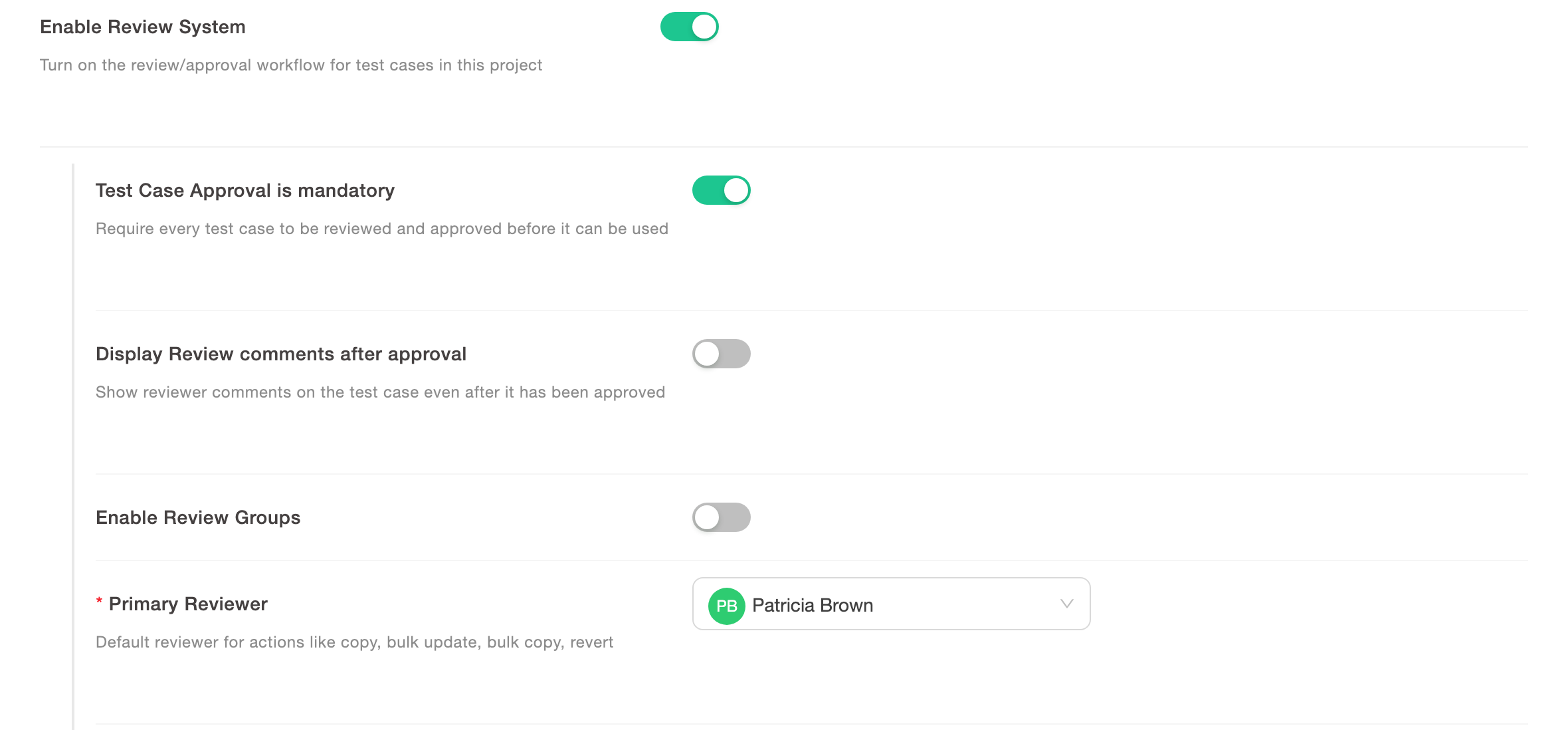
These screenshots show the same project with reviewer groups on and off.
Settings > General
When groups are on, the Default reviewer group field shows below Enable Review Groups. When groups are off, it does not show.
Groups on
Groups off
Settings menu
When groups are on, the Settings menu has a Review Groups item. When groups are off, the item does not show.
| Groups on | Groups off |
|---|---|
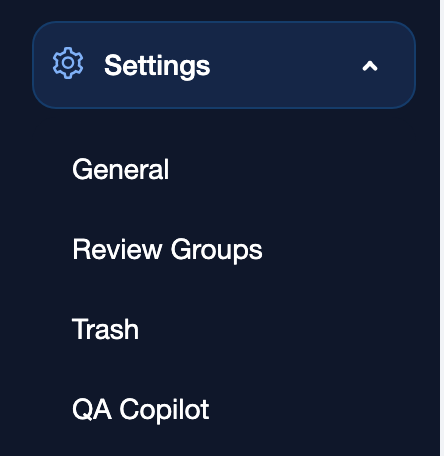
|
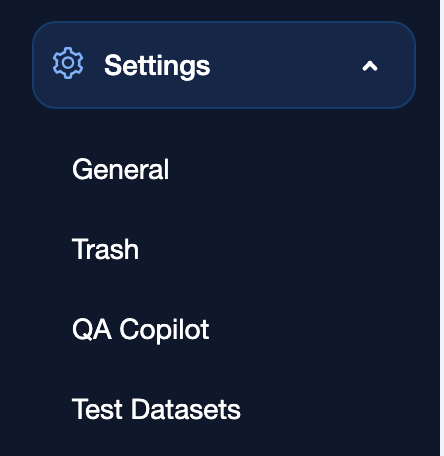
|
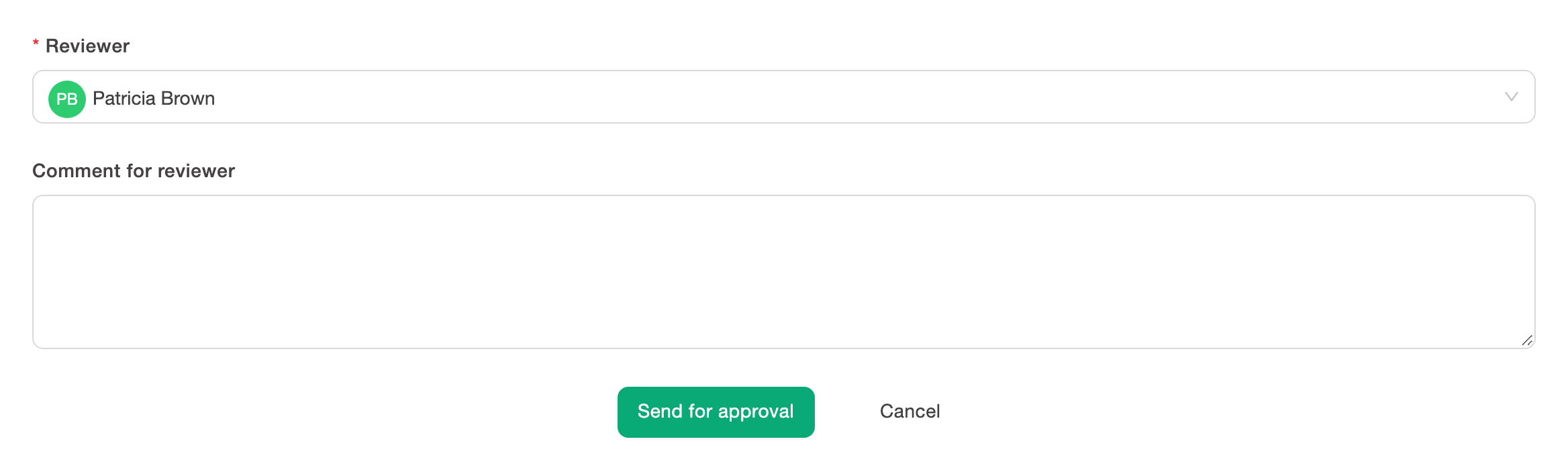
Add and edit test case
When groups are on, the form has a Reviewer field and a Reviewer group field. If approval is mandatory and a default group is set, that group is pre-selected. When groups are off, the form has only the Reviewer field. If approval is mandatory, the primary reviewer from project settings is pre-selected.
Groups on
Groups off
Review Information of a group review
When groups are on, an eligible member sees Start review. When groups are off, the test case keeps its group, but the button does not show. The panel shows the message "Review groups are disabled. Use Change reviewer to assign an individual reviewer."
Groups on
Groups off